Obsidian / Backup and recovery
Decide what to keep and how to restore itBack up your Obsidian notes
Git, File Recovery, and separate copies
This page was machine-translated from Japanese. Read the Japanese original
Before losing a note, decide which content and settings to keep and where you can restore them from. Using small, author-created examples, we tested restoring an earlier Git version, older content from File Recovery, and a copy outside the vault. This guide distinguishes the role of each method from what the exercise did not verify.
Separate version history from independent storage
A backup plan defines what to keep, which point in time to restore, where to store it, and how to verify the restored content. Having synchronization configured—or being able to see a file now—does not establish that the earlier versions and coverage you need are available.
- Earlier Git versionsExtract one committed note into a file with a different name
- File RecoverySelect older content from local app history, restore it, and reopen it
- A copy outside the vaultOpen three selected Markdown files in a new location
All three are limited examples tested in practice. The copy outside the vault was still on the same file system; it did not use an independent physical device or cloud storage. Testing three methods does not establish that data was stored on three independent media.
Decide what to save and where
List what you need from your vault and match each item to a check at the restoration destination. The table is a planning aid; it does not claim that this exercise saved and restored every item.
| Planning item | What to check | Scope of this demonstration |
|---|---|---|
| Note content | Required Markdown filenames, relative paths, and the version of their content | Three files restored from a copy, one Git-tracked note, and a separate File Recovery note |
| Attachments and references | Locations of images, PDFs, and other attachments, and whether notes can reference them | Attachments were not tested. Internal links were checked only among the three Markdown files in the copy example |
| Settings and plugins | .obsidian settings, required plugins, and which plugin data to include | Backup and restoration of settings and plugin data were not tested |
| Storage location | Independence from the original storage device, read permissions, and storage method | Outside the vault but on the same file system. Independent media and cloud storage were not tested |
| Frequency and retention | The point in time to restore, older versions to retain, and the policy for deleting old versions | One copy operation, two Git commits, and two normal File Recovery saves. Long-term retention and recurring operation were not tested |
| Restoration practice | A separate restoration destination, plus a procedure and schedule for checking content, settings, attachments, and links | Selected content, relative paths, actual links, and reopening were checked. Recovery duration and recovery after a failure were not measured |
Decide how recent the recoverable changes must be and how long restoration may take for your own needs. We did not measure whether RPO/RTO or recovery-time targets were met. Choosing a copy frequency and retaining earlier versions for a defined period are separate checks.
1. Git: recover earlier content under a new name
The Git example uses one practice file, Git履歴メモ.md. We committed its initial content, changed a check item in the actual Obsidian editor, saved it, and created a second commit. We then extracted the previous commit’s actual blob into a new file, Git復元メモ.md, and opened it in the app. The modified original file was retained.
The two commits have a parent–child relationship and contain different content blobs. Only this one Markdown file was tracked by Git; the new restoration note, the File Recovery note, and settings were untracked. This does not establish that the entire vault was included in history.
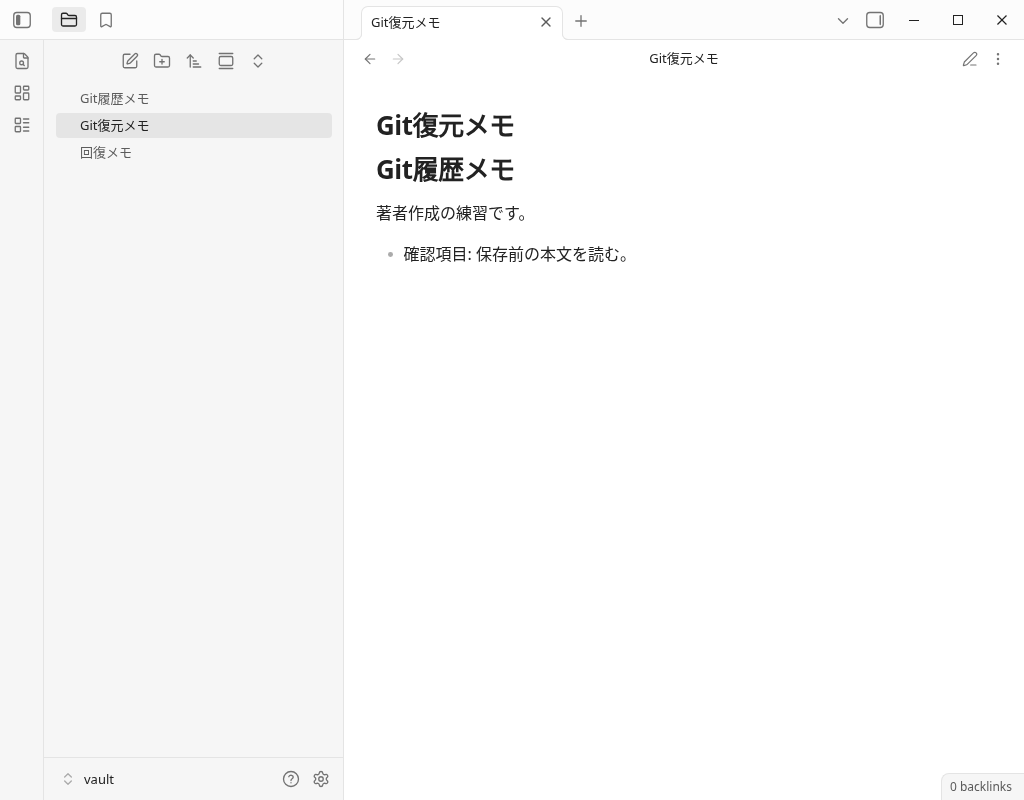
The complete restored Markdown content is shown below. The earlier blob, restored file, and downloadable original were identical UTF-8 files of 98 bytes.
# Git履歴メモ

著者作成の練習です。

- 確認項目: 保存前の本文を読む。
To check your own files, first read the current status and history, then select the commit and path to recover. The following commands illustrate read-only inspection. Replace <commit> with a value from your own history.
git status --short -- "Git履歴メモ.md"
git log --oneline -- "Git履歴メモ.md"
git show "<commit>:Git履歴メモ.md"
Choose an unused new name that distinguishes the extracted file from the original note, then read the older content before deciding what to keep. The Git operations in this demonstration used a local shell. We did not test the Obsidian Git plugin, remotes, push/pull, automatic commits, or propagation to another device. Files excluded from a commit are not treated as recoverable by that commit.
2. File Recovery: restore older content from local history
The supplementary demonstration used the English settings UI. We enabled Settings → Core plugins → File recovery and opened its settings. For testing, we changed the initial Snapshot interval value of 5 minutes first to 0.05 minutes, then to 0.5 minutes. History length displayed 7 days, but seven-day retention was not tested.
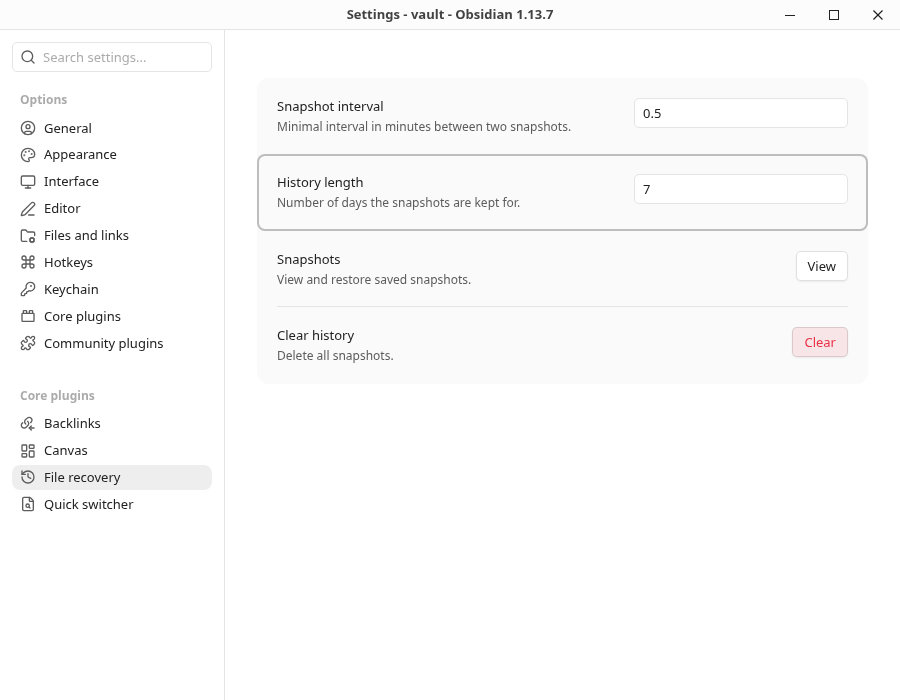
The 0.5-minute setting is the minimum interval between history entries; it does not mean that a snapshot is always saved every 30 seconds. This version’s core has a 60-second timer for retrying pending saves. We confirmed that versions A and B, saved in the actual editor, became pending and were added to history by that normal timer. The tester did not write to the history database or call a history-creation API.
- Save A in the actual editor. We entered version A, including the sentence about checking previously saved content. We checked the saved file, confirmed its pending status, and verified that A was not yet in history.
- Observe the normal save. A entered history after about 60 seconds. We then edited and saved B, which entered history through another normal save about 58 seconds later. Two observations do not establish a universal duration.
- Select the older content on screen. We pressed
View, searched for the recovery note, and selected the latest B and earlier A entries to read each version. - Restore and reopen. With A selected, we pressed the actual
Restorebutton. The saved file matched A. We moved to another note, then reopened the recovery note through the app’s file explorer; its content still matched.
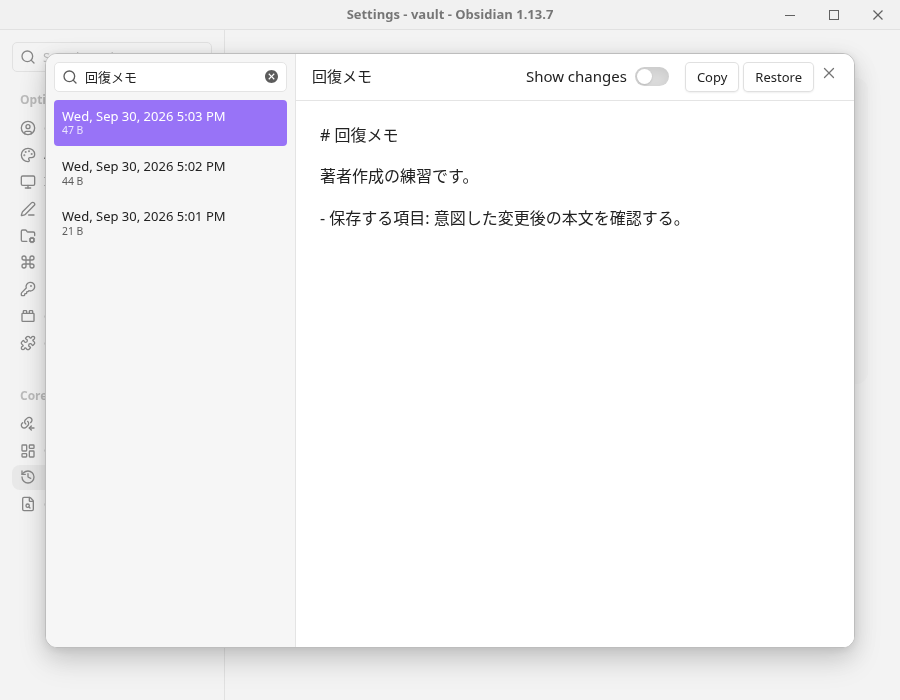
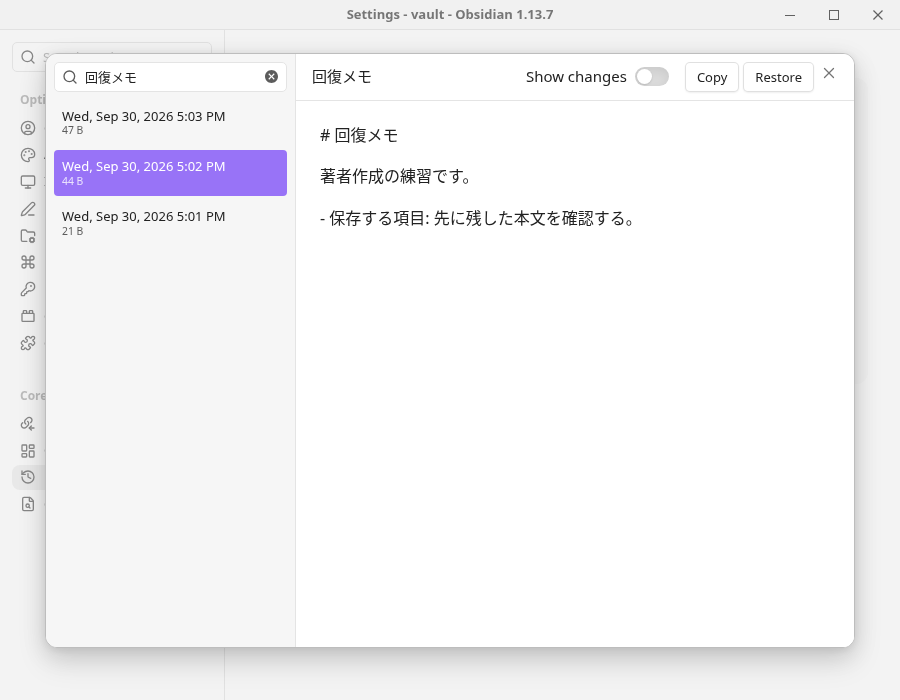
The UI displayed “44 B” for A and “47 B” for B. The actual UTF-8 file sizes used to verify the downloads were 110 bytes for A and 119 bytes for B. We did not treat the UI values as UTF-8 byte counts. After Restore, the restored A also appeared as a new history entry. That entry resulted from restoration; it is separate from the evidence of the earlier normal saves of A and B.
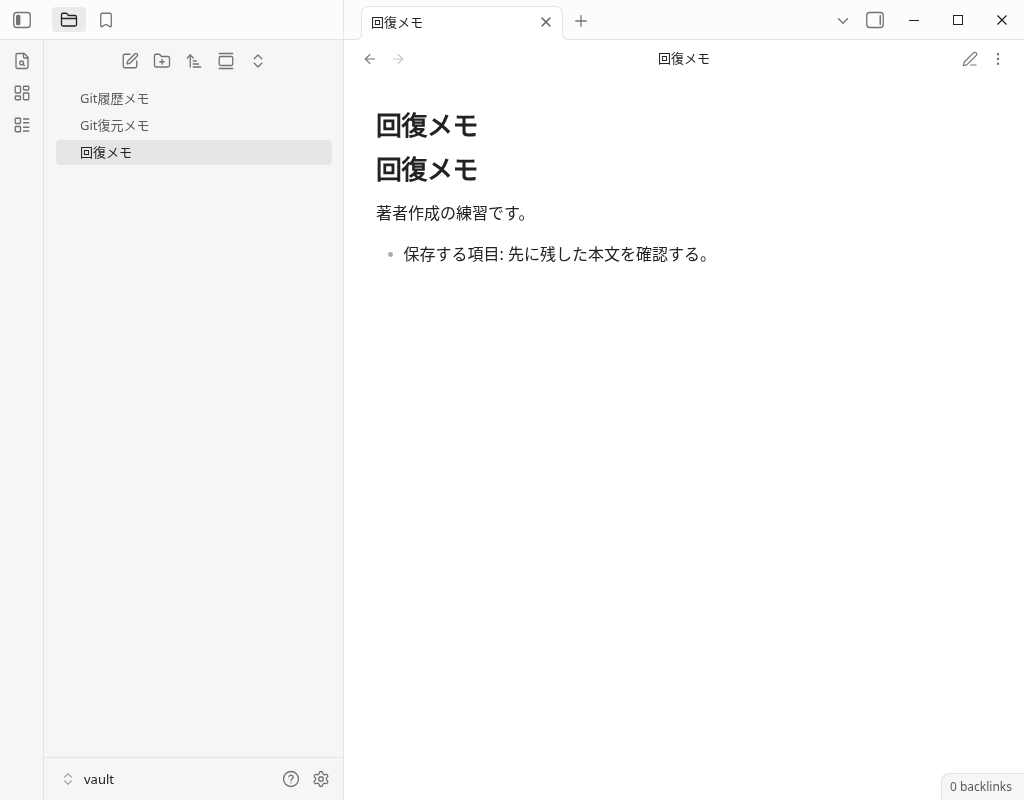
The complete restored Markdown content of A is shown below. The older A displayed in the UI and the final saved file were identical at 110 bytes.
# 回復メモ

著者作成の練習です。

- 保存する項目: 先に残した本文を確認する。
This result restores one note’s content from history present in this local profile. It does not demonstrate saving File Recovery history to an independent backup device. We did not test profile migration, app reinstallation, history database corruption, long-term retention, or recovering deleted files.
3. A separate copy: check content, structure, and links
In the original copy demonstration, we saved three author-created Markdown files outside the vault and restored them to a new location separate from the originals. 索引.md links to ノート/観察メモ.md and ノート/確認メモ.md. We preserved the filenames and relative paths.
索引.md
ノート/
  観察メモ.md
  確認メモ.md
After copying, the tester changed one note’s content and deleted another note only in the practice vault. All three original texts were retained in the copy. Restoration used a new location without overwriting the original state. For your own practice, keep your original notes and prepare a separate practice copy and restoration destination.
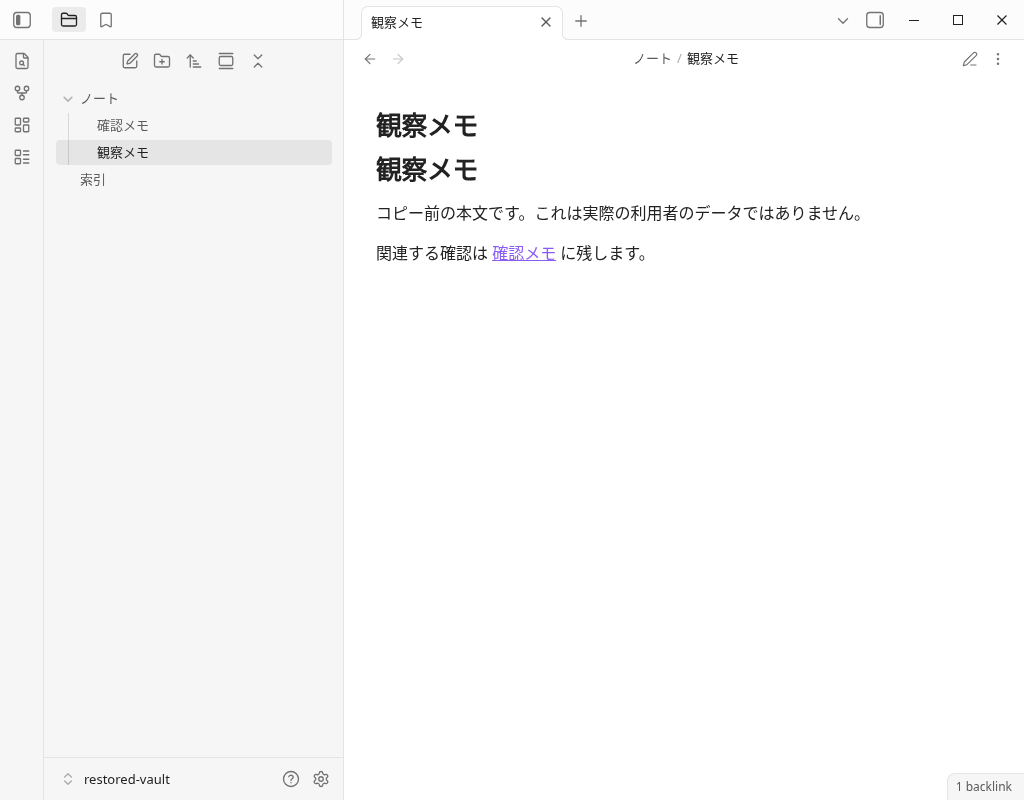
The complete restored observation note is shown below.
# 観察メモ

コピー前の本文です。これは実際の利用者のデータではありません。

関連する確認は [[ノート/確認メモ|確認メモ]] に残します。
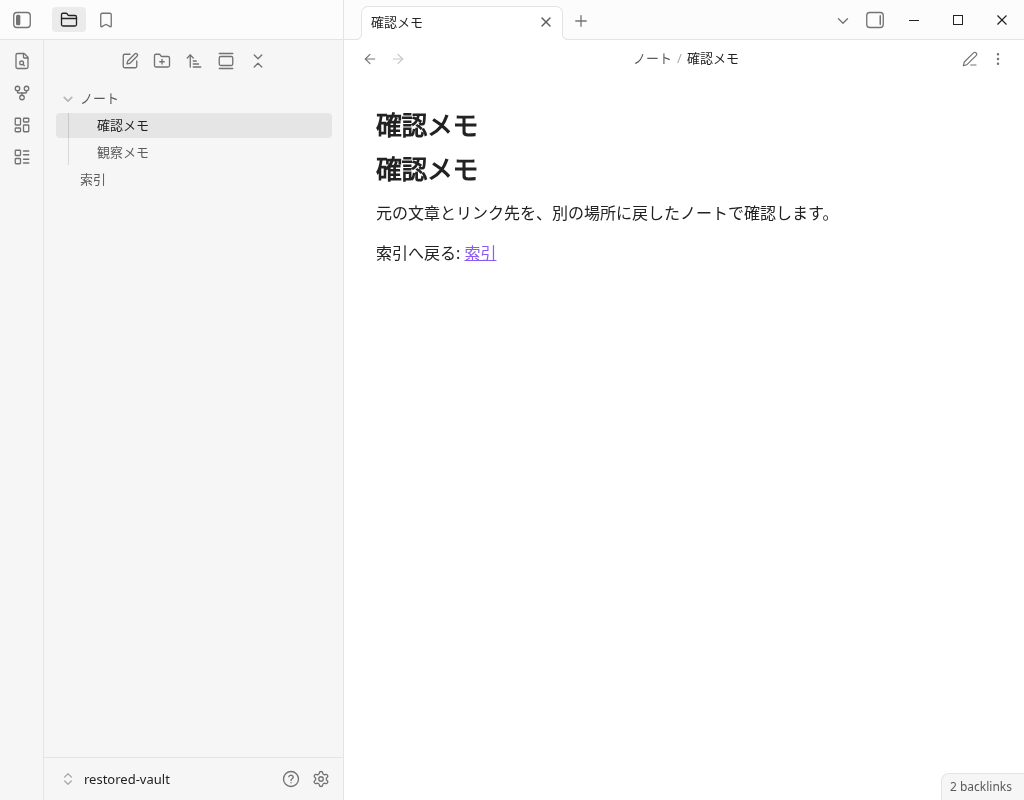
Following the actual link from the index opened the confirmation note at the restoration destination, although it had been removed from the original location. Its return link opened the index. We then reopened the index through the app’s file explorer and confirmed that the three saved Markdown files had not changed.
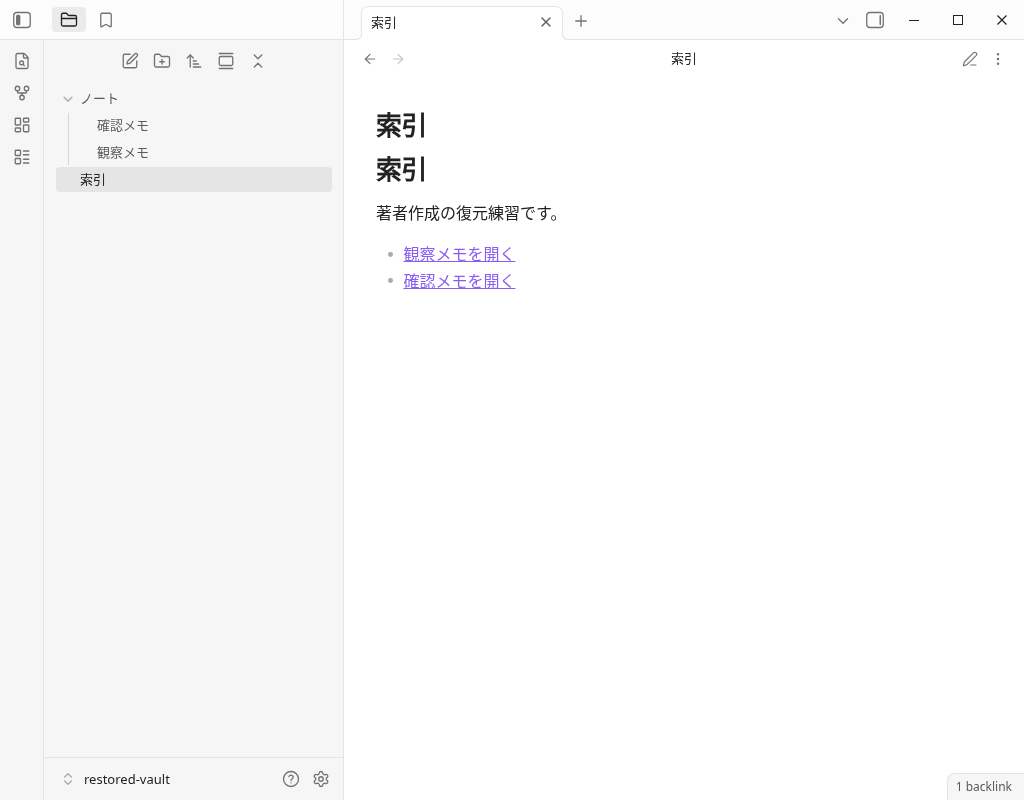
The complete Markdown content of the index is also shown below.
# 索引

著者作成の復元練習です。

- [[ノート/観察メモ|観察メモを開く]]
- [[ノート/確認メモ|確認メモを開く]]
Only three Markdown files were copied; settings and attachments were excluded. Although outside the vault, the copy remained on the same file system. Recovery from independent storage, cloud storage, failures, or disasters still needs separate verification in a backup plan.
Practice restoration in your own vault
- List what to preserve. Decide whether to include only Markdown or also settings, attachments, and required history. Record filenames and relative paths.
- Check the destination and earlier versions. Confirm where data is stored, whether it is independent of the original device, and whether the version you want to restore remains available.
- Keep the originals and test elsewhere. At a new restoration destination, inspect whether the selected content, settings, and attachments have returned to the state you need.
- Check links and reopening. Follow references from the note, reopen the files, and compare their saved content.
- Record results and remaining checks. Record the versions used, backup scope, destination, restored point in time, and time required. Set a schedule for regular checks.
These steps help you plan your own checks. This exercise did not verify your vault, recurring backups, synchronization services, or independent storage media. To consider how backups work alongside synchronization, see the Obsidian synchronization guide.
Download the originals and compare their content
The eight Markdown files are the saved originals from the demonstrations. Save the three copy-example files with their original Japanese names, and place the observation and confirmation notes inside the ノート folder. Your browser does not create that folder automatically. Save the comparison, Git, and File Recovery examples under distinct names, and compare them in a location where they will not overwrite the three-file restoration set.
| Demonstration and state | Original download and filename |
|---|---|
| Restore from a copy: 索引.md | 索引.md |
| Restore from a copy: ノート/観察メモ.md | 観察メモ.md |
| Restore from a copy: ノート/確認メモ.md | 確認メモ.md |
| For comparison only: modified observation note | 変更後-観察メモ.md |
| Git: earlier blob recovered under a new name | Git復元メモ.md |
| Git: modified content in the second commit | Git変更後-履歴メモ.md |
| File Recovery: earlier A, matching the final restoration | FileRecovery旧版-回復メモ.md |
| File Recovery: modified B | FileRecovery変更後-回復メモ.md |
The English download URLs use distinct names to identify each state. Wikilinks inside the copy example retain the original Japanese relative paths. If you keep the English filenames, check the link targets as well. We did not test a reader importing these downloads into the app, and the Git history itself is not included.
Frequently Asked Questions
If synchronization works, can I skip checking my backups?
Were Git and File Recovery actually tested?
Was full-vault recovery or recovery after a failure tested?
What filenames and locations should I use for the Markdown downloads?
Test method and scope of the results
- Actual app: Obsidian 1.13.7 for Linux. We checked the app and installer versions in General settings and used author-created Japanese notes. No community plugins were used.
- Copy example: Preparing the selected Markdown, copying it, changing or deleting practice content, and copying it to a separate restore destination were shell operations. We checked the body, links, and reopening in the actual GUI.
- Git: Initial setup, local commits, and extraction of earlier blobs used the shell. We saved changes in the actual editor and opened the restored file through the app’s file explorer. No Git plugin or remote was used.
- File Recovery: Activation and settings used the actual UI. We entered and saved A/B in the editor, selected history created by the normal core timer, pressed Restore, and checked saving and reopening.
- Supporting operations and originals: Initial profile configuration was set directly. Read-only API calls checked app state, pending status, and history. The tester did not call a history-creation API or write to the database. Published PNGs are unmodified screenshots; Markdown files retain the original bytes.
- Not tested: Full-vault recovery, settings and attachments, independent devices, cloud storage, long-term retention, failures, synchronization, multiple devices, iOS/Android/macOS, SimpleMemo delivery, or effects on speed, productivity, and traffic.
The test record and original-file mapping document the copy and supplementary demonstrations, actual UI operations and supporting methods, initial selector issues, and the scope of exit verification. Successful exits retained in later trials are not retroactively attributed to earlier trials without recorded exit codes.
This site is operated by YURIKA, K.K. and introduces the independent app "SimpleMemo". This is not an official article by Obsidian.