Obsidian / Example of Git conflict recovery
Leave the original text and select the contentResolve Git conflicts in Obsidian
Keep the originals, compare, and save
This page was machine-translated from Japanese. Read the Japanese original
If conflict markers appear in the text, keep both original versions separately and decide which content to retain. In this small exercise, we selected two checklist items and saved them in Obsidian, then verified that the local Git merge completed and the content could be displayed again.
The order of confirmation is the original text, selected content, and saving results
This example covers conflict markers appearing in the same Markdown note during a Git merge. We edited one author-created note on two local Git branches and observed an actual merge failure, compared the original texts, and corrected the conflict manually. This was not a result of synchronization across multiple devices.
- Manually leave both original textsPrepare a copy that can distinguish which one is the content
- Compare the differencesCheck the unusual lines and common parts
- Decide the content to adoptThis example puts two compatible items into separate lines
- Edit and saveConfirm the completion of the merge on the text and Git side
- Re-display and checkCheck the selected content and save Markdown
This order is a diagram that organizes this exercise. It is not a diagram that shows the guarantee of automatic restoration and loss prevention, and the operation procedure for each synchronization service.
First, check the form of your conflict
In this example, Git merge stopped with exit code 1, and 作業メモ.md was marked UU. Git’s index retained the common base and both edited versions. The note contained the conflict markers <<<<<<< HEAD, =======, and >>>>>>> draft-b.
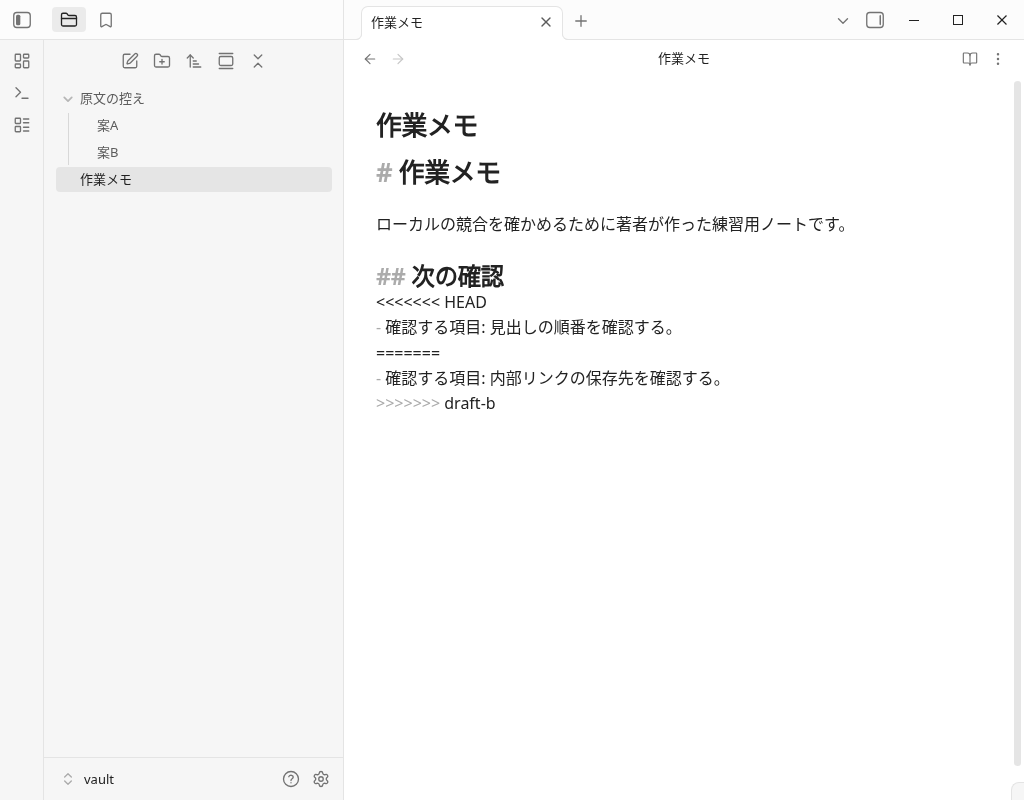
If a screen of alias competing files or history appears in your environment, please check it according to the synchronization method. The entrance to check the method is Obsidian's synchronization method guide. The results of Git in this article cannot be read into the behavior of Obsidian Sync or iCloud.
The text saved in this conflict state is shown below. The complete contents of the actual file, including its markers, are reproduced.
# 作業メモ

ローカルの競合を確かめるために著者が作った練習用ノートです。

## 次の確認
<<<<<<< HEAD
- 確認する項目: 見出しの順番を確認する。
=======
- 確認する項目: 内部リンクの保存先を確認する。
>>>>>>> draft-b
1. Leave the two original texts at hand separately
Before starting editing, save each version at hand separately with a name that shows the original version. If you only have one of them at hand, do not treat the other as being able to save it, and check the status of Git and the history of the method you are using. I have not tried to retrieve from the history of each service this time.
If you want to make sure you are prepared to return to the previous text before fixing the conflict, please also refer to Git, File Recovery, and out-of-store copy recovery example.
In this exercise, the author manually kept copies of versions A and B before merging. We also placed 原文の控え/案A.md and 原文の控え/案B.md in the vault and opened them for comparison. These were not conflicted copies automatically generated by a synchronization tool.
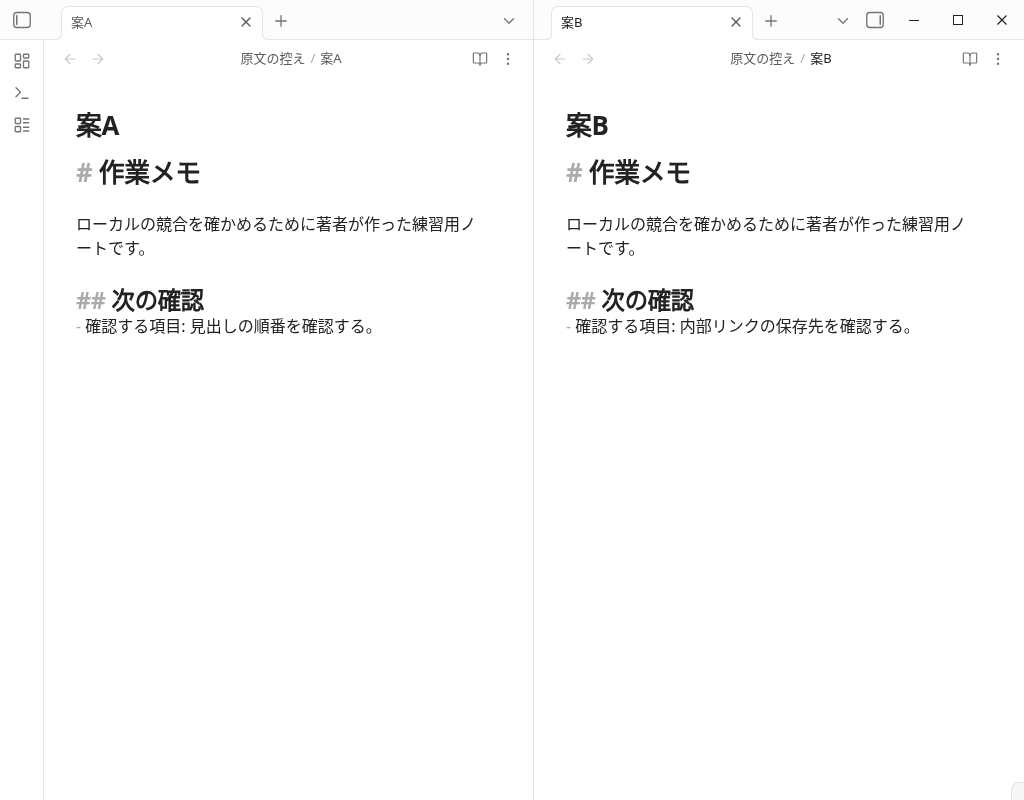
| version | Changed confirmation item | Common part |
|---|---|---|
| Draft A | Check the order of headings | Title, explanation of practice notes, heading for next confirmation |
| Draft B | Check where to save the internal link | Same as Plan A |
Instead of judging only by the update time, read the text and check the necessary information. Since the two are compatible as separate confirmation items this time, the author decided to adopt both lines in the order of A and B. If the actual sentence is contradictory or duplicated, you need to choose according to the content.
2. Edit the chosen content in Obsidian and verify that it was saved
We opened 作業メモ.md in the actual Obsidian editor and entered the chosen content. In this example, we kept the shared explanation, put the two items on separate lines, and removed the conflict markers. After waiting for autosave, we verified that the actual file contained the complete text below.
# 作業メモ

ローカルの競合を確かめるために著者が作った練習用ノートです。

## 次の確認
- 確認する項目: 見出しの順番を確認する。
- 確認する項目: 内部リンクの保存先を確認する。
In addition to the fact that the marker has disappeared, I will re-read the selected content, the order of the lines, and the common parts that I decided to leave. The decision to summarize the text and the operation to complete the merge on the Git side will be confirmed separately.
3. Check the unresolved status of Git and complete the merge
In this exercise, even after saving the text with Obsidian, the Git state was UU. After that, I explicitly git add with only the target note and made a merge commit locally. The two original commits remain as parents, the git ls-files -u is empty, and the Git state is clean.
The following is an example of the command to check the target file in the local Git. Check the actual note name and repository before using it. Before git add, please check the text to be adopted and other working status.
git status --short -- "作業メモ.md"
git ls-files -u -- "作業メモ.md"
# 採用する本文を確認した後、対象ノートをstageする
git add -- "作業メモ.md"
git commit
# merge完了後の未解決indexと状態を確認する
git ls-files -u
git status --short
Git operation was performed with a local command. Obsidian Git plug-in is not used, and remote, push/pull, and reflection on other terminals have not been confirmed. The fact that the condition is clean does not prove the durability of the backup or the delivery to all terminals.
4. Reopen the notebook and read the selected content
After creating the merge commit, we reopened 作業メモ.md from the actual file explorer. Reading view showed both items with no conflict markers. The Markdown file had the same SHA256 before and after reopening, and the original A and B copies and the content of each commit were retained.
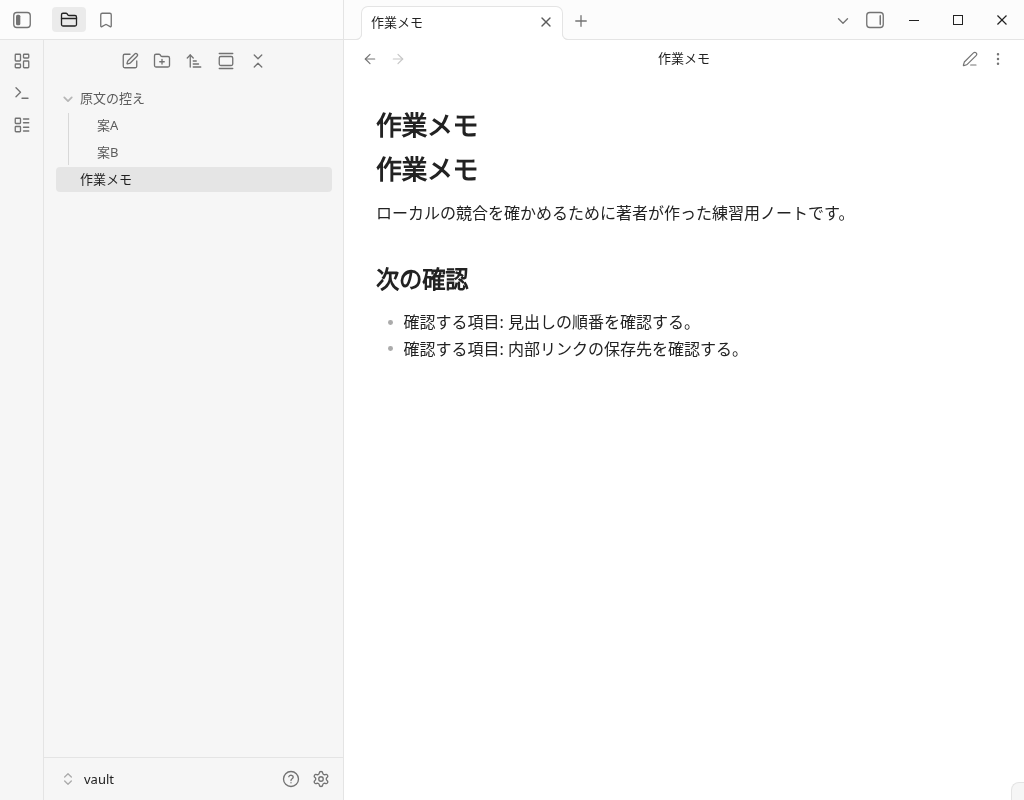
This result was confirmed by this author's note and one local restoration. It is not a result that shows that information will not be lost in all conflicts and all synchronization methods.
Download the original text, conflict status, and saved results
The four Markdown files are the originals of versions A and B, the conflicted state, and the final saved result. Their download filenames distinguish these states; the actual working note was named 作業メモ.md. To practice comparing them, save each under a different name in a location where it cannot overwrite an existing note with the same filename.
| Status | Distribution file |
|---|---|
| Original A | original-a.md |
| Original B | original-b.md |
| Conflict state | conflicted-note.md |
| Save results | resolved-note.md |
The operation of importing and restoring the distributed file on the reader side is not included in this actual application verification.
Frequently Asked Questions
Are the conflict markers in the text and the conflicted copy the same?
Can I solve it if I leave both sentences?
If I delete and save the conflict marker, will the Git merge be completed?
Has this procedure been verified on Obsidian Sync and iCloud?
Verification environment and confirmation range
- Real application: September 30, 2026 Linux version Obsidian 1.13.7. Japanese notes created by the author, one offline local Git repository, no community plug-in.
- Actual Git results: merge failure, UU, three levels of unresolved index, conflict marker, merge commit with explicit target stage and two parents, unresolved index is empty, state clean.
- Real GUI: Check the real file explorer operation of the original text A, competing notes, and post-saved notes, input and save the selected text in the real editor, read the view, and re-display of the note.
- Auxiliary: The composite note and the copy of the original text have been prepared directly as a file. I used the app API to divide left and right, display B, sidebar, setting window, and read the status. Git is a local shell operation.
- Unverified:Automatic conflicted-copy generation, Obsidian Sync, iCloud, other synchronization services, remote, simultaneous editing on two devices, iOS/Android/Mac, SimpleMemo delivery, long-term backup, speed, productivity, inflow effect.
The original image is the screen of the actual Obsidian that has not been processed, and the Markdown is the original of the actual file. Verification record and original correspondence describes the actual operation, assistance, and limits.
Entrance to check the method
Comparison Guide for Synchronization Methods is an existing article for choosing a method. This page divides the subject as an example of comparing and restoring the original text. In this article, I have not tried the input and delivery of SimpleMemo.
This site is operated by YURIKA, K.K. and introduces the independent app "SimpleMemo". This is not an official article by Obsidian.