10 practical Obsidian templates to copy and paste
This page was machine-translated from Japanese. Read the Japanese original
You can copy the text by selecting the type you want to use, such as daily memos, meetings, reading, and surveys. All 10 types were inserted in the author's Linux version of Obsidian, and the title and date and time were replaced, saved, and reopened in the same app.
Verification date: October 1, 2026 (Japan time) · Obsidian 1.13.7
Choose one from your current use
It is the smallest frame to fill in the blanks. Please add the necessary items according to your work. The input Markdown distributed here and the applied example each maintain the original byte column.
- 01 Daily memoRemain the purpose, schedule, and awareness of the day
- 02. Meeting memoSeparation of agenda, decision, person in charge and deadline
- 03. Reading notesSepare the source, main points, and your own questions
- 04. ProjectDetermine the purpose, completion conditions, and next action
- 05 Learning memo Leave the theme, understanding, practice, and unresolved
- 06. Ideas Leave the idea, whose issue it is, and how to try it
- 07 Weekly reviewWhat I was able to do, troubles, and the next week's steps are divided
- 08 Investigation memoSeparate the questions, sources, facts and interpretations to be investigated
- 09 Task breakdownRemain results, small tasks, and waiting items
- 10 ChecklistPreparation, execution, and confirmation are divided into three stages
Setting and inserting Core Templates
- Create the Templates folder in your practice Vault and place the selected input Markdown files inside it. You can also prepare the same input by pasting the code into a Markdown file.
- Enable Templates in Settings → Core plugins. Community plug-ins are not required.
- Specify Templates to the Template folder location of Templates. The original screen below is the English UI that was actually set.
- Create a new note, decide on a title, and then select the text. In this Linux operation, I created it with Ctrl+N.
- Open the command palette with Ctrl+P and search for the Insert template. Select a candidate for Templates and select one template you want to insert.
- Check the text and save it. This time, I matched the saved file and the editor's byte column after Ctrl+S, closed the target note, and reopened it from within the same app.
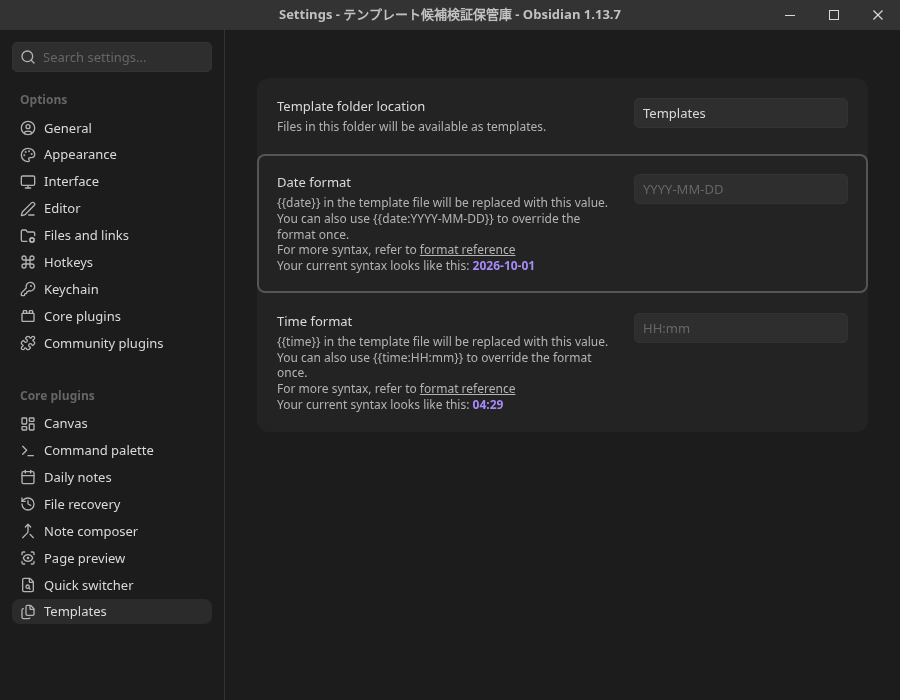
The input of this example is prepared in Source mode. The official description notes that when editing a template containing Properties in Live Preview, variables without quotation marks may be overwritten. Properties' YAML is not used for this 10 input.
The three variables are replaced when inserted
{{title}}: The title of the notebook that is actually open.{{date:YYYY-MM-DD}}: This time 2026-10-01.{{time:HH:mm}}: This time 04:29.
The input filenames identify each template type. Titles such as “適用01-日次メモ” in the saved examples are names assigned to notes created through the GUI. The execution environment used the Asia/Tokyo time zone. This does not test every combination of formatting tokens and time zones.
01. Daily memo template
It is a mold for writing one of today's goals in the morning and adding one notice at night. Don't just list the schedule, but keep today's purpose short.
It is suitable for the starting point of the daily log with the date. The settings that automatically create every day are not included in this manual application verification.
# {{title}}

- 日付: {{date:YYYY-MM-DD}}
- 時刻: {{time:HH:mm}}

## 今日の目的
-

## やること
- [ ]

## 気づき
-

<!-- C33-T01 -->
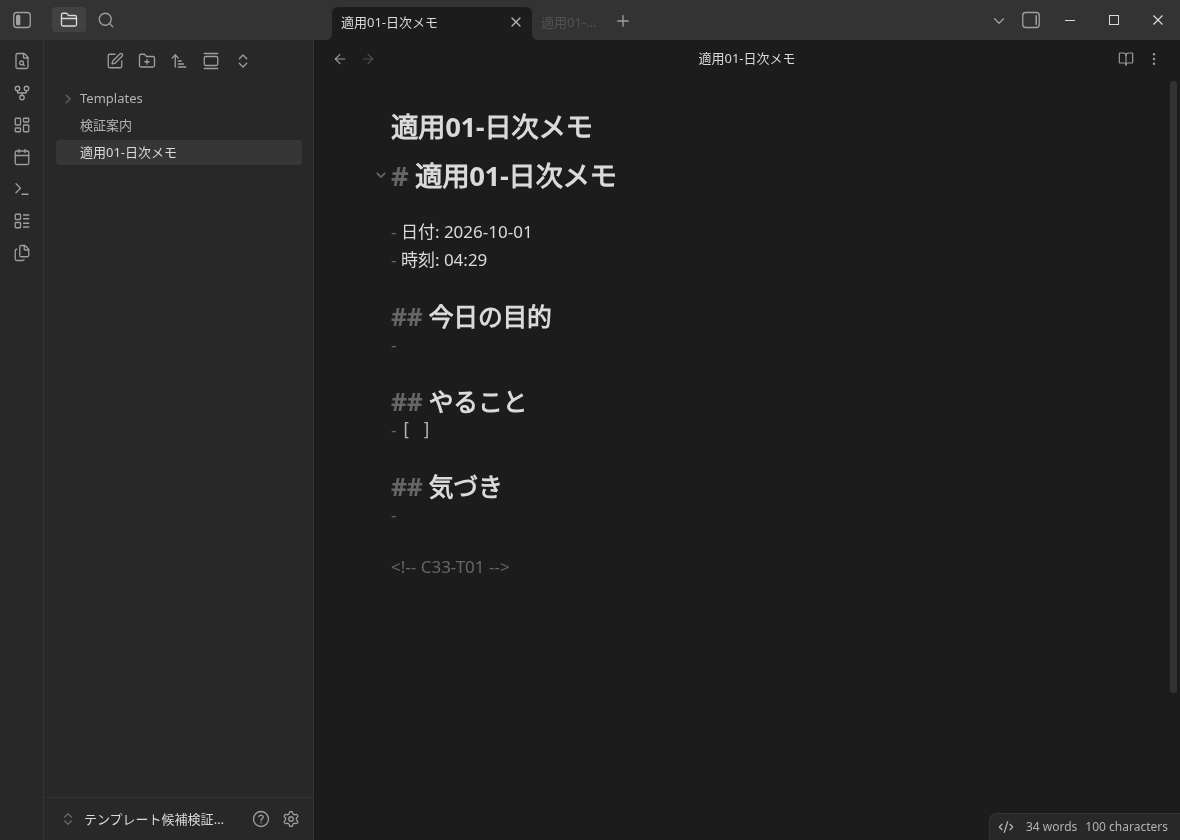
View the full text of the application example that has actually been saved (144 bytes)
# 適用01-日次メモ

- 日付: 2026-10-01
- 時刻: 04:29

## 今日の目的
-

## やること
- [ ]

## 気づき
-

<!-- C33-T01 -->
02. Meeting memo template
It is a type that records agendas, decisions, and next tasks separately. The person in charge and the deadline will be distributed blank, and you can fill in the contents decided at the meeting yourself.
It will be easier to look back if you do not mix what was not decided on the spot with the decision and leave it for the next task.
# {{title}}

- 日付: {{date:YYYY-MM-DD}}
- 時刻: {{time:HH:mm}}

## 議題
-

## 決まったこと
-

## 次の作業
| 作業 | 担当 | 期限 |
| --- | --- | --- |
|  |  |  |

<!-- C33-T02 -->
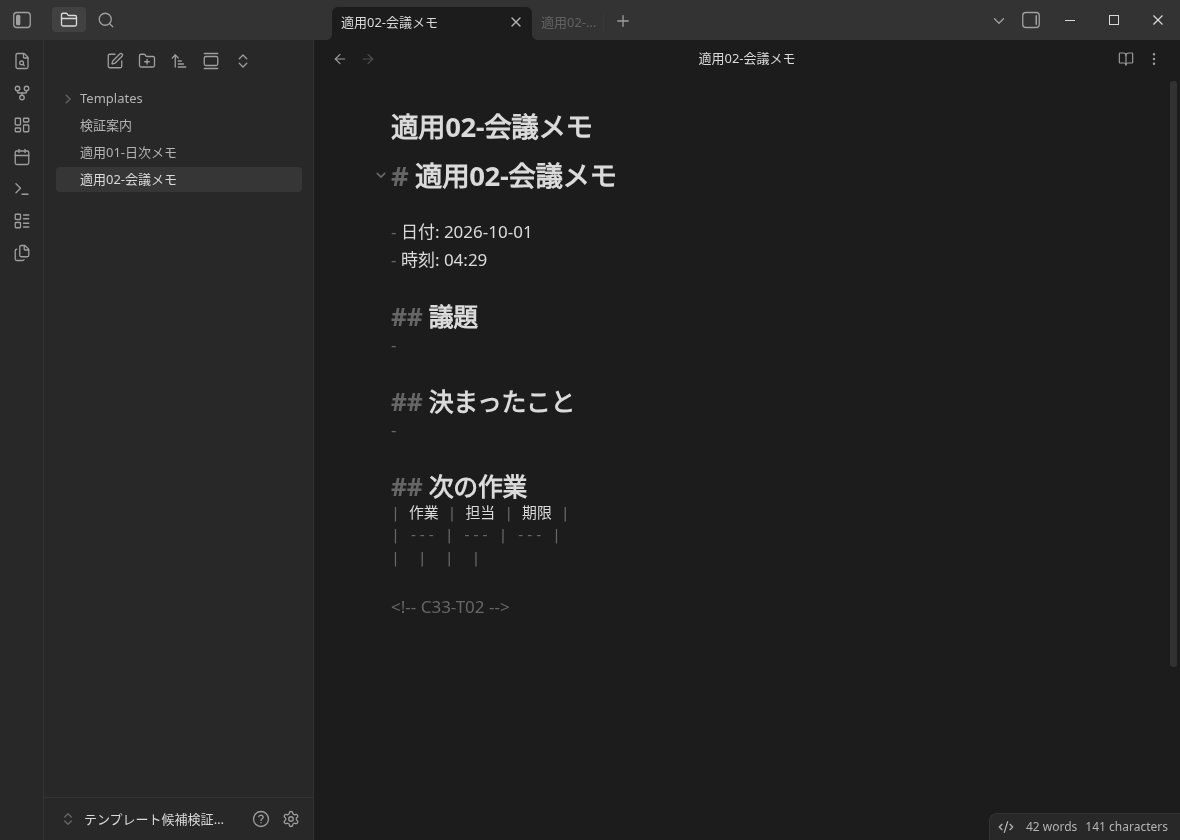
View the full text of the application example that has actually been saved (197 bytes)
# 適用02-会議メモ

- 日付: 2026-10-01
- 時刻: 04:29

## 議題
-

## 決まったこと
-

## 次の作業
| 作業 | 担当 | 期限 |
| --- | --- | --- |
|  |  |  |

<!-- C33-T02 -->
03 Reading memo template
It is a type that separates bibliographic information, main points, and your own questions. Leave the page as a clue to the source, and add it by distinguishing between quotations and your own thoughts.
It is suitable for leaving not only the title of the book, but also the page you want to return to later.
# {{title}}

- 日付: {{date:YYYY-MM-DD}}
- 時刻: {{time:HH:mm}}

## 書誌情報
- 書名:
- 著者:
- ページ:

## 要点
-

## 自分の問い
-

<!-- C33-T03 -->
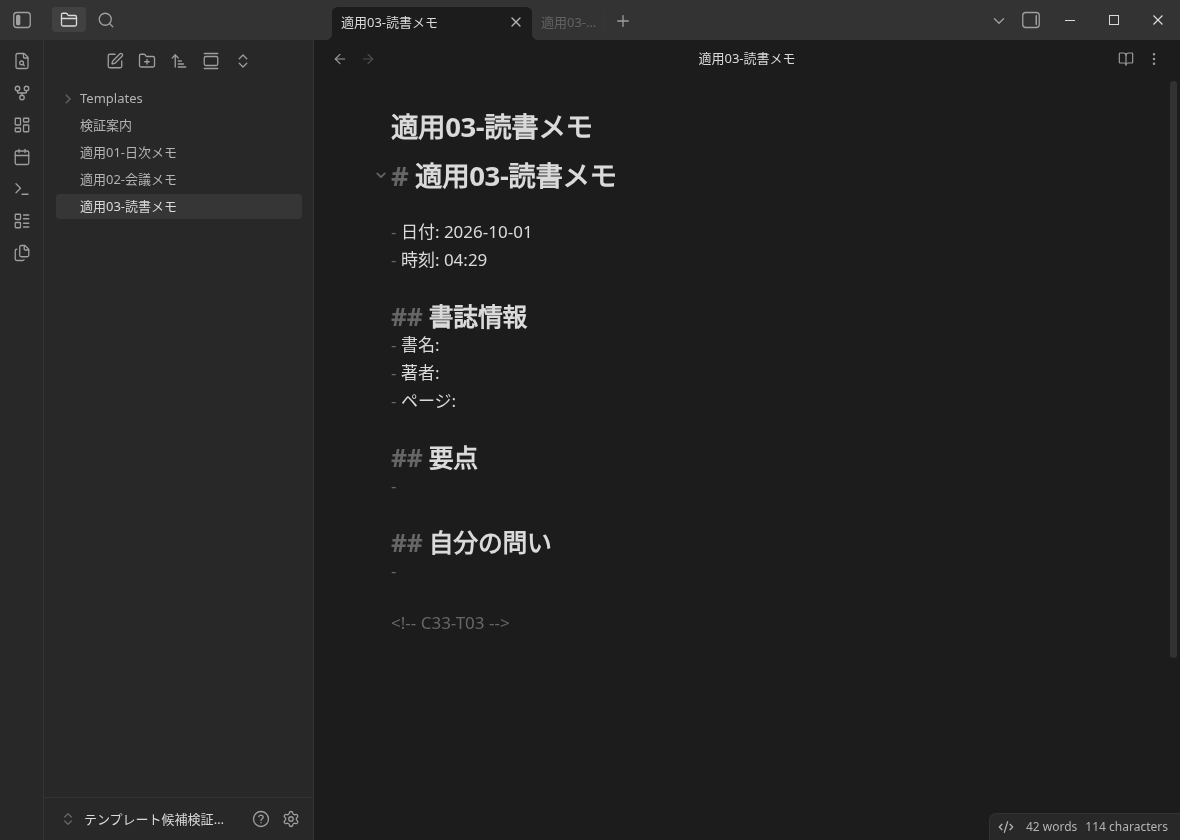
View the full text of the application example that has actually been saved (170 bytes)
# 適用03-読書メモ

- 日付: 2026-10-01
- 時刻: 04:29

## 書誌情報
- 書名:
- 著者:
- ページ:

## 要点
-

## 自分の問い
-

<!-- C33-T03 -->
04. Project template
It is a type that writes the purpose and completion conditions first and leads to the next action. The related note field is empty, so you can add your own note name or link.
Instead of a large schedule, use it as the minimum frame to leave the next step to start.
# {{title}}

- 日付: {{date:YYYY-MM-DD}}
- 時刻: {{time:HH:mm}}

## 目的
-

## 完了条件
- [ ]

## 次の行動
- [ ]

## 関連ノート
-

<!-- C33-T04 -->
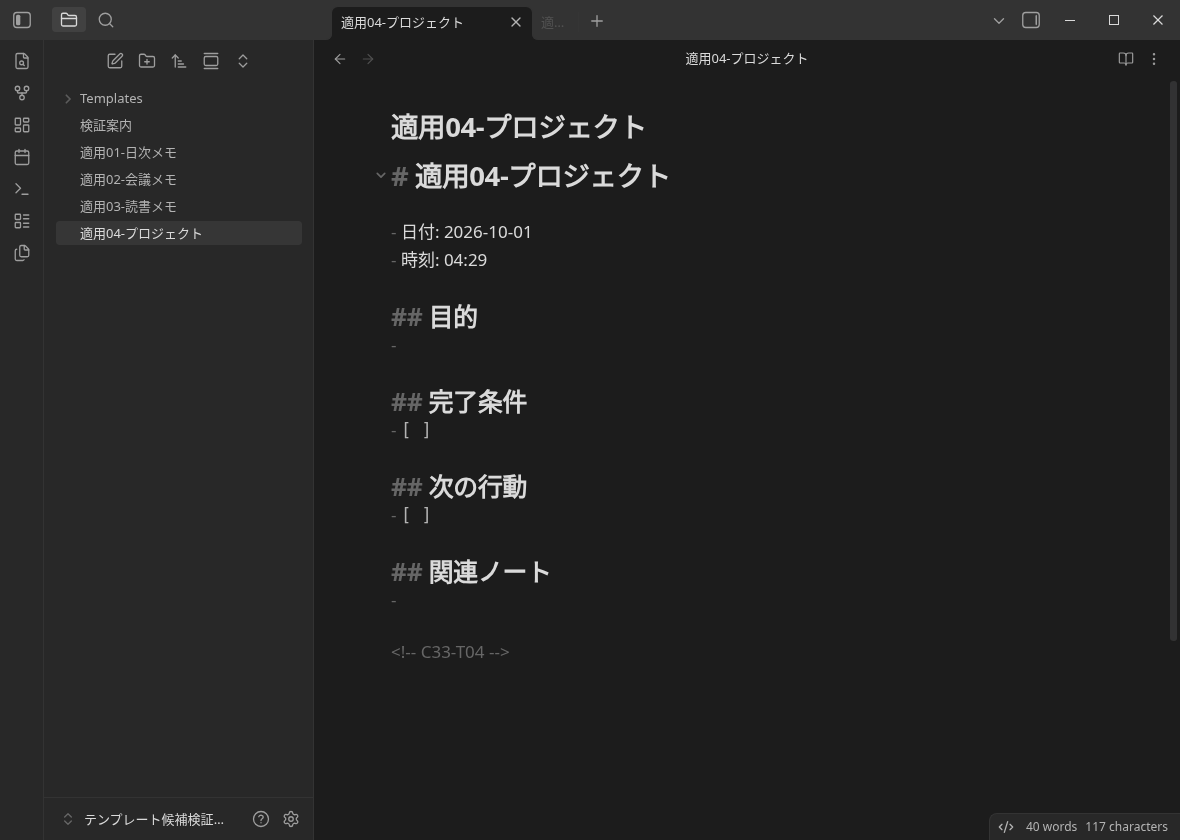
View the full text of the application example that has actually been saved (171 bytes)
# 適用04-プロジェクト

- 日付: 2026-10-01
- 時刻: 04:29

## 目的
-

## 完了条件
- [ ]

## 次の行動
- [ ]

## 関連ノート
-

<!-- C33-T04 -->
05. Learning memo template
It is a type that separates the theme of learning, what you understand, what you practice, and unresolved questions. You can leave what you know and what you still don't know separately.
After reading lectures and teaching materials, it is suitable for writing down what to try next.
# {{title}}

- 日付: {{date:YYYY-MM-DD}}
- 時刻: {{time:HH:mm}}

## 学ぶテーマ
-

## 理解したこと
-

## 練習すること
- [ ]

## 未解決の問い
-

<!-- C33-T05 -->
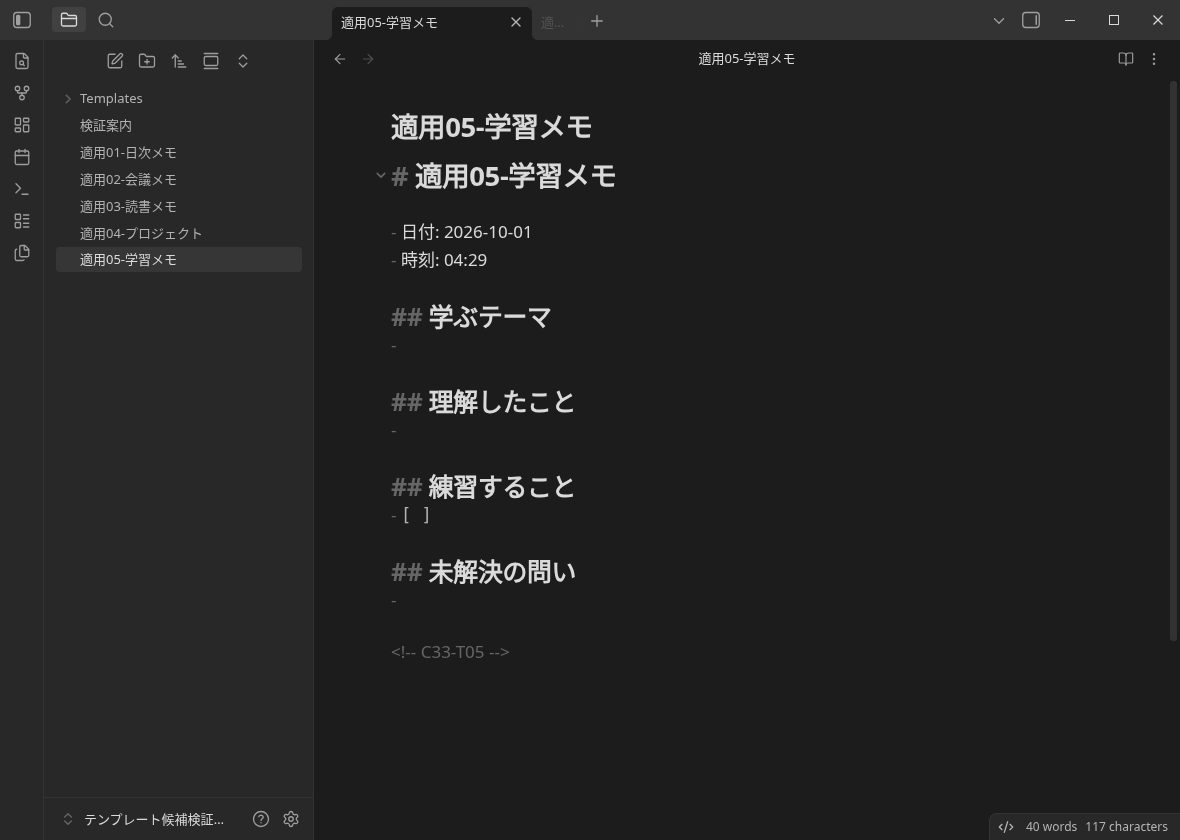
View the full text of the application example that has actually been saved (185 bytes)
# 適用05-学習メモ

- 日付: 2026-10-01
- 時刻: 04:29

## 学ぶテーマ
-

## 理解したこと
-

## 練習すること
- [ ]

## 未解決の問い
-

<!-- C33-T05 -->
06. Idea template
It is a type that does not end with just an idea, but proceeds to how to try someone's task. You can leave the small try method as a check item.
You can add your own original notes and reference materials to the related materials column.
# {{title}}

- 日付: {{date:YYYY-MM-DD}}
- 時刻: {{time:HH:mm}}

## 着想
-

## 誰のどんな課題か
-

## 小さく試す方法
- [ ]

## 関連する材料
-

<!-- C33-T06 -->
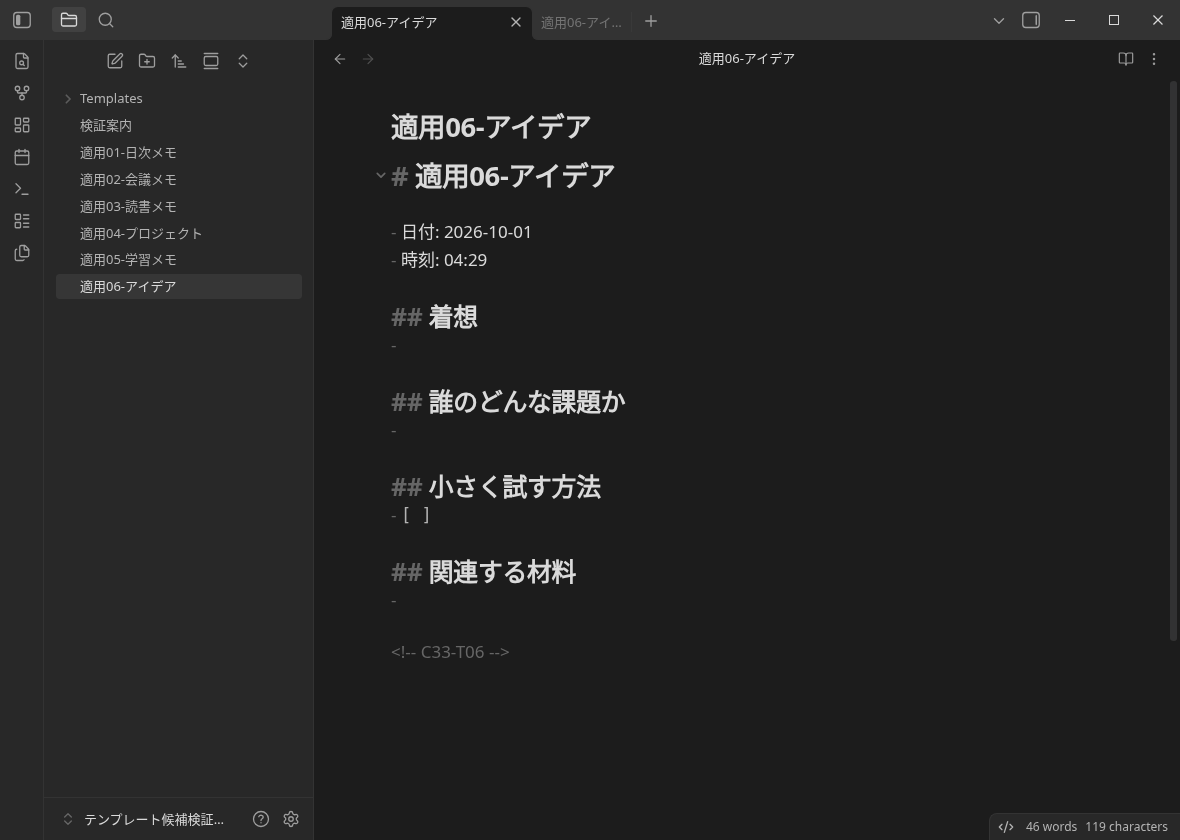
View the full text of the application example that has actually been saved (185 bytes)
# 適用06-アイデア

- 日付: 2026-10-01
- 時刻: 04:29

## 着想
-

## 誰のどんな課題か
-

## 小さく試す方法
- [ ]

## 関連する材料
-

<!-- C33-T06 -->
07 Weekly review template
It is a type that divides what you have done, what you have trouble with, the next week's step, and the plan to review. The date is the value of the inserted date, and the week number is not automatically calculated.
It is suitable for looking back at the end of the week and choosing one step for the next week.
# {{title}}

- 日付: {{date:YYYY-MM-DD}}
- 時刻: {{time:HH:mm}}

## できたこと
-

## 困ったこと
-

## 次週の一歩
- [ ]

## 見直す予定
-

<!-- C33-T07 -->
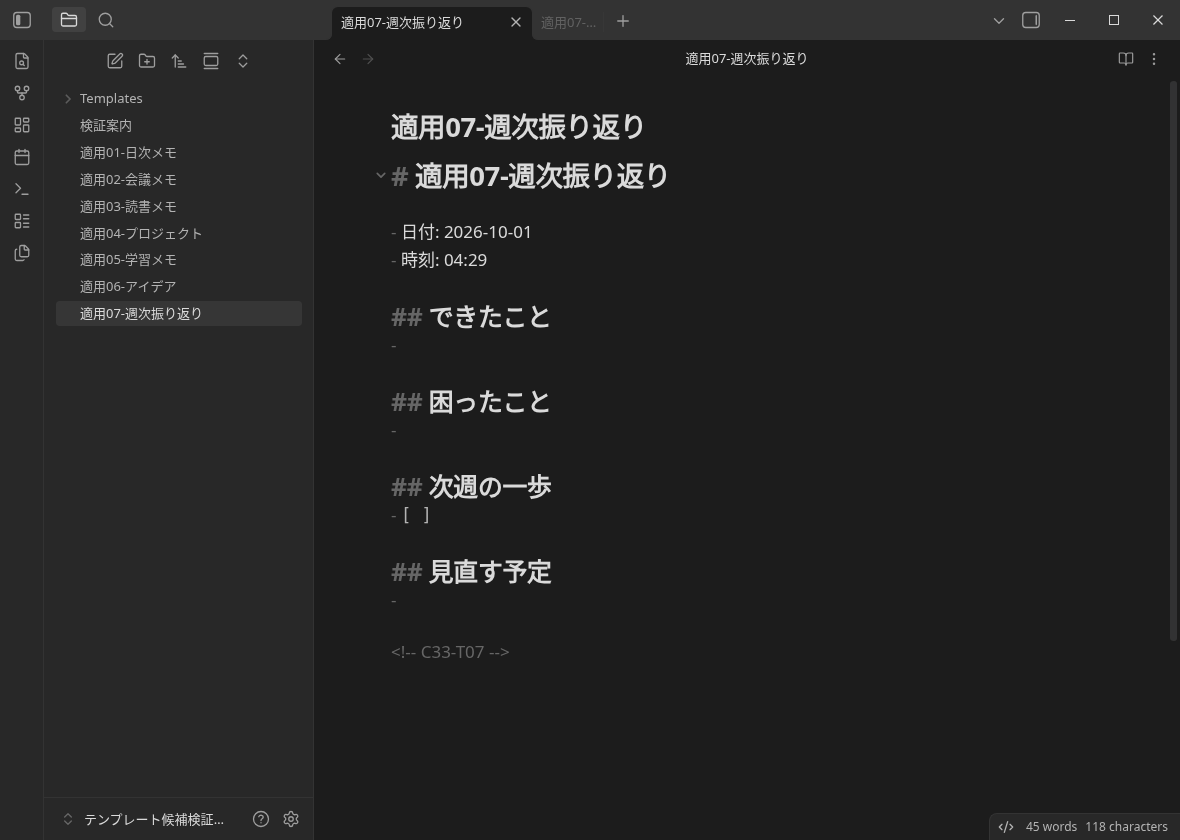
View the full text of the application example that has actually been saved (182 bytes)
# 適用07-週次振り返り

- 日付: 2026-10-01
- 時刻: 04:29

## できたこと
-

## 困ったこと
-

## 次週の一歩
- [ ]

## 見直す予定
-

<!-- C33-T07 -->
08. Survey memo template
It is a type that separates the questions to be investigated, sources, confirmed facts, and your own interpretation and unconfirmed. Fill in the URL of the source table, the confirmation date, and the relevant parts by yourself.
It is the starting point of a small research note when you don't want to mix facts and assumptions in the same bullet point.
# {{title}}

- 日付: {{date:YYYY-MM-DD}}
- 時刻: {{time:HH:mm}}

## 調べる問い
-

## 出典
| 資料・URL | 確認日 | 該当箇所 |
| --- | --- | --- |
|  |  |  |

## 確認できた事実
-

## 自分の解釈・未確認
-

<!-- C33-T08 -->
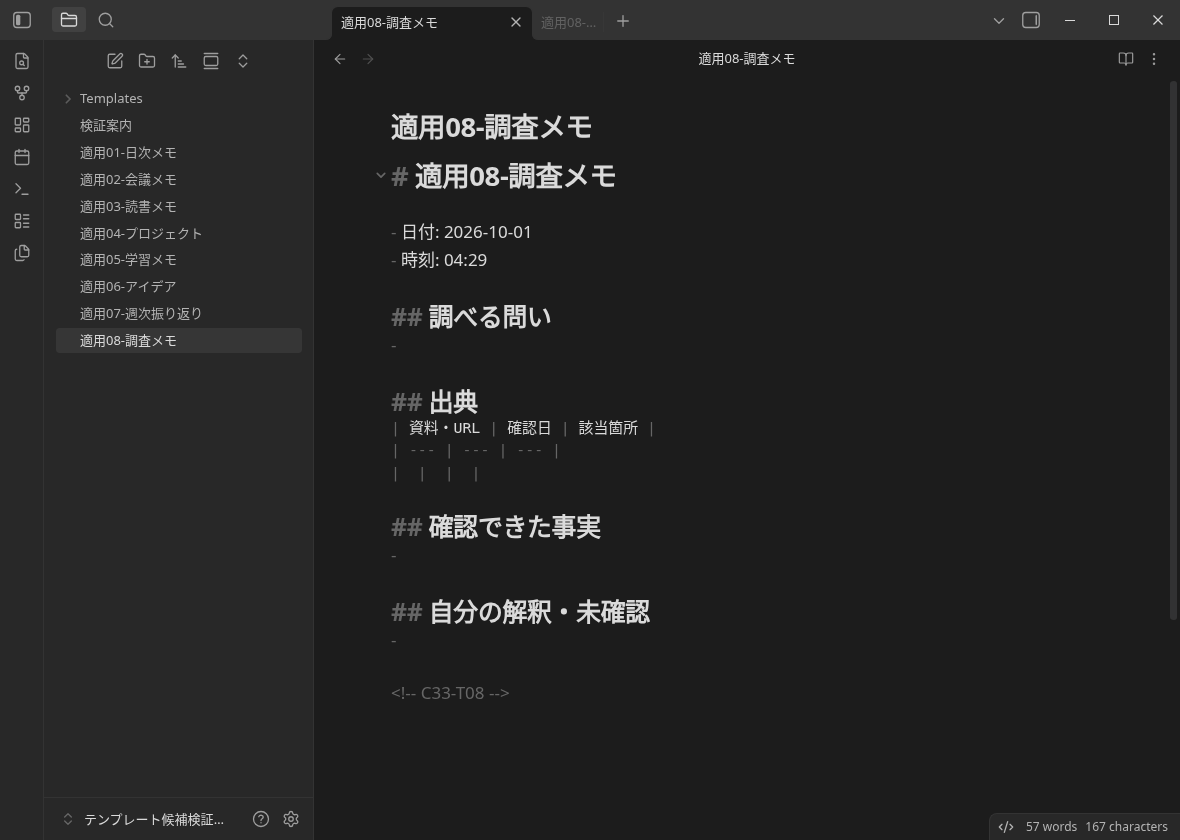
View the full text of the application example that has actually been saved (253 bytes)
# 適用08-調査メモ

- 日付: 2026-10-01
- 時刻: 04:29

## 調べる問い
-

## 出典
| 資料・URL | 確認日 | 該当箇所 |
| --- | --- | --- |
|  |  |  |

## 確認できた事実
-

## 自分の解釈・未確認
-

<!-- C33-T08 -->
09 Task breakdown template
It is a type that divides the results you are aiming for into small tasks and waiting items. You can increase the two check items in the work column by yourself as needed.
It is suitable for the purpose of filling in the work that can be moved one by one before starting.
# {{title}}

- 日付: {{date:YYYY-MM-DD}}
- 時刻: {{time:HH:mm}}

## 目指す成果
-

## 小さな作業
- [ ]
- [ ]

## 待っていること
-

## 確認の目安
-

<!-- C33-T09 -->
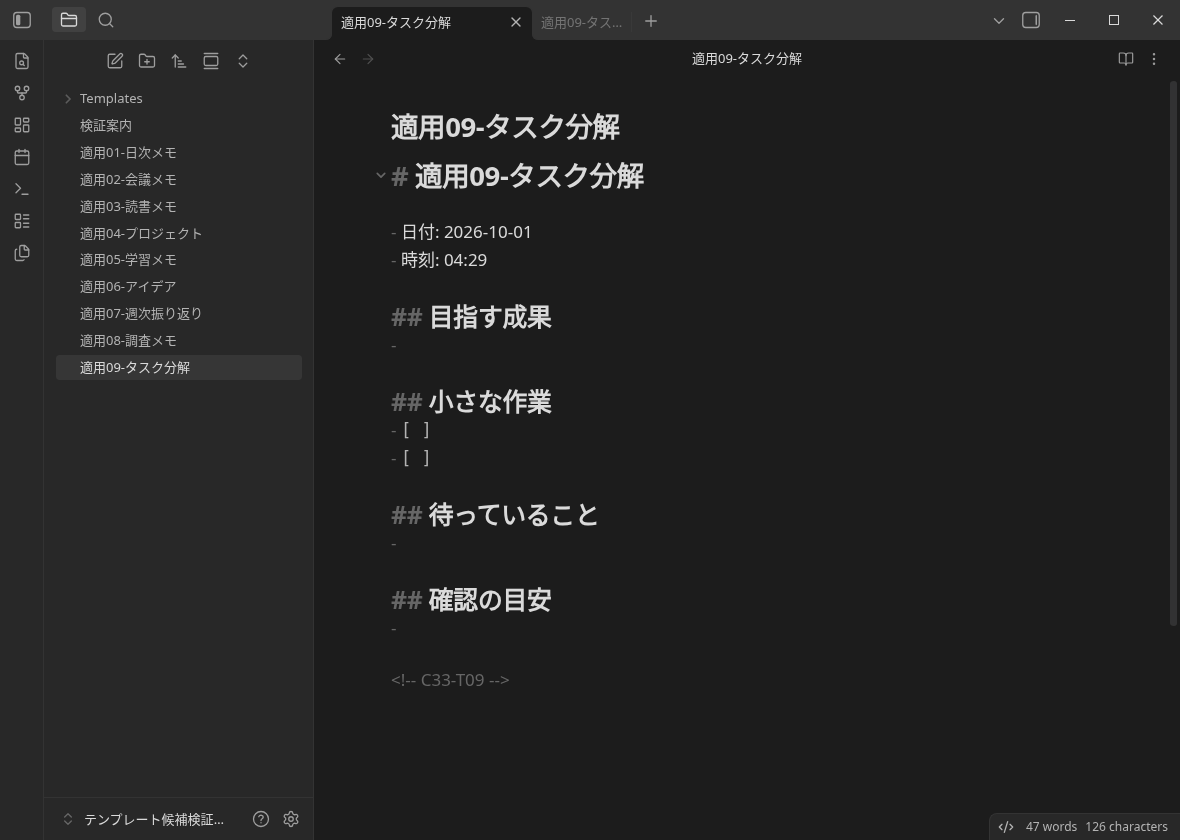
View the full text of the application example that has actually been saved (192 bytes)
# 適用09-タスク分解

- 日付: 2026-10-01
- 時刻: 04:29

## 目指す成果
-

## 小さな作業
- [ ]
- [ ]

## 待っていること
-

## 確認の目安
-

<!-- C33-T09 -->
10. Checklist template
It is a type that separates preparation, execution, and confirmation. Add the confirmation necessary for your own work to the empty check items at each stage.
Use it as a starting point for recurring work. We did not measure whether it reduces omissions or improves productivity.
# {{title}}

- 日付: {{date:YYYY-MM-DD}}
- 時刻: {{time:HH:mm}}

## 準備
- [ ]

## 実行
- [ ]

## 確認
- [ ]

## 補足
-

<!-- C33-T10 -->
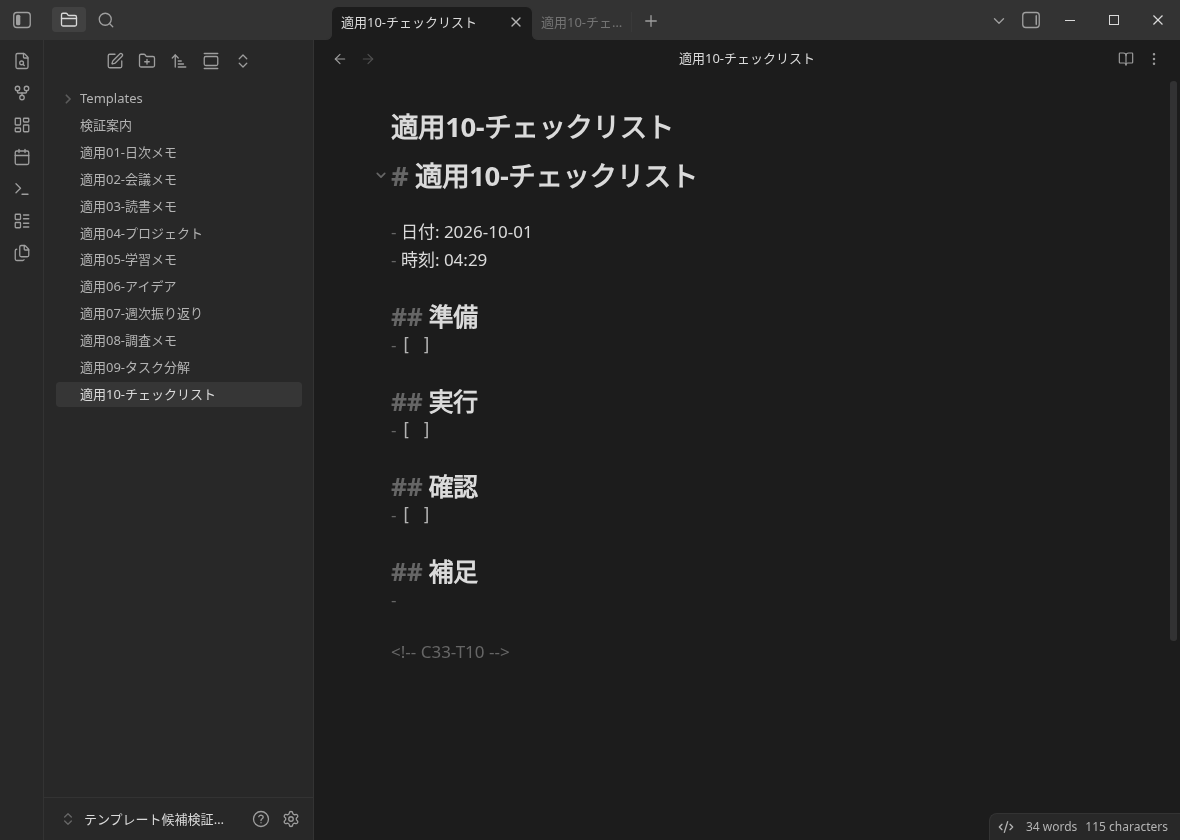
View the full text of the application example that has actually been saved (157 bytes)
# 適用10-チェックリスト

- 日付: 2026-10-01
- 時刻: 04:29

## 準備
- [ ]

## 実行
- [ ]

## 確認
- [ ]

## 補足
-

<!-- C33-T10 -->
Frequently Asked Questions
What is the difference between Templates and Templater?
When will the date and time be?
Do I need to have the same name as the template file name and the note name to be created?
When the string {{date:YYYY-MM-DD}} remains as it is?
If I expand the ZIP as it is to Vault, will it have the same movement?
Have you also verified the cooperation with iPhone and SimpleMemo?
Actual confirmed range
- Linux official Obsidian1.13.7, installer 1.13.7, English UI. A small Vault created by the author, no community plug-in.
- Activation of Core Templates, specifying folders, inserting commands for fixed 10 input, replacing titles and dates and times, saving, and reopening notes in the same process.
- Input is Markdown created directly by the author. Insertion and output notes were created from the GUI, and the auxiliary code was used to prepare the initial environment and read and copy evidence.
- We retained the original screens and saved Markdown for all 10 cases. Published PNGs were not altered or regenerated. Restarting the entire app, importing into a reader’s Vault, other operating systems, iOS, Sync, SimpleMemo, and effects on speed, productivity, or traffic were not tested.
Startup failure in the preparation stage and script failure to select a command candidate are left. The application results of this article are not a successful treatment of them, but are based on the actual operation of another fixed 10. The original correspondence and progress will be summarized in verification record.
Official description
- Obsidian Official Help: Templates (commit fixed) - Folder specification, title, date, time variable, insert to the cursor position, Note on Source mode.
The general-purpose memo format used other than Obsidian is memo template collection, and the entrance to daily memo is summarized in how to use daily notes. This site is the developer site of the independent app "SimpleMemo" and is not an official article of Obsidian.