Just speak to your Apple Watch. Save it to Obsidian before it's gone.
Simple Memo lets you leave a voice memo on Apple Watch, then — via your iPhone — auto-append it to your Obsidian notes as well as your own inbox. As few as 2 taps from open to send when dictation is ready. The input screen opens by itself when the app launches, so you speak and press Done. No plugin required — the Obsidian write happens through your iPhone's own integration process.
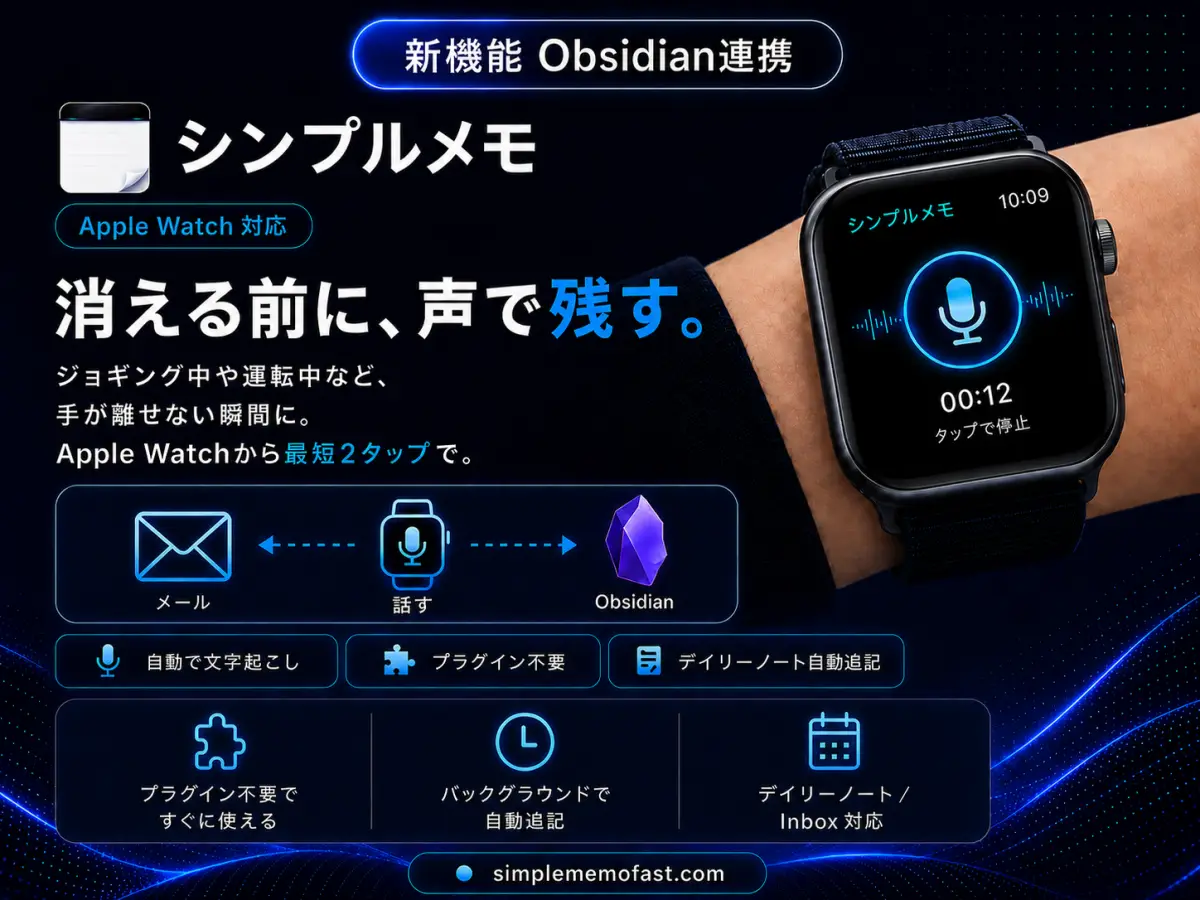
Just speak on Apple Watch — the input screen opens by itself when the app launches (the input method shown varies by model and language), and that's your memo. Send it and it lands in your own inbox; if Obsidian integration is enabled on your paired iPhone, the same memo is also auto-appended to your Obsidian daily note or Inbox note. Writing to the vault is a local process handled by your iPhone, and no Obsidian community plugin is required.
The moment worth capturing disappears before you open your iPhone
On a walk, right before or after driving, in the middle of chores, right before bed — ideas strike without warning, and the few seconds it takes to pull your iPhone from your pocket are enough for the thought to slip away. Voice memo apps exist, but they pile up unsorted without something to organize them. For anyone who wants that memo to end up in Obsidian, the real friction is everything between typing it and it landing in the right note.
Just speak to your Apple Watch. It lands in your inbox — and in Obsidian.
It's not that Apple Watch alone saves directly to Obsidian. A memo sent from the Watch is relayed through your paired iPhone to write into the Obsidian vault folder. The write itself is always performed by the iPhone side.
It's simple to use
The flow is one straight line: speak on the Watch → send via iPhone → recorded in both email and Obsidian.
① One-time setup — turn on Obsidian integration (on iPhone, once)
- Simple Memo installed on iPhone (iOS 16.0 or later)
- Obsidian installed on the same iPhone
- Your Obsidian vault is on iCloud Drive or "On My iPhone" and accessible from the Files app
- Turn on Obsidian integration
In the iPhone app's Settings, turn on "Obsidian integration" in the "Obsidian" section. - Choose your Obsidian folder
Select your Obsidian vault folder (on iCloud Drive or On My iPhone). - Pick a destination
Under "Destination," choose "Daily note" or "Custom note" (the default note name is Inbox).
This is a one-time setup. From then on, memos sent from either Watch or iPhone are appended to Obsidian under the same rule. See the Obsidian integration page for full setup details.
② Send a memo from Apple Watch (every time)
- Open the app (tap one)
Launch from the Smart Stack widget, a watch-face complication, or the app grid. - Speak
The standard input screen opens by itself. If a keyboard or another method appears, choose Dictation and speak (available methods depend on model and language). - Press Done (tap two)
Confirming the text starts the send (the paired iPhone does the sending). It arrives in your own email — and if Obsidian integration is on, it's auto-appended to your Obsidian note too.
Add the widget to the watchOS Smart Stack and the app is one tap away: turn the Digital Crown (or swipe down) from the watch face.
The honest mechanics: how Watch, iPhone, and Obsidian each play their part
We didn't want this page to make it look like Apple Watch does everything on its own. Here's exactly what happens, laid out plainly.
Voice input uses standard watchOS dictation. The standard input screen opens by itself when the app launches, but the input method shown varies with the model, language and screen state (switch to Dictation if a keyboard appears; the app's mic button is still there if no input screen opens). The paired iPhone does the sending, so the Watch needs to reach it; the Watch's own connection alone does not complete a send. See the Apple Watch page for details.
Even memos from the Watch pass through the iPhone's sending pipeline. Writing to the Obsidian vault folder is always handled by the iPhone side — the Watch never accesses the vault directly. The iPhone itself launches in 0.4 seconds (warm launch, iPhone 16e; see our measurement method), supports auto-start voice input on launch (iOS 26 or later, on supported devices and languages), and has an offline Outbox queue.
No community plugin installation is required. The iPhone app writes notes directly into your selected vault folder. If your vault doesn't appear in the folder picker (e.g. an Obsidian Sync-only vault), it falls back to the URL-scheme method (Obsidian briefly opens to append on send).
Turn Obsidian from "somewhere to organize later" into "somewhere you can capture instantly"
Obsidian is great at knowledge management, but has some friction at the point of input. Simple Memo works as the entry point just before that.
yyyy-MM-dd.md; choose the Inbox note and everything collects chronologically in one file.Send it to yourself, just like Captio's classic workflow — and it lands in Obsidian too.
Simple Memo is built around the experience of emailing yourself a memo. Open it, write (or speak), send — that's it. It lands in your email, so it's easy to search, and with Obsidian integration on, it flows straight into your knowledge base too. Simple Memo isn't affiliated with Captio, but it's designed for anyone who wants that same "send it to yourself, fast" memo experience.
Great for moments like these
FAQ
Does it work with just the Apple Watch?
You can compose a memo on Apple Watch alone, but the paired iPhone does the sending: the Watch hands the send request to the iPhone, so the Watch's own Wi-Fi/cellular connection alone does not complete a send. Keep the iPhone powered on and reachable from the Watch.
Is this an official Obsidian integration?
No. Simple Memo - for Obsidian is an independent app built by YURIKA, K.K., not an official Obsidian app or plugin. It provides its own integration that auto-appends sent memos to your Obsidian vault.
Does a memo I speak on Apple Watch automatically land in Obsidian?
Yes — but not directly. A memo sent from Apple Watch is relayed through your paired iPhone; if Obsidian integration is enabled there, the same memo is auto-appended to your Obsidian note too (the vault write is always performed by the iPhone, never directly by the Watch).
Does it reach my email too?
Yes. Simple Memo is built around sending memos to your own email. Whether you send from Apple Watch or iPhone, it arrives in your inbox, and — if enabled — the same memo lands in Obsidian too.
Is this affiliated with Captio?
No, there's no affiliation. Simple Memo - for Obsidian is a separate, independent app — not a successor to or official app of Captio. It's designed for anyone who wants that same "send it to yourself, fast" memo experience, with Obsidian auto-append added.
Is it free to use?
Yes. The Free plan lets you send up to 3 memos a day, with no time limit. No credit card is required. If you want to send more, the Premium plan (monthly or annual) gives you unlimited sends. Check the App Store's in-app purchase screen for pricing.
Does it work offline?
On iPhone, memos are stored in an on-device Outbox queue even without a connection, and sent automatically once you're back online (AES-GCM encrypted). A memo sent from Apple Watch is handed to the paired iPhone, which sends it (the Watch's own connection alone does not complete a send).
How many taps does it take to send from Apple Watch?
As few as 2 when dictation is ready and nothing else is needed: open the app (tap one), speak, and press Done (tap two). You can open it from the Smart Stack or a complication. The standard input screen opens by itself, but the input method shown varies with the model, language and screen state; if a keyboard appears, switch to Dictation.

Related Pages
References
- Apple Watch User Guide — Official watchOS guide covering the Smart Stack, complications, and dictation
- Apple Developer — watchOS apps — Official documentation of the public APIs available to watchOS apps, including WatchKit's presentTextInputController
- Obsidian Help — Official Obsidian help for vaults, daily notes, and sync behavior
- Simple Memo - for Obsidian — App Store — App Store download page