呼び出して、話して、送る。5秒。 Trigger it, speak, send. Five seconds.
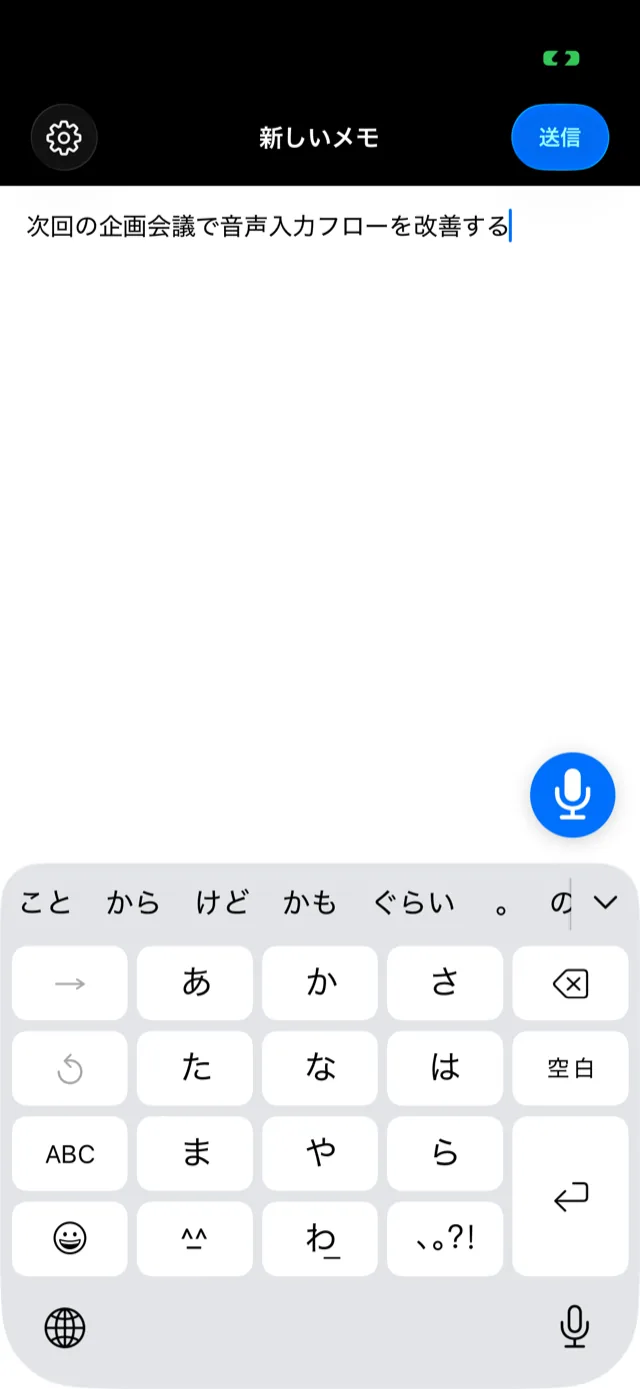
いちばん速いメモは、アプリを探さないメモです。iPhone側面のアクションボタンを長押しすると「声でメモ」が立ち上がり、開いた瞬間にはもう音声入力が始まっている。話して、送信を1回。ホーム画面に戻るまで5秒で、メモは自分の受信箱とObsidianに届いています。 The fastest memo is the one where you never look for the app. Hold the Action button on the side of your iPhone and "Voice Memo" launches — and voice input is already running the moment the screen appears. Speak, tap send once. Five seconds later you're back on the Home Screen and the note is in your inbox and your Obsidian vault.
話すか、思いついたことを書くだけJust speak, or type what you thought of
帰りに牛乳を買う。Buy milk on the way home.
-
0.0s
アクションボタンを長押しHold the Action buttonロック解除もアイコン探しも不要。ポケットから出しながら押せます。No unlocking, no hunting for an icon — you can press it while pulling the phone out.
-
1.4s
開いた時点で録音中Already listeningメモ画面が出た瞬間、マイクはもうオン。押すボタンはありません。The mic is on the instant the compose screen appears. There is no button to press.
-
2.0s
話すSpeakオンデバイスの音声認識がその場で文字にします。音声は端末から出ません。On-device recognition transcribes as you go. The audio never leaves the phone.
-
4.0s
送信を1回One tap to send保存先を選ぶ画面はありません。メールとObsidianの両方に同時に残ります。No "choose a destination" screen. It lands in your email and your Obsidian vault at once.
-
5.0s
終わりDone画面は空のメモに戻ります。整理はあとで、受信箱の中で。You're back to a blank memo. Sorting happens later, in your inbox.
実機の操作を再現したアニメーションです(タップ位置と所要時間は実測値)。 An animated re-creation of the real thing; the taps and timings are measured from a device.
「声でメモ」をアクションボタン(または背面タップ)に割り当て、アプリ側で「起動時に音声入力を自動オン」にする。この2つを繋ぐだけで、呼び出し・マイク起動・保存先選択の操作がすべて消え、残るのは「話す」と「送信」だけになります。
Assign "Voice Memo" to the Action button (or Back Tap), then turn on "Auto-start voice input on launch" in the app. Wiring those two together removes launching, starting the mic, and picking a destination — all that's left is speaking and sending.
速いのは、消した操作の分だけ It's fast because of what isn't there
機能を足して速くなったのではありません。メモを書くまでに挟まっていた操作を、1つずつ消した結果が5秒です。 Nothing was added to make this fast. Five seconds is what's left after removing the steps that used to sit between you and the note.
ふつうのメモアプリとの違い Versus the usual note app
一般的なメモアプリで音声メモを1件残すときの操作と並べると、差が出ているのは「話す前」と「話したあと」であることが分かります。 Line it up against capturing one voice note in a typical note app and the difference is all in what happens before and after you speak.
| 工程Step | 一般的なメモアプリTypical note app | この使い方This workflow |
|---|---|---|
| 起動Launch | ロック解除 → ホーム画面を探す → アイコンをタップUnlock, find the page, tap the icon | 側面のボタンを長押し(画面を見ない)Hold the side button — eyes free |
| 新規作成New note | 一覧が開く → 新規ボタンをタップA list opens, then tap "new" | 最初から空のメモが開くA blank memo is what opens |
| 音声開始Start dictation | キーボードを出す → マイクを探してタップRaise the keyboard, find the mic, tap it | すでに録音中Already recording |
| 保存Save | フォルダやノートを選ぶ → 完了をタップPick a folder or note, tap done | 送信を1回(メール+Obsidian)One send tap (email + Obsidian) |
| あとで見つけるFinding it later | そのアプリを開いて探すOpen that app and go looking | 毎日開く受信箱に最初からあるAlready in the inbox you open daily |
| 画面を見ている時間Time looking at the screen | ほぼ全工程Nearly the whole way | 送信の1タップだけOnly the send tap |
※ 一般的なメモアプリの列は、iOS標準のメモアプリで音声メモを1件作る場合の代表的な手順です。アプリや設定によって前後します。 The left column describes a representative flow for capturing one voice note in the stock iOS Notes app; it varies by app and settings.
呼び出し方は4つ。好きなものを1つ Four ways to trigger it — pick one
アプリが「声でメモ」というショートカットをiOSに公開しているので、ショートカットアプリでレシピを自作する必要はありません。アクションボタンや背面タップの割り当て一覧に、そのまま並びます。 The app publishes a "Voice Memo" shortcut to iOS, so there's no recipe to build in the Shortcuts app — it simply appears in the assignment lists.
対応機種: iPhone 15 Pro/15 Pro Max、iPhone 16 シリーズ以降(16e を含む)Settings → Action Button → Shortcut → "Voice Memo"
On iPhone 15 Pro / 15 Pro Max and the iPhone 16 lineup onward, including 16e.
設定(約1分) Setup (about a minute)
- iPhone(アクションボタン搭載機、または背面タップが使える iPhone 8 以降)
- 音声入力は iOS 26 以降の対応端末
- アプリの初回設定で宛先メールを認証済みであること
- An iPhone (an Action button model, or iPhone 8+ for Back Tap)
- Voice input requires a supported device on iOS 26+
- Your destination email verified during first-run setup
- 音声の自動オンを入れる
アプリの設定 → 詳細設定 →「起動時に音声入力を自動オン」をオン。設定 → 使い方 →「おすすめの使い方(最短5秒)」からも、その場で切り替えられます。 - 呼び出しを割り当てる
iPhoneの設定 → アクションボタン → ショートカット →「声でメモ」。アクションボタンが無い機種は、設定 → アクセシビリティ → タッチ → 背面タップ → ダブルタップ から同じ「声でメモ」を選びます。 - 1回テストする
アクションボタンを長押し。メモ画面が開いて録音が始まったら成功です。何か話して送信し、受信箱に届くところまで確認します。 - (任意)Obsidianも繋ぐ
詳細設定でObsidian連携をオンにし、保管庫フォルダを選びます。以降は送信のたびに、メールと保管庫の両方に残ります。
- Turn on auto-start voice
App settings → Advanced settings → "Auto-start voice input on launch." You can also flip it from Settings → Help → "Recommended workflow (5 seconds)." - Assign the trigger
iOS Settings → Action Button → Shortcut → "Voice Memo." Without an Action button, use Settings → Accessibility → Touch → Back Tap → Double Tap and pick the same "Voice Memo." - Test it once
Hold the Action button. If the compose screen opens and it's already recording, you're set. Say something, send it, and confirm it lands in your inbox. - (Optional) Wire up Obsidian
Turn on Obsidian integration in Advanced settings and pick your vault folder. From then on every send lands in both your email and your vault.
アクションボタンや背面タップの一覧に「声でメモ」が出てこないときは、アプリを一度起動してから設定を開き直してください(インストール直後はショートカットの登録が反映されていないことがあります)。開いても録音が始まらないときは、iOSのバージョンと「起動時に音声入力を自動オン」の状態を確認してください。
If "Voice Memo" isn't in the Action button or Back Tap list, launch the app once and reopen Settings — right after install the shortcut registration can lag. If it opens but doesn't record, check your iOS version and that "Auto-start voice input on launch" is on.
運転中・自転車の走行中にスマホを手に持つ・画面を注視する行為は道路交通法で禁止されており危険です(自転車も2024年11月から罰則対象)。安全な場所に停車してから使ってください。移動中の運用はハンズフリー音声メモで詳しく説明しています。
Holding your phone or watching the screen while driving or riding is illegal and dangerous in Japan (distracted cycling has been penalized since Nov 2024). Stop somewhere safe first. See hands-free voice memo for how to use it on the move.
よくある質問 FAQ
本当に5秒で終わりますか?
呼び出しから送信完了までの実測で約5秒です。内訳は、アクションボタンの長押しとアプリ起動に約1.5秒、話す時間が2秒前後、送信タップから画面が空になるまでが約1秒。話す内容が長ければその分だけ伸びますが、「アプリを探す」「マイクを押す」「保存先を選ぶ」といった操作時間はゼロのままです。
アクションボタンが無い機種でも使えますか?
使えます。背面タップ(iPhone 8 以降)に同じ「声でメモ」を割り当ててください。iOSの設定 → アクセシビリティ → タッチ → 背面タップ → ダブルタップ から選べます。ロック画面のコントロールやホーム画面のショートカット、Siriでも呼び出せます。なお、アクションボタンは iPhone 15 Pro/15 Pro Max と iPhone 16 シリーズ以降(16e を含む)に付いています。
ショートカットを自分で作る必要はありますか?
必要ありません。アプリが「声でメモ」「メモを書く」をショートカットとしてOSに公開しているため、アクションボタンや背面タップの割り当て一覧にそのまま並びます。ショートカットアプリでレシピを組む作業は不要です。
開いた瞬間に音声入力が始まるのはどう設定しますか?
アプリの設定 → 詳細設定 →「起動時に音声入力を自動オン」をオンにします。設定 → 使い方 →「おすすめの使い方(最短5秒)」からも、その場でオンにできます。対応はiOS 26以降の対応端末です。
話した内容はどこに残りますか?
送信すると自分のメールの受信箱に届きます。Obsidian連携をオンにしていれば、同じ内容が保管庫のノートにも追記されます。文字起こしは端末内で完結し、音声もテキストも外部の音声認識サービスには送りません。
言い間違えたときはどうすればいいですか?
そのまま言い直して構いません。送信前ならキーボードで直せますし、入力中の内容は端末内に暗号化して自動保存されるため、途中で中断しても次に開けば続きから編集できます。最短ルートの目的は「完璧な文を作ること」ではなく「思いつきを取り逃がさないこと」です。
Is it really five seconds?
About five seconds, measured from trigger to sent. Roughly 1.5s for the Action button press and launch, ~2s of speaking, and ~1s from the send tap to an empty screen. Say more and it takes longer — but the time spent finding the app, pressing the mic, and choosing a destination stays at zero.
What if my iPhone has no Action button?
Assign the same "Voice Memo" shortcut to Back Tap instead (iPhone 8 and later): Settings → Accessibility → Touch → Back Tap → Double Tap. A Lock Screen control, a Home Screen shortcut, or Siri all work too. For reference, the Action button is on iPhone 15 Pro / 15 Pro Max and the iPhone 16 lineup onward, including 16e.
Do I have to build a shortcut myself?
No. The app publishes "Voice Memo" and "New Memo" as system shortcuts, so they show up directly in the Action button and Back Tap lists. There's no recipe to assemble in the Shortcuts app.
How do I make voice start the instant it opens?
Turn on "Auto-start voice input on launch" under Advanced settings. You can also flip it from Settings → Help → "Recommended workflow (5 seconds)." It requires a supported device on iOS 26 or later.
Where does what I said end up?
Sending emails it to your own inbox. With Obsidian integration on, the same text is appended to a note in your vault. Transcription happens entirely on device — neither the audio nor the text goes to an external speech service.
What if I misspeak?
Just say it again. You can fix it with the keyboard before sending, and what you've entered is auto-saved encrypted on device, so an interruption doesn't lose it. The point of the fast path isn't perfect prose — it's not losing the thought.
関連ページ Related Pages
参考文献 References
- Apple — iPhoneで背面タップを使う — 背面タップの設定に関する公式ガイドApple's official guide to Back Tap
- Apple — App Intents — アプリがショートカットをOSに公開する仕組みの公式ドキュメントOfficial docs for how apps publish shortcuts to the system
- 警察庁 — ながら運転の禁止 — 運転中の携帯電話使用等に関する公式情報Japan NPA — official info on the ban on phone use while driving