新機能 · v3.0 New in v3.0

話すだけで、メモ。 Just speak. It's a memo.

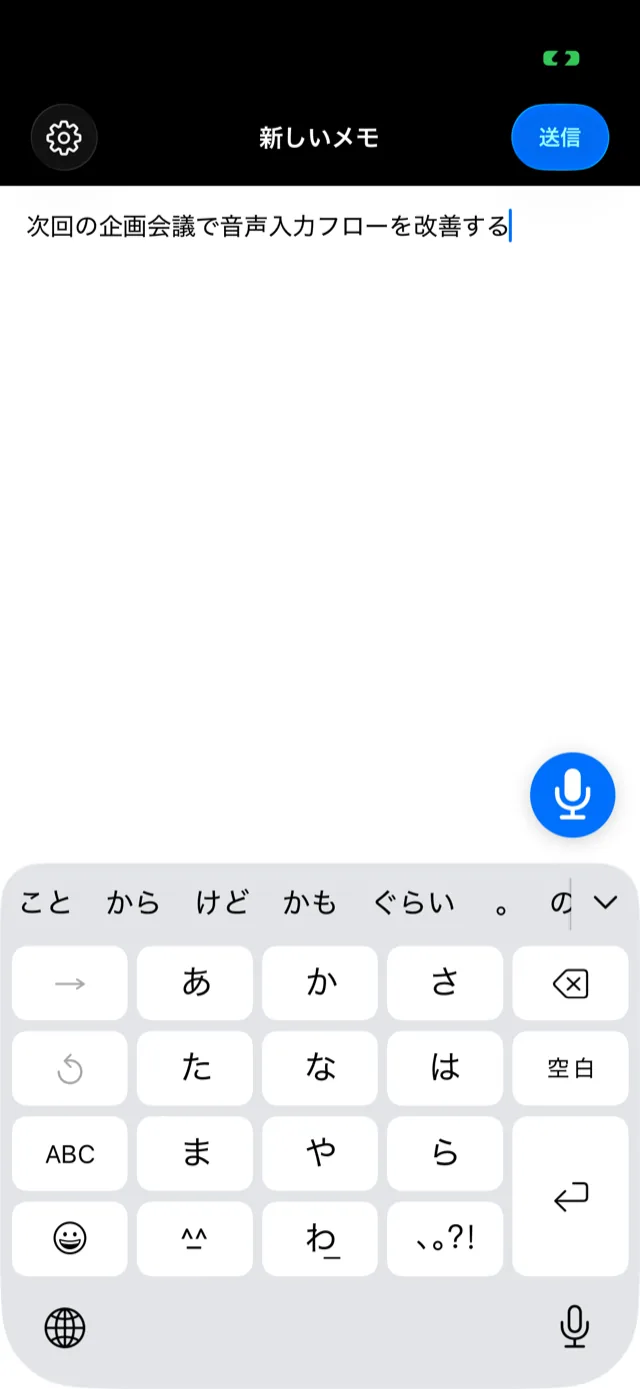
右下のマイクをタップ、または起動時に自動オン。あとは話すだけで、声がその場で文字になりメモになります。Appleの最新オンデバイス音声認識を使うので、音声もテキストも外部に送りません。追加料金なし・アプリ容量への影響ゼロ。手がふさがっていても、思いついたことをそのまま残せます。 Tap the mic in the bottom-right, or auto-start on launch, then just speak — your voice becomes text and a memo on the spot. Powered by Apple's latest on-device speech recognition, so neither audio nor text leaves your device. No extra cost, zero impact on app size. Capture a thought even when your hands are full.

ひとことで言うとIn one sentence

Captio式シンプルメモの音声入力は、話した言葉をその場で文字にしてメモにする機能です。メモ欄の右下のマイクをタップして話し、もう一度タップで停止。文字起こしはAppleのオンデバイス音声認識(iOS 26)で端末内完結し、音声・テキストを外部に送りません。設定の「起動時に音声入力を自動オン」をオンにすれば、アプリを開いた瞬間から話すだけ——これが「音声自動入力」です。

Simple Memo's voice input turns what you say into text and a memo on the spot. Tap the mic in the bottom-right of the memo field, speak, and tap again to stop. Transcription runs entirely on-device via Apple's on-device speech recognition (iOS 26) — no audio or text leaves your device. Turn on "Auto-start voice input on launch" in settings and you just open the app and speak — that's voice auto-input.

この機能で変わること What this changes

🙌 手がふさがっていてもEven hands-free
料理中、子どもを抱っこ中、歩きながら。キーボードを打てない場面でも、声でそのまま残せます。 Cooking, holding a child, walking. When you can't type, capture it by voice instead.
🔒 オンデバイスでプライベートPrivate, on-device
文字起こしは端末内で完結。音声もテキストも外部の音声認識サーバに送りません。プライバシーファーストの設計です。 Transcription stays on the device — no audio or text sent to external speech servers. It's privacy-first by design.
💸 追加料金ゼロZero extra cost
従量課金の外部APIを使わないため、いくら話しても追加料金はかかりません。アプリ容量も増えません。 No metered external API, so speak all you like at no added cost. App size doesn't grow either.

どう動くのか How it works

右下のマイクをタップすると録音が始まり、発話がライブで文字になってカーソル位置に挿入されます。録音中は声の大小に追従する本物の波形が表示され、「いま聞こえている」と「もう一度押すと完了」が文字なしで伝わります。 Tap the mic and recording starts; your speech becomes live text inserted at the cursor. While recording, a real waveform follows your voice level, showing "I'm listening" and "tap again to finish" without any words.

🎙️ マイクをタップTap the mic 🗣️ 話すSpeak ✍️ ライブで文字にLive text 📤 ワンタップ送信One-tap send
声と手入力を併用できるMix voice and typing
録音中もキーボードは下がりません。声で大筋を入れて、固有名詞や数字だけ手で直す——そんな使い方ができます。 The keyboard stays up while recording. Dictate the gist, then fix names or numbers by hand.
送信で自動停止Auto-stops on send
録音中に送信すると自動で停止し、本文はクリア。Captioの「書く→送る→即クリア」のリズムはそのままです。 Sending while recording stops it automatically and clears the field. The "write → send → clear" rhythm is unchanged.
技術メモTech note

文字起こしはAppleの SpeechAnalyzer / SpeechTranscriber(iOS 26の新しいオンデバイスAPI)を使用。言語モデルはアプリのバンドルとは分離されたシステム共有アセットとして端末内に保存されるため、アプリ容量は増えません。未導入の言語は初回のみ自動ダウンロードされ、その間は「準備中…」と表示されます。

Transcription uses Apple's SpeechAnalyzer / SpeechTranscriber (the new on-device API in iOS 26). Language models are stored on-device as shared system assets separate from the app bundle, so app size doesn't grow. A not-yet-installed language downloads once on first use, showing "Preparing…" meanwhile.

「音声自動入力」— 開いた瞬間から話せる "Voice auto-input" — speak from the moment it opens

設定の上級者モードにある「起動時に音声入力を自動オン」をオンにすると、アプリを開いた瞬間に音声入力が自動で始まります。マイクを探す必要すらなく、ホーム画面から起動して話すだけ。思いつきを最速で捕まえる、いちばん手数の少ない使い方です。 Turn on "Auto-start voice input on launch" under Advanced Mode in settings, and voice input begins the instant you open the app. No hunting for the mic — launch from your home screen and just speak. It's the lowest-friction way to catch a thought.

合わせ技Combine it

ロック画面やホーム画面にアプリ/ウィジェットを置いておけば、「起動 → 話す → 送信」が数秒で完結。さらにObsidian連携をオンにしておけば、音声で書いたメモもそのままObsidianのノートに追記されます。

Keep the app/widget on your Home or Lock Screen and "launch → speak → send" takes seconds. Turn on Obsidian integration too, and voice-written memos flow straight into your Obsidian notes.

使い方 How to use it

  • iPhone(iOS 26以降・音声入力対応機種)
  • Captio式シンプルメモをApp Storeからインストール
  • 初回はマイクと音声認識の許可(端末内処理・外部送信なし)
  • iPhone (iOS 26 or later, on a supported device)
  • Simple Memo installed from the App Store
  • Microphone and speech-recognition permission on first use (on-device, nothing uploaded)
  1. 右下のマイクをタップ
    メモ入力画面の右下にあるマイクアイコンをタップします。初回はマイク・音声認識の許可と、未導入言語の音声モデルのダウンロードが行われます(「準備中…」表示)。
  2. 話す
    そのまま話します。発話の途中経過もライブで表示され、確定した文字がカーソル位置に挿入されます。キーボードでの手入力も併用できます。
  3. もう一度タップして停止
    波形(停止ボタン)をもう一度タップすると音声入力が止まります。
  4. 送信
    いつものようにワンタップ送信。送信時に録音中なら自動で停止し、本文はクリアされます。
  1. Tap the mic (bottom-right)
    Tap the mic icon at the bottom-right of the memo screen. On first use, you'll grant mic/speech permission and download the language model if needed (shows "Preparing…").
  2. Speak
    Just talk. Interim text appears live, and finalized words are inserted at the cursor. You can also type with the keyboard at the same time.
  3. Tap again to stop
    Tap the waveform (stop button) again to end voice input.
  4. Send
    Send with one tap as usual. If you're still recording, it stops automatically and the field clears.
自動で始めたいときはTo start automatically

設定 → 上級者モード → 「起動時に音声入力を自動オン」をオンにすると、次回からアプリを開いた瞬間に録音が始まります(iOS 26以降の対応端末のみ)。

Turn on Settings → Advanced Mode → "Auto-start voice input on launch" and recording begins the moment you open the app next time (supported iOS 26+ devices only).

活用アイデア Ways to use it

家事・育児の合間にWhile doing chores
手が離せない時こそ声で。買い物の追加や「あれやらなきゃ」を一瞬で残せます。When your hands are busy, use your voice. Add to a shopping list or capture a to-do in a flash.
長文を一気にLong thoughts, fast
考えていることを話してざっと書き出し、あとで整える。タイピングより速く吐き出せます。Speak your thinking to dump it quickly, then refine later — faster than typing it all out.
アイデアの瞬間捕獲Catch ideas instantly
アイデアメモは鮮度が命。自動開始×音声なら、忘れる前に声で残せます。Idea capture is about freshness. Auto-start + voice lets you save it before it slips away.
日本語入力が面倒な時When typing is a pain
変換が多い日本語こそ、話した方が速いことも。声で書いて、必要な所だけ手で直せます。For input-heavy languages, speaking is often faster. Dictate, then fix only what needs it.

動作条件と注意点 Requirements & caveats

iOS 26以降の対応機種・対応言語が必要です

音声入力はAppleの新しいオンデバイス音声認識(iOS 26)に依存します。条件を満たさない端末ではマイクアイコンは表示されません。その場合も、キーボードでのメモとワンタップ送信は従来どおり使えます。

初回は音声モデルのダウンロードが必要なことがあります

未導入の言語は初回のみ自動でダウンロードされ、その間は「準備中…」と表示されます。通信環境のよい場所での初回利用をおすすめします。

マイクと音声認識の許可が必要です

初回タップ時(自動開始ONなら起動直後)に許可ダイアログが出ます。拒否した場合は、アラートの「設定を開く」から後で許可できます。

Requires iOS 26+ on a supported device and language

Voice input depends on Apple's new on-device speech recognition (iOS 26). On unsupported devices the mic icon isn't shown — keyboard memos and one-tap send still work as before.

First use may download a language model

A not-yet-installed language downloads once on first use, showing "Preparing…" meanwhile. Use it first where you have a good connection.

Microphone and speech permission needed

A permission dialog appears on first tap (or right at launch if auto-start is on). If you decline, you can grant it later via "Open Settings" in the alert.

よくある質問 FAQ

音声入力に追加料金はかかりますか?

いいえ。Appleの端末内音声認識(iOS 26)を使うため、文字起こしに従量課金の外部APIは一切呼びません。ユーザーにも開発元にも追加コストはかかりません。

話した音声はどこかに送信されますか?

いいえ。文字起こしは完全に端末内(オンデバイス)で行われ、音声もテキストも外部の音声認識サーバには送りません。できあがったメモを送信する段階で、はじめて宛先メールに届きます。

使える条件は?対応していない端末ではどうなりますか?

iOS 26以降の対応機種・対応言語で利用できます。条件を満たさない端末ではマイクアイコンは表示されず、従来どおりキーボードでのメモ・ワンタップ送信はそのまま使えます。

アプリの容量は増えますか?

増えません。音声モデルはアプリのバンドルとは分離されたシステム共有アセットとして端末内に保存されます。未導入の言語は初回のみ自動ダウンロードされます(その間は「準備中…」と表示)。

「音声自動入力」とは何ですか?

設定の上級者モードにある「起動時に音声入力を自動オン」をオンにすると、アプリを開いた瞬間に音声入力が自動で始まります。マイクを探す必要もなく、開いて話すだけでメモが始まります(iOS 26以降の対応端末のみ)。

音声入力中もキーボードで打てますか?

はい。録音中もキーボードは下がらず、音声と手入力を併用できます。言い間違いをその場でキーボードで直す、といった使い方が可能です。

音声で書いたメモもObsidianに追記されますか?

はい。音声入力と外部連携は独立しています。音声で書いたメモも、送信すれば(Obsidian連携がオンのとき)通常どおりObsidianのノートに追記されます。

Does voice input cost extra?

No. It uses Apple's on-device speech recognition (iOS 26), so transcription never calls a metered external API. There's no added cost to you or to us.

Is my spoken audio sent anywhere?

No. Transcription happens fully on-device; neither audio nor text is sent to external speech servers. Only when you send the finished memo does it go to your destination email.

What are the requirements? What if my device isn't supported?

It works on iOS 26+ supported devices and languages. On unsupported devices the mic icon doesn't appear, and keyboard memos with one-tap send keep working as before.

Does it increase app size?

No. Language models are stored on-device as shared system assets, separate from the app bundle. A not-yet-installed language downloads once on first use (shown as "Preparing…").

What is "voice auto-input"?

Turn on "Auto-start voice input on launch" under Advanced Mode, and voice input begins the moment you open the app — no need to find the mic, just open and speak (supported iOS 26+ devices only).

Can I type while voice input is on?

Yes. The keyboard stays up while recording, so you can mix voice and typing — e.g., fix a misheard word by hand on the spot.

Do voice-written memos go to Obsidian too?

Yes. Voice input and integrations are independent. A voice-written memo, once sent, is appended to your Obsidian notes as usual (when Obsidian integration is on).

話すだけで、最速メモ。 Speak, and it's the fastest memo.
ダウンロードは無料。7日間の無料トライアル付き。音声入力はiOS 26以降の対応端末で。 Free to download with a 7-day free trial. Voice input on supported iOS 26+ devices.
App Store からダウンロード Download on the App Store

関連ページ Related Pages

参考文献 References