Obsidian / Canvas
Check the contents of the storage with a small cardUse Canvas in Obsidian
Arrange cards and label their connections
This page was machine-translated from Japanese. Read the Japanese original
It is an exercise to create an empty Canvas, place two short sentences and an existing note, and save lines and labels. Using the real screen of the Linux version and the saved file, I checked the movement and reopening of the card.
Place sentences, refer to notes, connect with lines
Canvas is the core plug-in of Obsidian that places text cards and notebook cards on a flat surface. First, line up only three pieces, connect two pieces with a line, and leave the relationship on the label. Make sure that the text and the notes to be referenced are also saved.
The text on the card and the reference memo are short sentences created by the author. It is not a record of the actual user. The arrangement of the diagrams is manually arranged and is not the result of measuring the correctness of knowledge or productivity.
1. Create an empty Canvas from the command palette
In this environment, Canvas and command palette have been enabled. Open the command palette in Ctrl+P and select Canvas: Create new canvas. The name in the file list on the left was Untitled.canvas. The original file saved in an empty state is {}'s 2 bytes.
The text of the card to be placed from now on is a guide to fictitious observation and confirmation. The 資料/参照メモ.md for reference was prepared before the app was launched. The operation of adding cards is done on the actual Canvas.
2. Put two short sentences and one existing notebook
Double-click the blank space of Canvas and enter text. I did the same operation in another blank area and made two text cards. The saved full text is as follows.
Text Card A
# 観察カード

著者作成の短文を並べます。
Text Card B
# 次の確認

参照メモを開いて本文を確認します。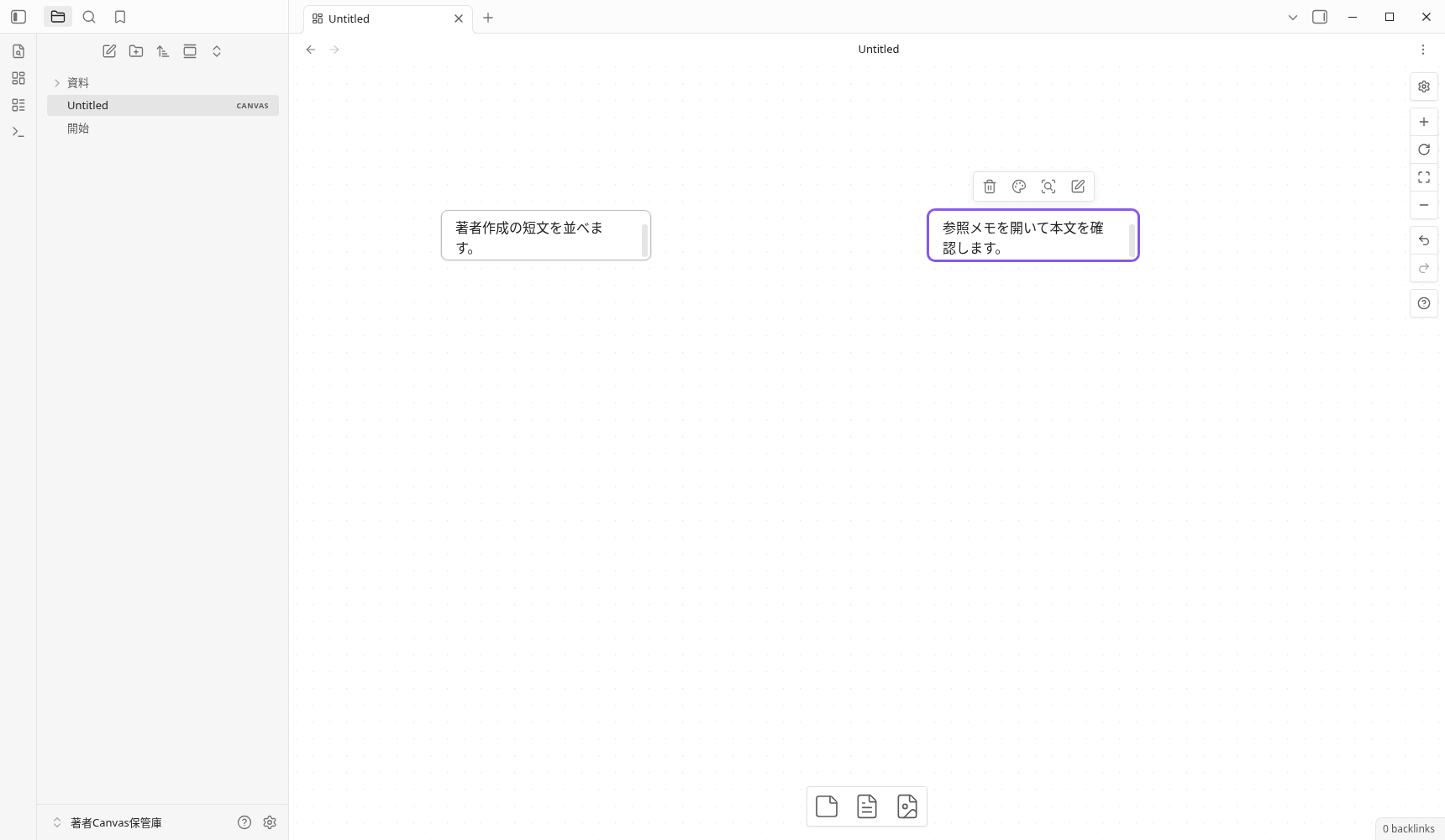
Next, drag 資料/参照メモ.md in the file list to Canvas. The third one is a file card that refers to the Markdown. In this saved data, two were type: text and one was type: file.
The height of the short sentence card is 60, and the full text is not displayed at once. There is a scroll bar in the image card, and the visible part is different. The full text is not judged only by the display on the card, and the text and saved contents are also checked.
3. Connect the two cards and label the line “本文を確認”
- Place the pointer on the right edge of the observation card and drag it from the circle that appears to the left edge of the next confirmation card.
- Double-click the line you created.
- Enter 本文を確認, then press
Escto finish editing the label.
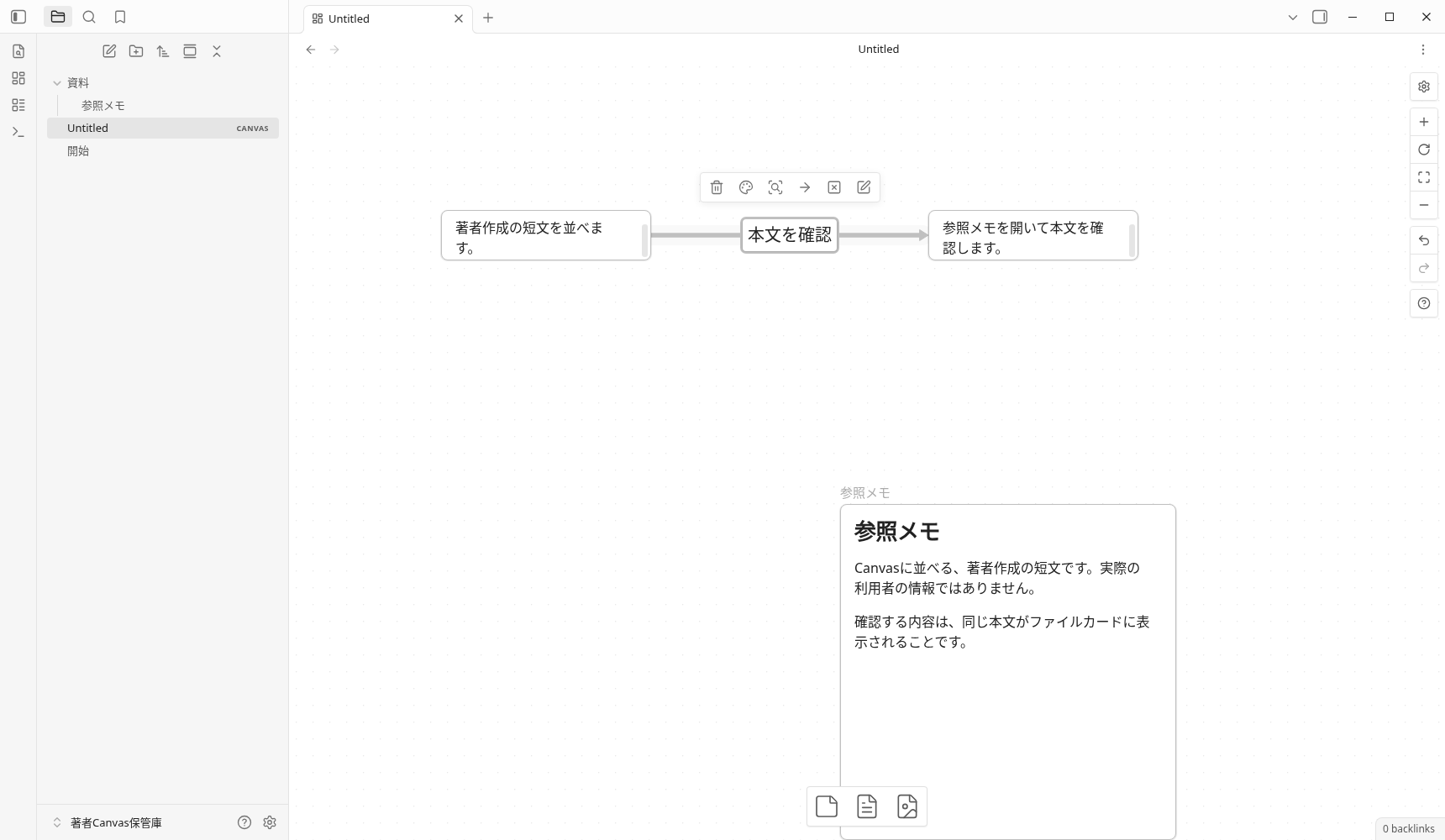
The saved connection goes from the right side of the observation card to the left side of the next confirmation card, and the label is 本文を確認. The third reference memo does not connect lines in this example. In the image, you can also see the label between the two sheets and the body of the reference note.
4. Select the card and drag the inside to change the position
I selected the reference note’s file card and dragged its interior to move it. On the first attempt, I grabbed its edge and accidentally resized it. After recording that state, I undid the change with Ctrl+Z and dragged from inside the card again.
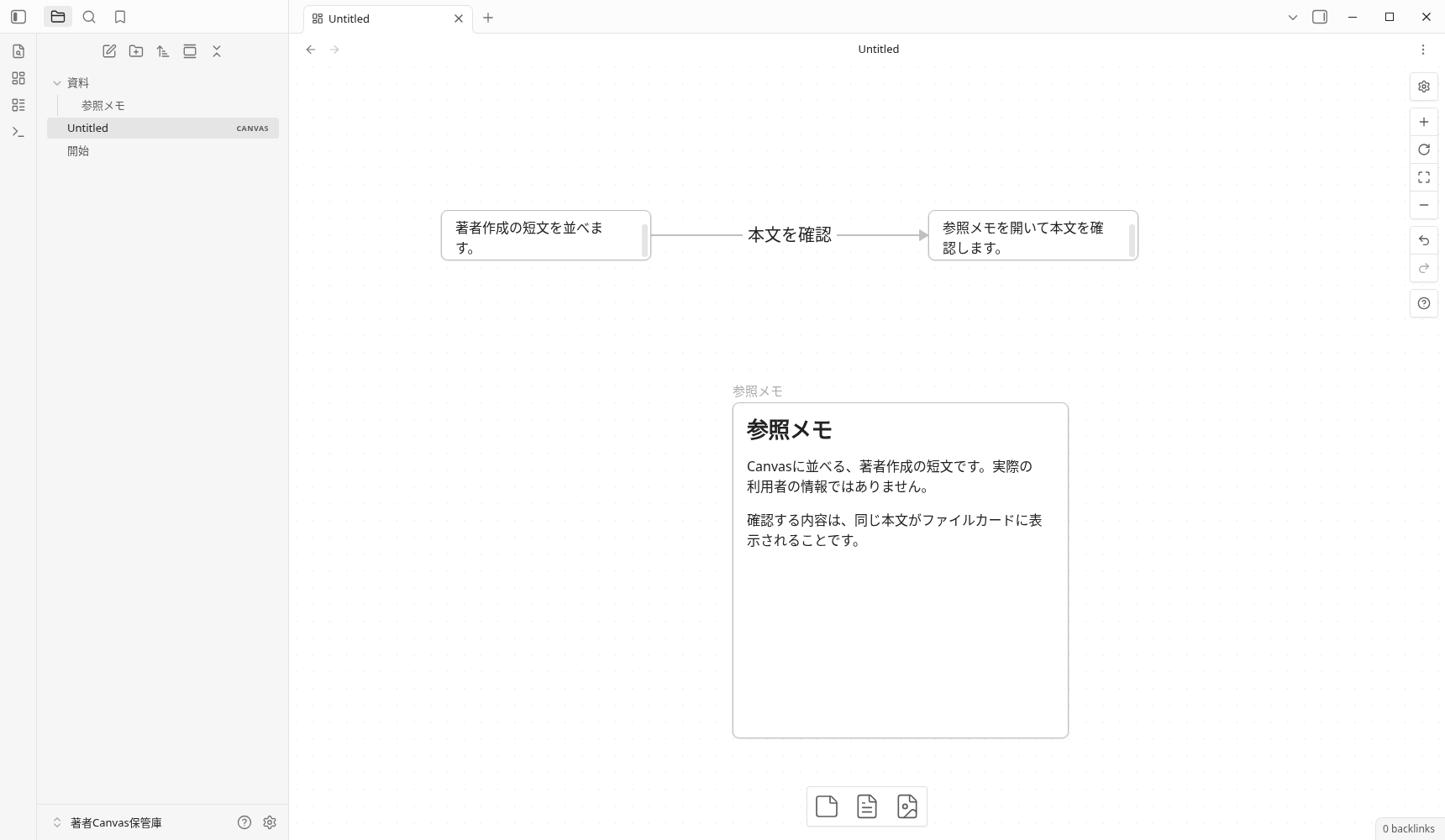
In the final saved data, only the coordinates of the file card changed from x=-32, y=61 to x=-160, y=-60, and the size, reference destination, and ID of 400×400 were the same. The meaning of the connection is the same as the other two texts.
This is a record of confirming an internal drag. It is not an operation that completely verifies the function of resizing. Coordinates are comparisons of stored contents, not values that indicate time required or efficiency.
5. Save and reopen Canvas from another note
I saved it with Ctrl+S, opened another Markdown from the file list, and then returned to Untitled.canvas. We are checking the saved three cards, one connection, and label.
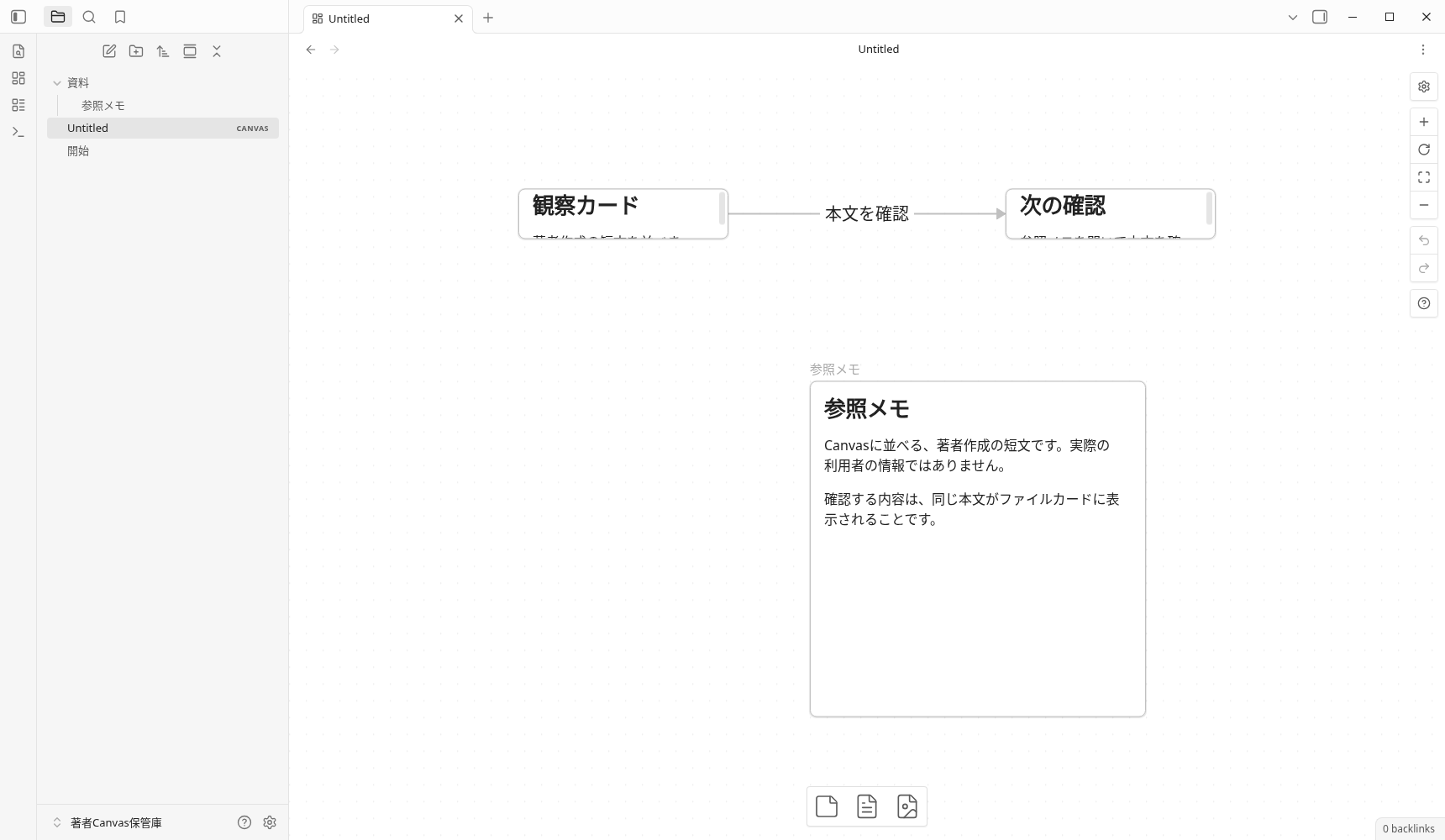
The original Canvas file remained 612 bytes with the same SHA256 after moving it, reopening it, and quitting the app. However, the Canvas viewport and the scroll position inside the text card changed. Matching saved files and an identical on-screen view are separate things to verify.
This time, I reopened it within the process of the same app. I have not tried to restore, another device, or synchronize after closing and restarting the entire app. Finally, the app/installer 1.13.7 was displayed in the General settings, and my app and display process ended normally.
Save practice Canvas and reference notes
The following two files are the same bytes as the original saved after the actual operation. Also keep the relative path of 資料/参照メモ.md referenced by Canvas. If you want to save it individually, adjust it to the following arrangement in the same storage.
Untitled.canvas
資料/
参照メモ.md| Relative path in the vault | Original file |
|---|---|
Untitled.canvas | Save Untitled.canvas (612 bytes) |
資料/参照メモ.md | Save 参照メモ.md (214 bytes) |
The ZIP was newly packaged while preparing the article and preserves both files’ content and relative paths. We checked the extracted paths and SHA256 hashes against the originals. Importing on a reader’s device, use in another vault, and delivery from a public server were not tested.
View the full text of the saved Canvas (612 bytes)
{
	"nodes":[
		{"id":"3f4ab2bb724d8e0a","type":"text","text":"# 観察カード\n\n著者作成の短文を並べます。","x":-507,"y":-289,"width":250,"height":60},
		{"id":"e3670f8ddf28da4b","type":"text","text":"# 次の確認\n\n参照メモを開いて本文を確認します。","x":73,"y":-289,"width":250,"height":60},
		{"id":"678949267c596805","type":"file","file":"資料/参照メモ.md","x":-160,"y":-60,"width":400,"height":400}
	],
	"edges":[
		{"id":"ddb0f48d2fcb7657","fromNode":"3f4ab2bb724d8e0a","fromSide":"right","toNode":"e3670f8ddf28da4b","toSide":"left","label":"本文を確認"}
	]
}
Frequently Asked Questions
What is the difference between the Canvas text card and the notebook card?
How to connect cards to each other and name the lines?
Do I also need a reference note for the downloaded Canvas?
If I reopen the saved Canvas, will the screen be exactly the same?
Verification environment and confirmation range
- Environment: Linux version Obsidian 1.13.7, installer 1.13.7, no community plug-in. A small Japanese library created by the author.
- Real GUI: Command selection, new Canvas, text input, drag from the file list, connection and label, Undo and internal drag, save, re-display via another note, General setting, normal exit.
- Auxiliary: Preparing the initial Markdown, saving the original file, and reading the Canvas data, active view, and DOM position of readonly. Card generation, connection, and movement are not done with the API app.
- Original image: Posted without processing the PNG of the actual screen. The full text of the short sentence card cannot be seen at once, and the display position at the time of re-display is not the same.
- Not tested: groups, colors, image/audio/web embeds, conversion, the full range of resizing, restarting the entire app, large canvases, formal compliance with the JSON Canvas specification, iOS/Android/Windows/macOS, Sync, SimpleMemo, or effects on speed, productivity, or traffic.
The actual operation is October 1, 2026 (Japan time), and the recorded UTC is September 30, 2026. The failure of initial preparation, restoration, and the correspondence of original images and saved files are summarized in verification record.
Official explanation confirmation address
- Obsidian Official Help: Canvas — Description of new creation, card, connection, label, and movement. I fixed the commit and confirmed it.
The official documentation also describes features that were not tested in this example. This is the developer website for the independent app “SimpleMemo”; this article is not an official Obsidian publication.