Zettelkasten in Obsidian
A practical example of creating notes and links
This page was machine-translated from Japanese. Read the Japanese original
The notes you came up with will remain scattered as files. If you add a link and the reason to the body of the related idea, you can create an entrance to another notebook. In a small exercise note written by the author, check the graph before and after adding the link and the actual saved Markdown.
Author: SimpleMemo Developer · Published and Verified: · Linux version Obsidian 1.13.7
How to start Zettelkasten with Obsidian?
Write an idea in the body of the note and start by leaving the relevant reasons and internal links together. In this example, prepare a temporary note and a note of two ideas, and add a link with a reason. Finally, make sure to make an index and proceed to two notes from there.
Here, we treat Zettelkasten as a small exercise to rewrite ideas on a notebook basis and leave related articles and links. For the entrance to collect thoughts, go to Zetterkasten and email memo guide. This article is an example of the operation of connecting notes in Obsidian.
The note name, number, and text are examples made by the author to show this procedure. It is not taken from actual research, reading materials, or user operation records.
1. Prepare the text in a small storage room
When trying, use a practice vault that does not contain personal information. There is no need to move existing notes. If it's your first storage, you can check the storage destination and the actual file first.
The first to prepare in this example is the following three. I will add an index later. The titles 20260930-01 and 20260930-02 are numbers given by the author for distinction.
| Saved file name | Role in this example |
|---|---|
| 仮メモ.md | Two short notes about the stage of writing down and the stage of thinking about the relationship |
| 20260930-01 入力と整理を分ける.md | An example of rewriting an idea in your own words |
| 20260930-02 関係に理由を添える.md | An example of a reason to refer to another note |
All three existed on the first screen, and 3 nodes and lines 0 were displayed in the graph. There is a difference between having a text and a link to another note.
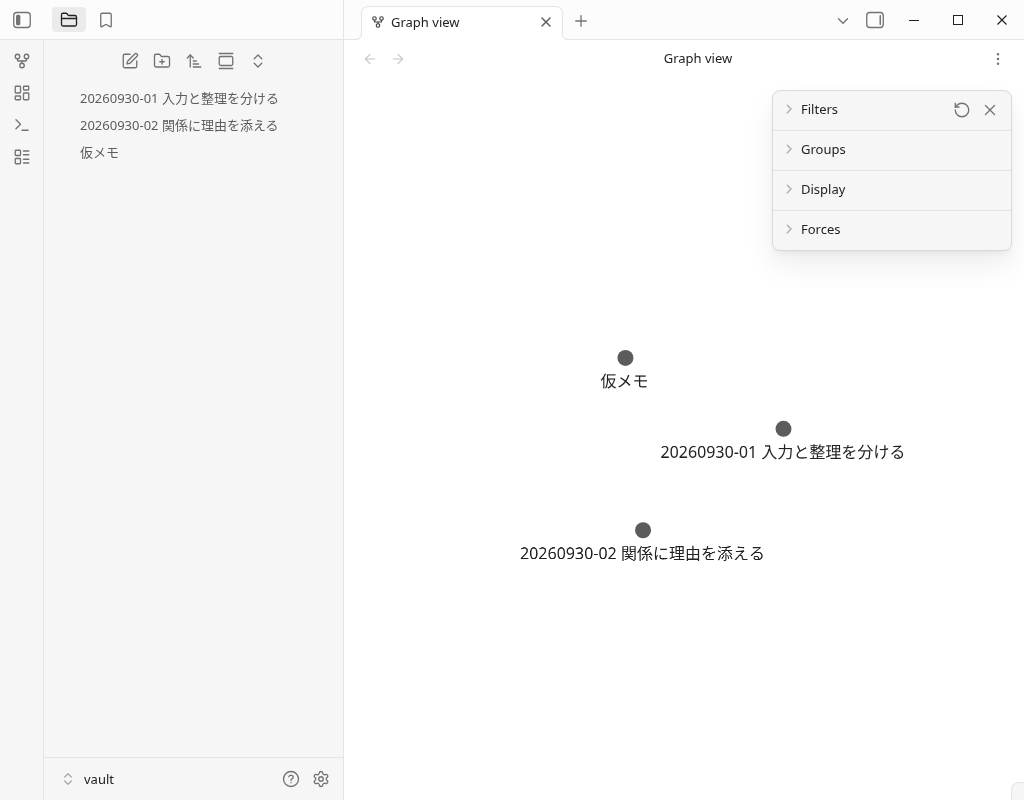
The author prepared the first three notes as Markdown files before starting. The following link reason and index text were entered into the actual Obsidian editor and saved. The scope of using auxiliary API to adjust the display of the configuration window and the right sidebar and read the saved status is described in the verification record at the end.
2. Write the relevant reason before the link
Open 20260930-01 入力と整理を分ける and write the heading of ## 関連 and the reason for proceeding to the note of 02 at the end. The link is in the form of [[ノート名]] and is matched to the name that is actually saved.
Below is the saved Markdown of 01 after adding the link. The contents of the original are posted as they are, including empty lines.
# 入力と整理を分ける

この例では、思いつきを仮メモに置き、あとで一つの考えを一つのノートに書き直す。

書き留める段階と、整理する段階を分ける運用案として扱う。
## 関連

整理の段階で関連の理由も書く例として、[[20260930-02 関係に理由を添える]]を参照する。
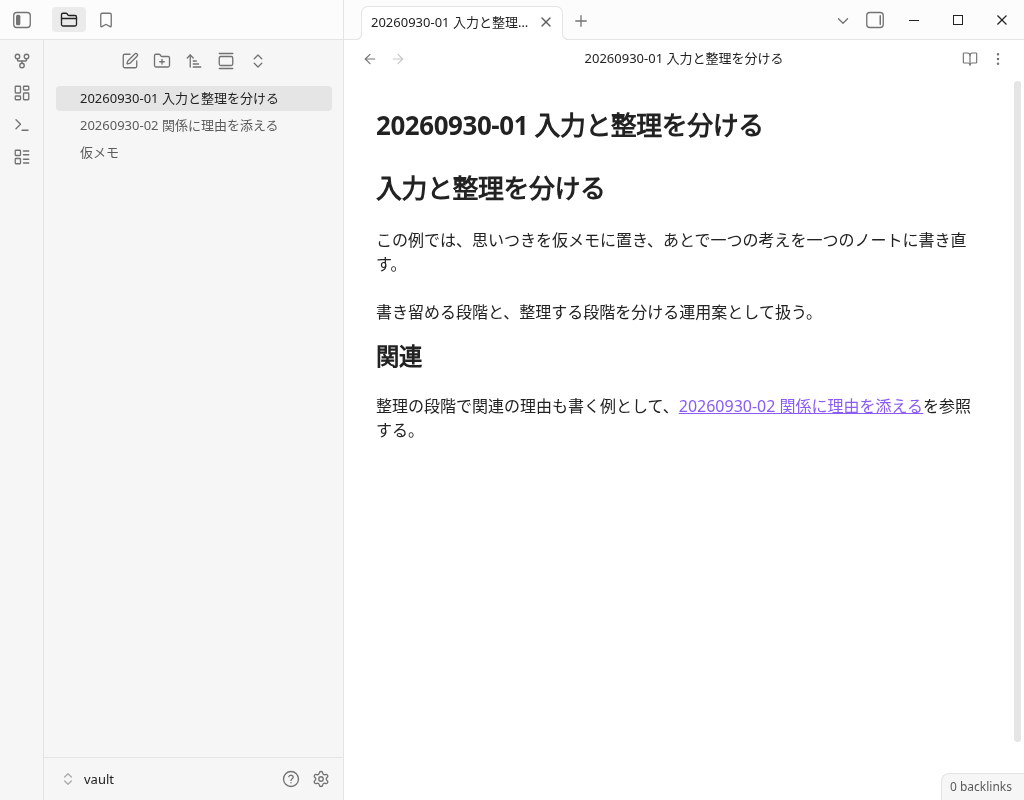
Rather than simply lining up the links, you can leave the entrance to the text when reviewing if you leave "what to open to check" in one sentence. In this example, 02 is referred to as "an example of writing related reasons at the organization stage".
If you want to arrange short sentences and reference notes as cards, you can also refer to examples of leaving connection labels in Canvas.
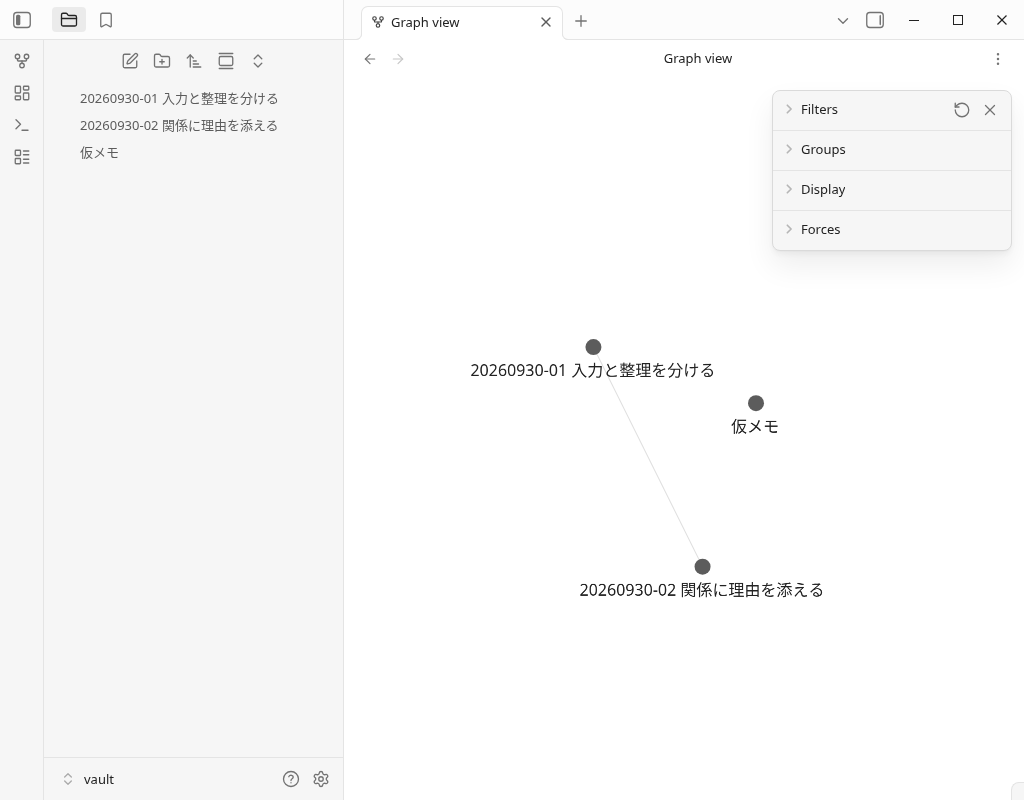
The graph immediately after the addition was 3 node, line 1. There is a line between 01 and 02, and the temporary memo remains isolated. I also checked to switch to the read view with Ctrl+E and click the link to move to 02.
3. Trace notes from the index
Next, create a new notebook with Ctrl+N, name it 索引 and save it. Fill in this small set of themes and the entrance to the two notebooks. The contents of this storage are as follows.
# 索引

この例で扱うテーマは、メモを書く段階と、関連を残す段階を分けること。

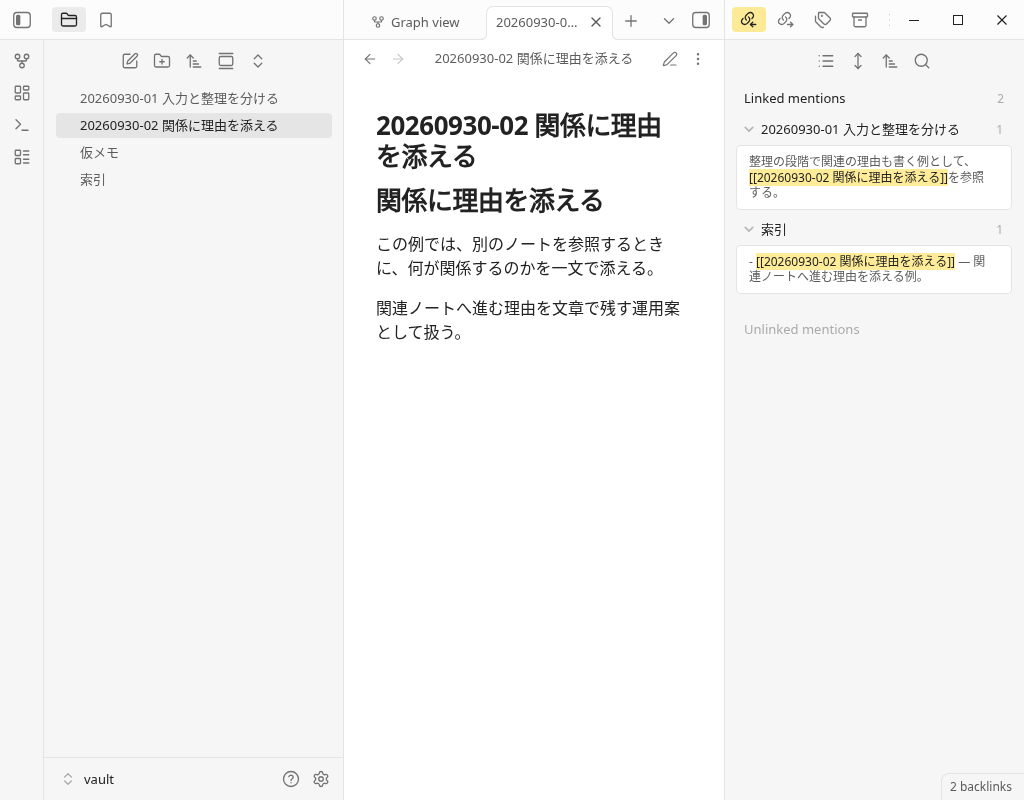
- [[20260930-01 入力と整理を分ける]] — 書き留める内容と整理する内容を分ける例。
- [[20260930-02 関係に理由を添える]] — 関連ノートへ進む理由を添える例。
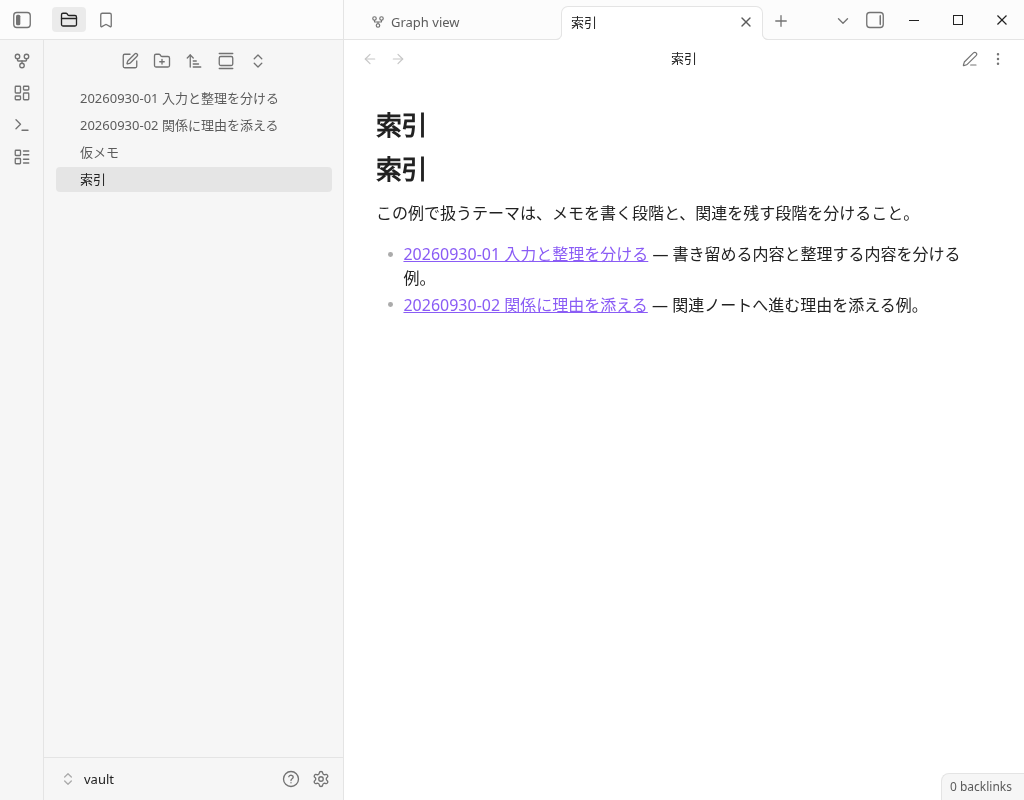
After reopening the index, I checked that the text had not changed, and clicked on the link in the order of index → 01 → 02 in the read view. In the backlink of 02, two reference sources, 01 and index, were displayed, and I was able to click on the context of the reference source to return to 01.
The index is an author-created example that provides an entry point back to this topic. We did not test rules for collecting every note in the vault here or an automatic generation system. To combine it with project folders and working notes, see the small PARA implementation example.
Check the changes in the graph in three stages
In this English UI, I opened the command palette with Ctrl+P and selected Graph view: Open graph view. Check the actual screen of each stage with a saved note.
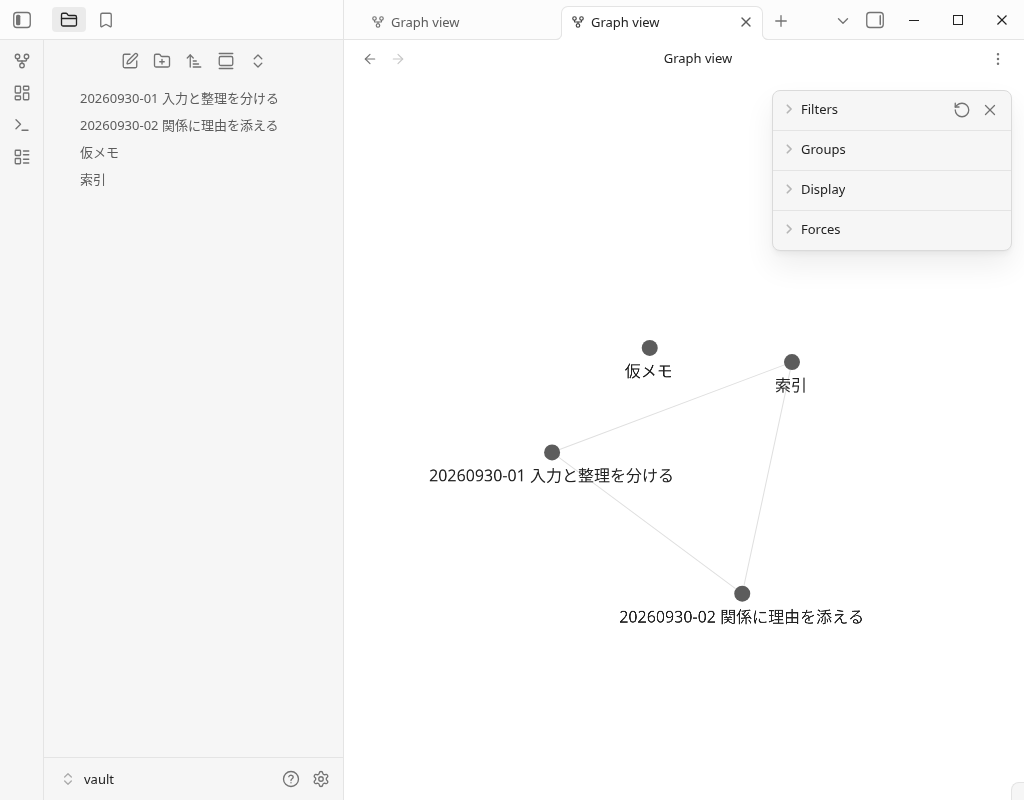
The last graph was 4 node, line 3. The added node is the index, and the added line is the two links filled in from the index to 01 and 02. Temporary notes do not have links to other notes until the end and remain isolated.
| Stage | Node | line | Changed content |
|---|---|---|---|
| First | 3 | 0 | Three texts are prepared. No internal link |
| Link with reason | 3 | 1 | Add one internal link from 01 to 02 |
| Add index | 4 | 3 | Add two internal links from the index to 01 and 02 |
The three sheets are in the order in which the operation was carried out in one verification on the same day. The position of the point changes with the automatic layout of the graph, so it is not used as an indicator to compare the position and the size of the spread. I checked the actual file, the result of the internal link resolution, and the correspondence of the display node and line.
The display conditions have been fixed with Search blanks, Tags OFF, Attachments OFF, Existing files only OFF, and Orphans ON. There were no unresolved internal links in this vault. The graph shows the structure of this link, and does not measure the correctness of the sentence, the depth of learning, or the improvement of knowledge or productivity.
Search, isolated notes, color coding, and operations to change the depth of local graphs can be found in Example of a graph view that narrows down the display range.
Check when the line or link cannot be found
- View the current storage and actual files. Check if you have opened a separate vault with the same name and if you have the intended Markdown.
- Open the link to the text. See if the inside of
[[...]]matches the name and path of the target note. If you have a note with the same name, please check the open text. - See the display conditions of the graph. Check the settings of Orphans to narrow down such as Search and display isolated notes. It is not necessarily the same as this display condition.
- Reread the reason for the link in the text. It is not only aimed at increasing the number of lines, but it is a sentence of which idea you want to proceed to with that link.
This checklist is a procedure to check in your own vault. This time, it is not the result of trying all unresolved links, notes of the same name, and all combinations after switching filters. For operations and display settings, please also refer to internal link and official description of graph views.
Check the original saved Markdown
You can download the four Markdown in the final stage. If you click the link, it is specified to save it with the following original Japanese file name. If it is stored in the English distribution name depending on the browser or saving method, please change it to the name of the table or match the internal link of the text to your note name.
| Original save name | Original |
|---|---|
仮メモ.md | Save Markdown |
20260930-01 入力と整理を分ける.md | Save Markdown |
20260930-02 関係に理由を添える.md | Save Markdown |
索引.md | Save Markdown |
The distribution name in English is an alias for publishing the original. The wikilink inside is still the Japanese notebook name, so if you put it in the library with the English name, it will not match the link in this example. Before importing into the actual notebook, please check the name and link in the practice area. The operation of importing this distribution file into the reader's repository is not included in the scope of this verification.
Make the memo I came up with an entrance to review the link later
This temporary memo is an example of the author to put a note before rewriting the text. Preparing links and indexes is separated as an operation when reviewing thoughts afterwards. If you want to find out how to input while moving or leave it from iPhone to the vault, you can check input and review ideas and SimpleMemo's cooperation and storage guide.
In this article, we have not tried input from SimpleMemo, email sending, delivery to storage, or synchronization. It is not a diagram or verification that shows that permanent notes, links, and indexes are automatically created just by entering them.
Frequently Asked Questions
Do I need a dedicated plug-in for Zettelkasten?
Do I need to attach a note ID like 20260930-01?
If there is no line on the graph, is the note not saved?
What do the lines in the graph represent?
Verification environment and confirmed range
- Actual application:September 30, 2026, Linux version Obsidian 1.13.7. I only put the author's synthetic notes in another repository and checked without adding community plug-ins.
- Actual operation: Enter and save the reason and link to 01, enter and save the index body, move the index → 01 → 02 in the read view, click on the reference source of the backlink, and re-display the index.
- Save and graph: Markdown for each operation stage, the solution of the internal link, and the nodes and lines of the actual screen and the graph are matched. The initial 3/0, the 3/1 after the link, and the 4/3 after the index were confirmed with this small storage and fixed display conditions.
- Step assistance: The first three notes were prepared as Markdown before starting. I used the auxiliary API to open the setting window, adjust the display of the right sidebar, and read the saved status. The PNG posted is the actual Obsidian screen, and Markdown is the actual saved file, and it is not substituted by drawing graph images and saved results.
- Unverified: iPhone・Actual operation on Android・Mac, SimpleMemo integration, mail/synchronization, CLI/URI, large number of notes, long-term use, changes in knowledge, learning, and productivity.
This is a limited operation confirmation on the Linux desktop. It is not the result of checking with the iOS Simulator or iPhone actual machine. Verification record, original and confirmation range describes the three levels and the correspondence of the public file.
Official materials and related guides
- Obsidian 1.13.7 official release - This desktop version
- Internal link of Obsidian — Entrance to check your notebook name and pass
- Graph view of Obsidian — Official guide to display conditions
- Obsidian's backlink — Official guide to tracing the source
This site is operated by YURIKA, K.K. and introduces the independent app "SimpleMemo". This is not an official article by Obsidian.