Obsidian · Daily and weekly notes
Daily-note plugins: Calendar and Periodic Notes
This page was machine-translated from Japanese. Read the Japanese original
Open the note you want to revisit by its date or week number. This example combines Calendar and Periodic Notes to create, save, and reopen daily and weekly notes in the same app.
Tested: 2026-9-30 (UTC) · Obsidian 1.13.7 on Linux
Two distinct roles make setup easier
Calendar lets you choose which date’s note to open. Periodic Notes defines its folder, filename, and initial content. In this test, we created the daily note 2026-09-30 and the weekly note 2026-W40, added an author-written confirmation line to the template content, and saved both.
The main daily-notes guide covers the built-in Daily notes feature in Obsidian and appending notes from iPhone. This article focuses on desktop calendar operations and daily and weekly settings.
| Feature | Role | What this example verifies |
|---|---|---|
| Core Daily notes | The built-in daily-note feature in Obsidian. | Enabled in the actual GUI. We combined it with the two plugins below; this is separate from creating daily notes using only the built-in feature. |
| Calendar 1.5.10 | A sidebar for opening notes by date or week number. | Date 30, week number 40, creation confirmation, and navigation between the previous and current months. |
| Periodic Notes 0.0.17 | Daily/Weekly folders, filename formats, and templates. | Daily and weekly settings, the created content, saving, and reopening in the same app. |
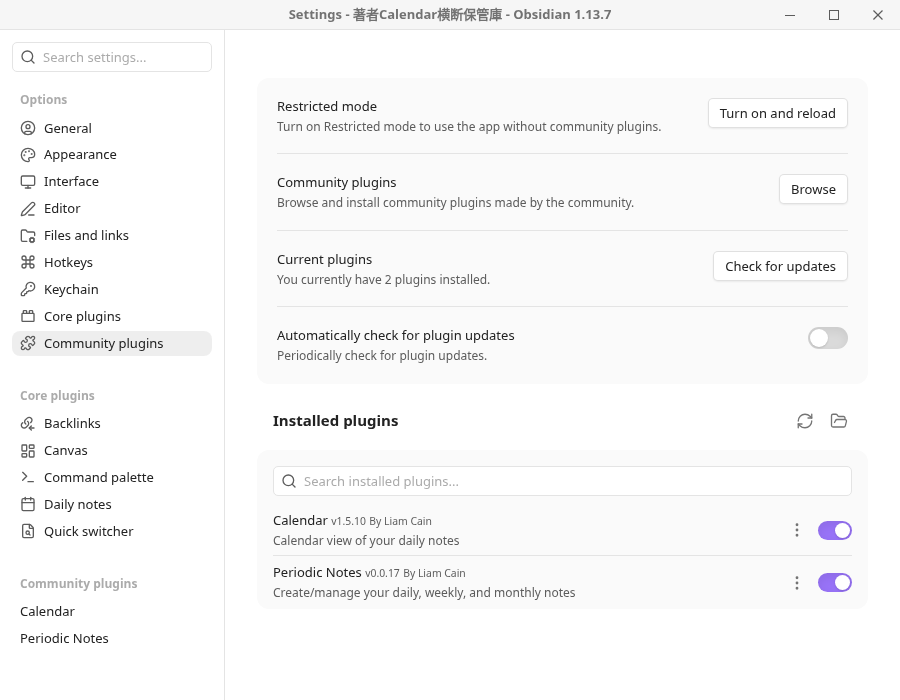
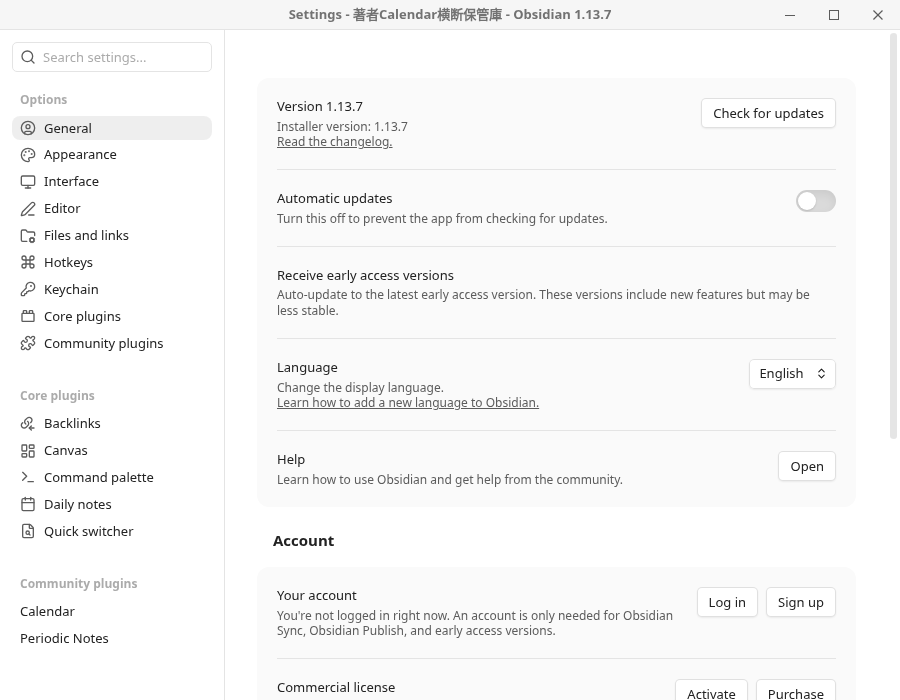
We used Calendar 1.5.10 and Periodic Notes 0.0.17 from official non-beta tags. These records do not establish which version is latest or currently recommended, or guarantee the same results with other versions. The original screenshots below also show the versions we operated.
Prepare and enable the tested versions
For this example, we manually placed official release files in an isolated, author-created Vault, then enabled and operated the plugins through the GUI. We did not test installation through Community plugins → Browse → Install.
- In your practice Vault, create empty folders named 日誌, 週誌, and テンプレート. This example uses the Markdown provided below.
- The files used in this example are available in the official Calendar 1.5.10 release and the official Periodic Notes 0.0.17 release. The manual file layout is shown below.
- Turn on Daily notes in Settings → Core plugins. In this test, Command palette was also on, and we confirmed that Quick switcher was on.
- After confirming trust for the Vault you prepared yourself, enable Periodic Notes and Calendar in Settings → Community plugins. The original screenshot below shows both plugins enabled.
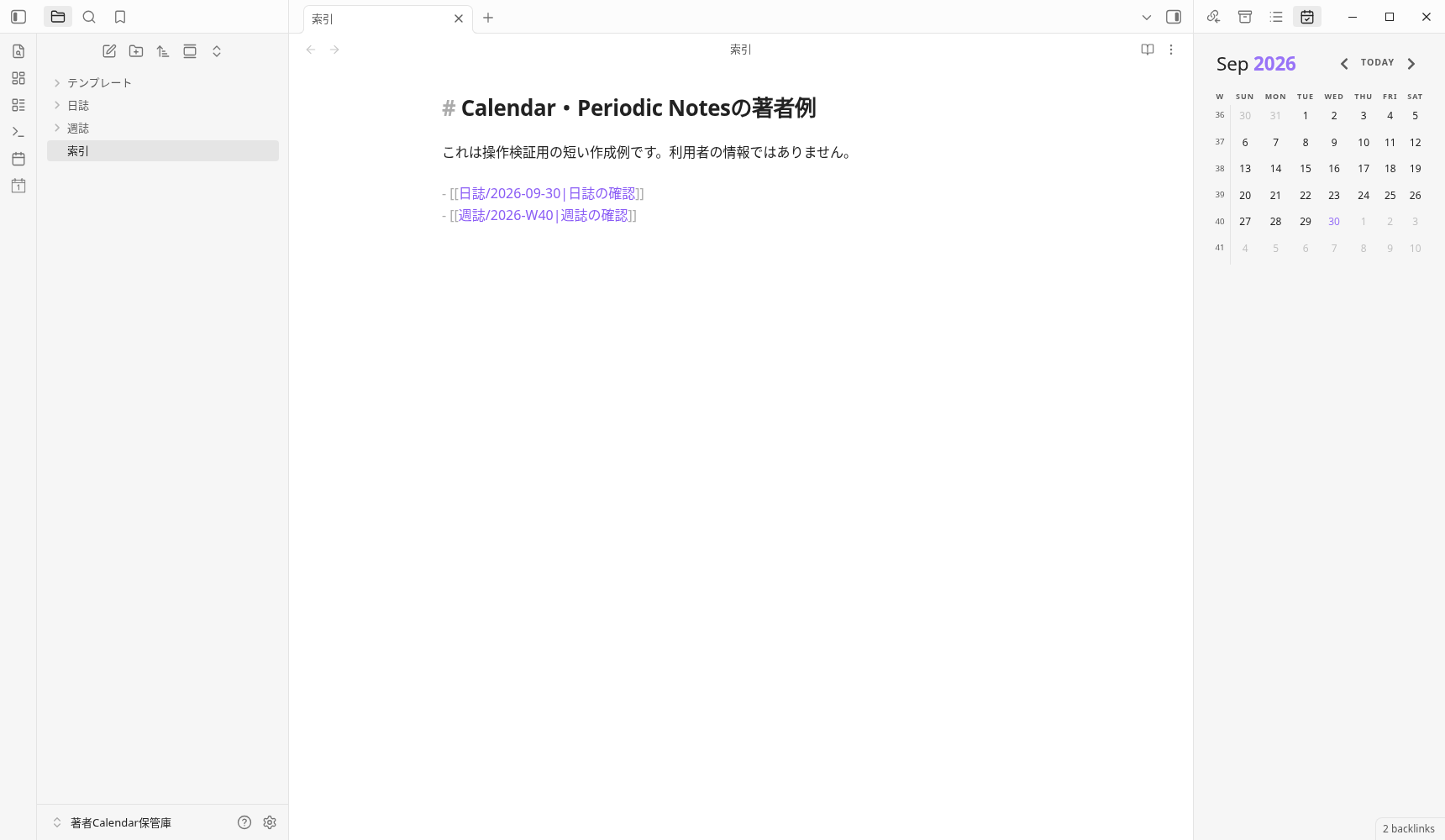
- Open the right sidebar and select the Calendar tab. If another tab, such as Backlinks, remains selected, the calendar will not be visible.
.obsidian/plugins/calendar/
  manifest.json
  main.js
.obsidian/plugins/periodic-notes/
  manifest.json
  main.js
  styles.css
In this Calendar release, styles are included in main.js; we did not download a separate styles.css. The layout above shows the actual files used. The plugins themselves are not included in this page’s downloadable ZIP.
Set the daily and weekly folders first
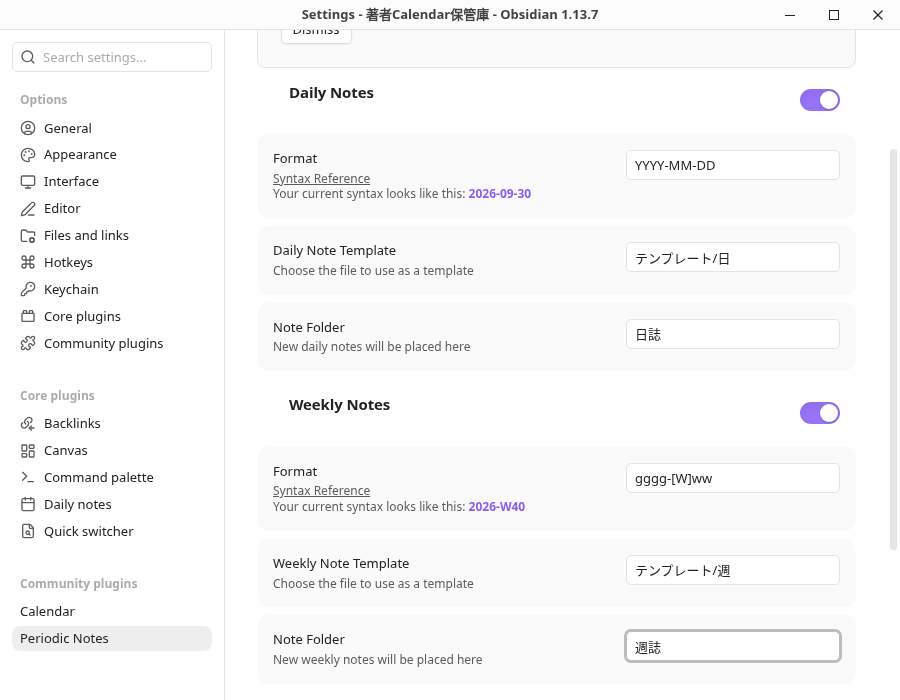
In Settings → Periodic Notes, turn on Daily Notes and Weekly Notes and enter the values below. Prepare the folders and templates inside Vault beforehand. We checked these settings against both the actual GUI and the saved JSON.
| Setting | Daily Notes | Weekly Notes |
|---|---|---|
| Format | YYYY-MM-DD | gggg-[W]ww |
| Note Folder | 日誌 | 週誌 |
| Note Template | テンプレート/日 | テンプレート/週 |
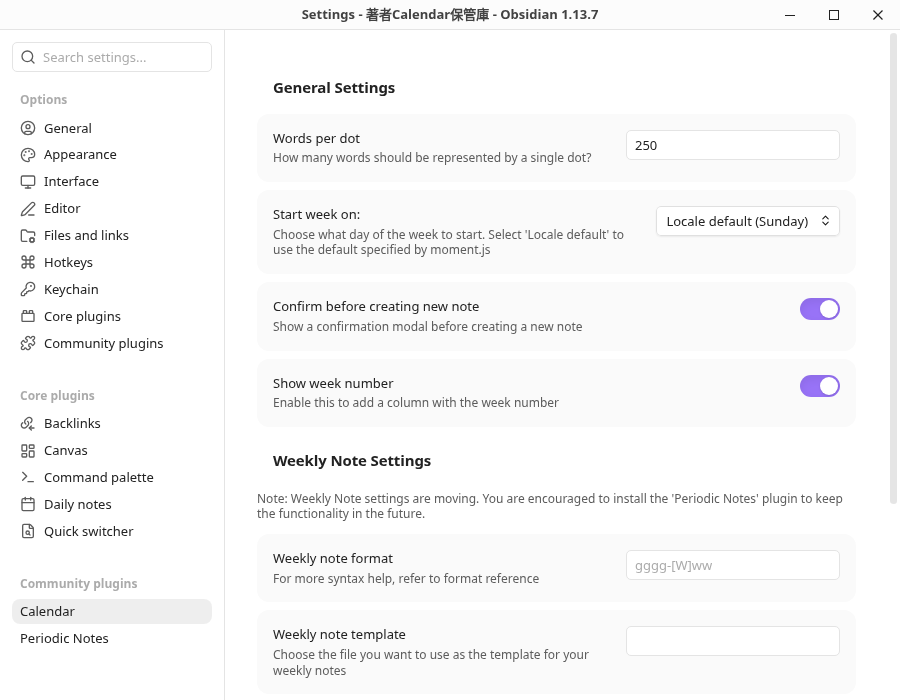
In Settings → Calendar, we enabled Show week number and Confirm before creating new note. The week started on Locale default (Sunday), the app locale was en, and the environment’s time zone was UTC. We did not test every combination of week boundaries and locales.
Original Calendar week-number settings
Create and reopen a daily note for date 30
Save the daily template to テンプレート/日.md. The date variable used here is native to Obsidian.
# {{date:YYYY-MM-DD}}

これは著者作成のデイリーノート用テンプレートです。

## 確認

- [ ] 保存した本文をもう一度開く
- [[索引]]
- Select 2026-9-30 in Calendar. In this test, the confirmation appeared in a separate Settings window that was already open.
- Check the target date 2026-09-30 in New Daily Note, then select Create in that window. 日誌/2026-09-30.md opened in the main editor.
- After the heading was replaced with 2026-09-30, we added a confirmation line to the content and saved with Ctrl+S.
- We selected the index to move to another note, then selected 日誌/2026-09-30.md once from the file list on the left. After reopening, its content still matched the saved 235 bytes.
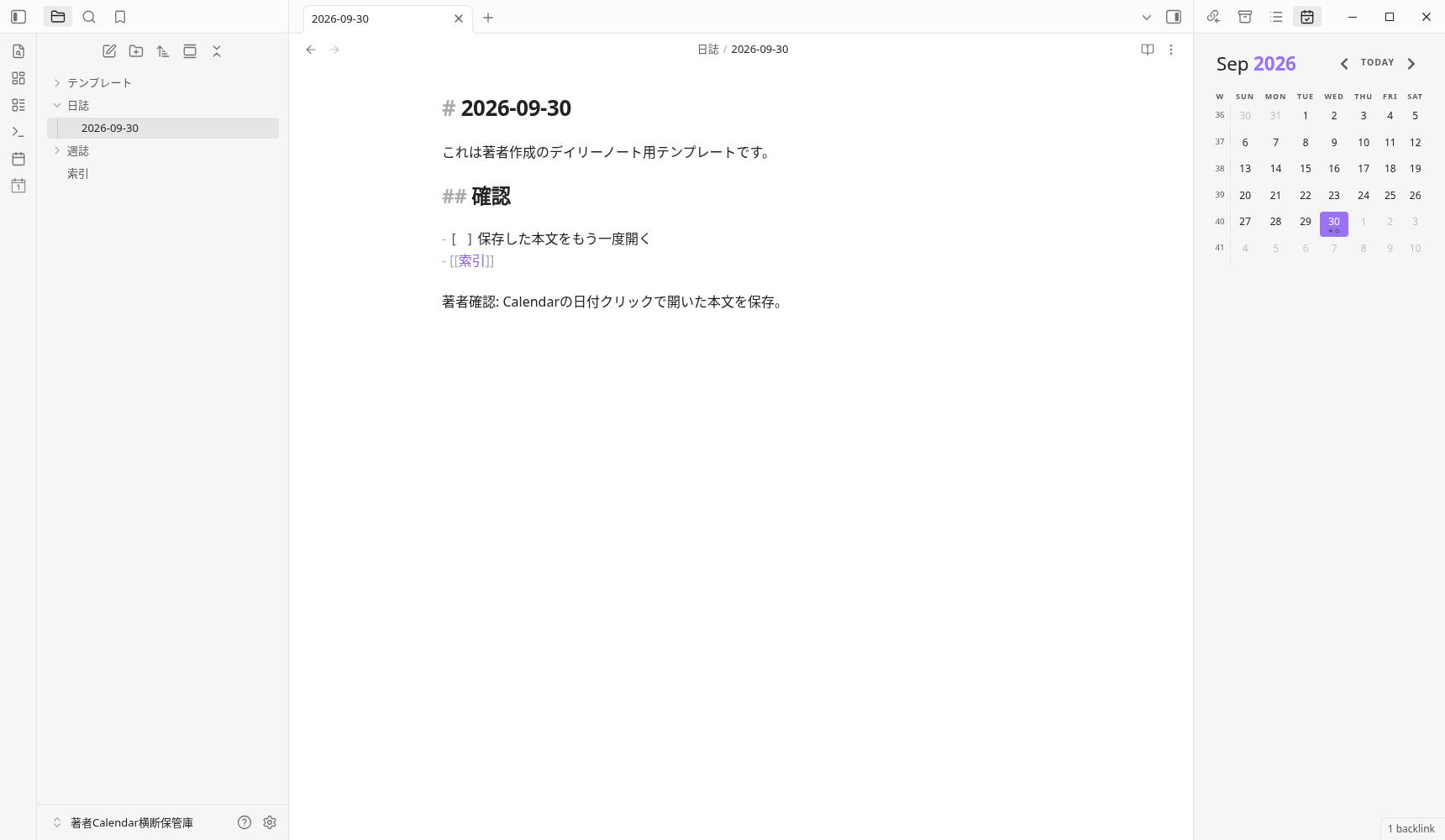
Saved daily-note content and creation confirmation
# 2026-09-30

これは著者作成のデイリーノート用テンプレートです。

## 確認

- [ ] 保存した本文をもう一度開く
- [[索引]]

著者確認: Calendarの日付クリックで開いた本文を保存。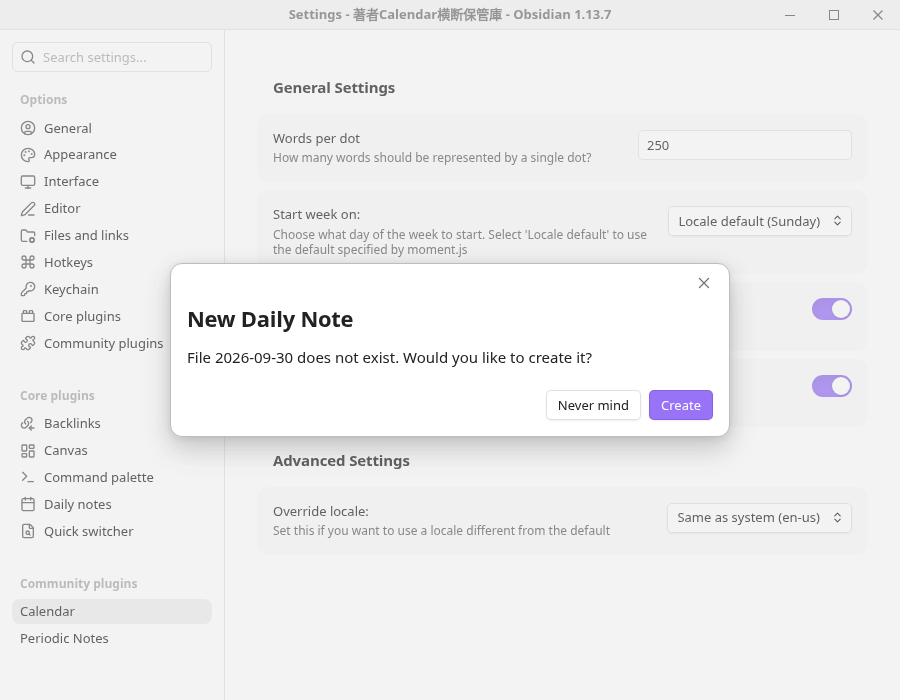
Create and reopen a weekly note for week 40
Save the weekly template to テンプレート/週.md. Its content is a static, author-written template. We do not present this as a test of arbitrary weekly-variable substitution.
# 週の確認

これは著者作成の週間ノート用テンプレートです。

## 確認

- [ ] 一週間の対象を記録する
- [[索引]]
- Select 40 in Calendar with the week-number column visible. In this environment, the target was named 2026-W40.
- In the separate Settings window, check 2026-W40 under New Weekly Note, then select the actual Create button.
- We added a confirmation line to the content opened at 週誌/2026-W40.md and saved with Ctrl+S. The result is the original static weekly template plus that line.
- We moved to the index, then selected 週誌/2026-W40.md once from the file list on the left. After reopening, its content still matched the saved 219 bytes.
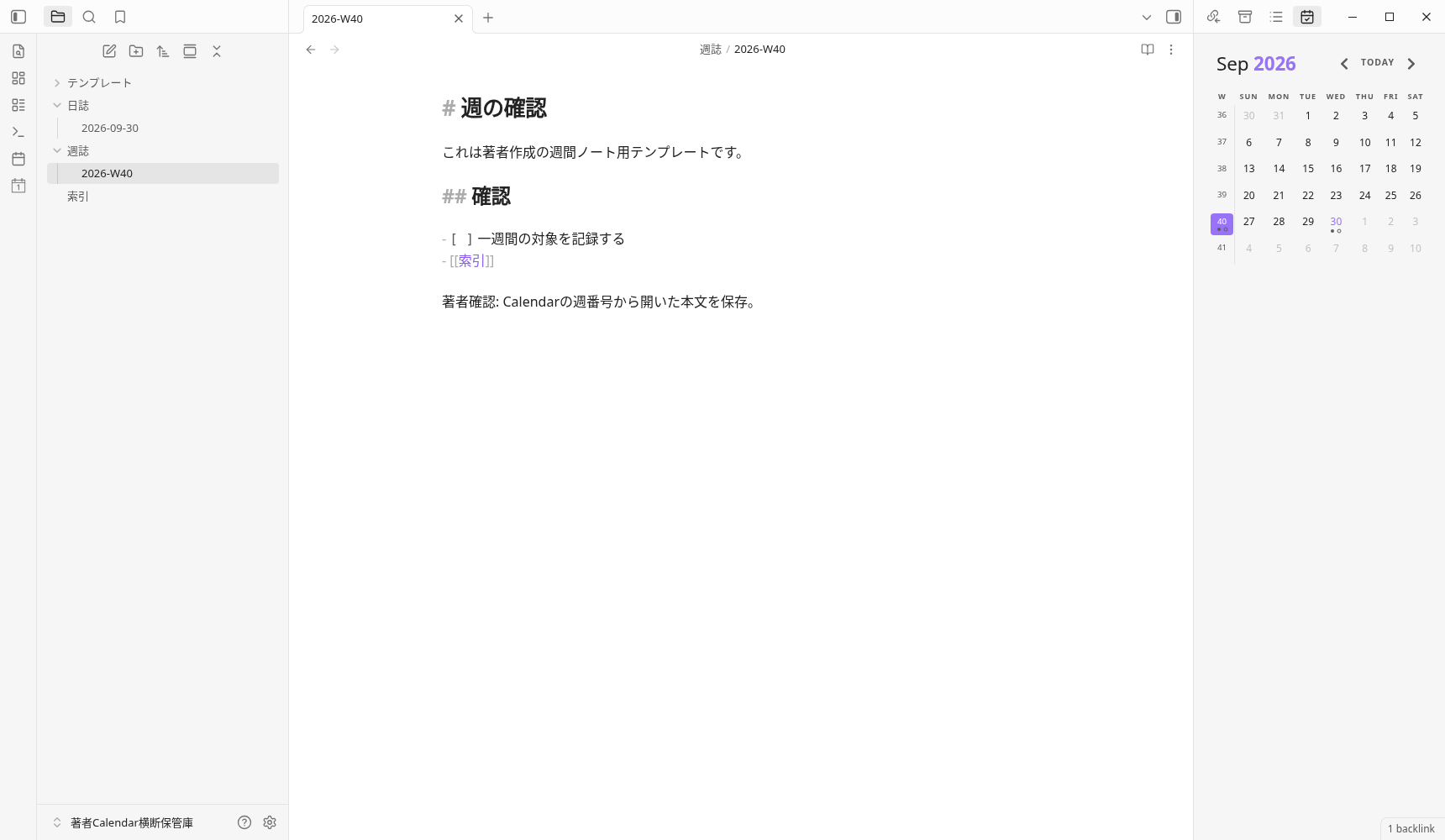
Saved weekly-note content and creation confirmation
# 週の確認

これは著者作成の週間ノート用テンプレートです。

## 確認

- [ ] 一週間の対象を記録する
- [[索引]]

著者確認: Calendarの週番号から開いた本文を保存。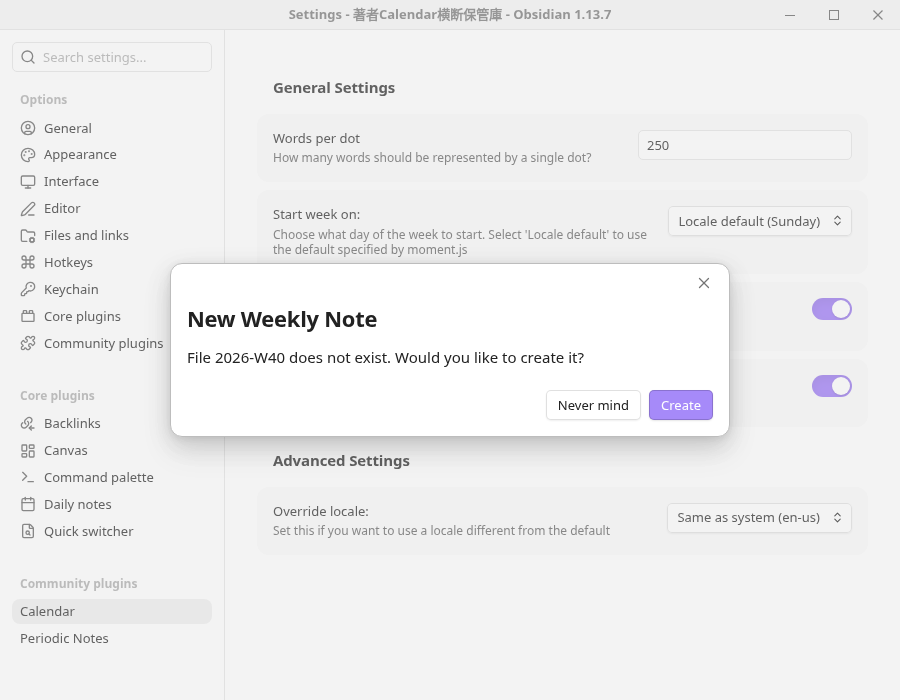
Previous-month navigation and return to the current month
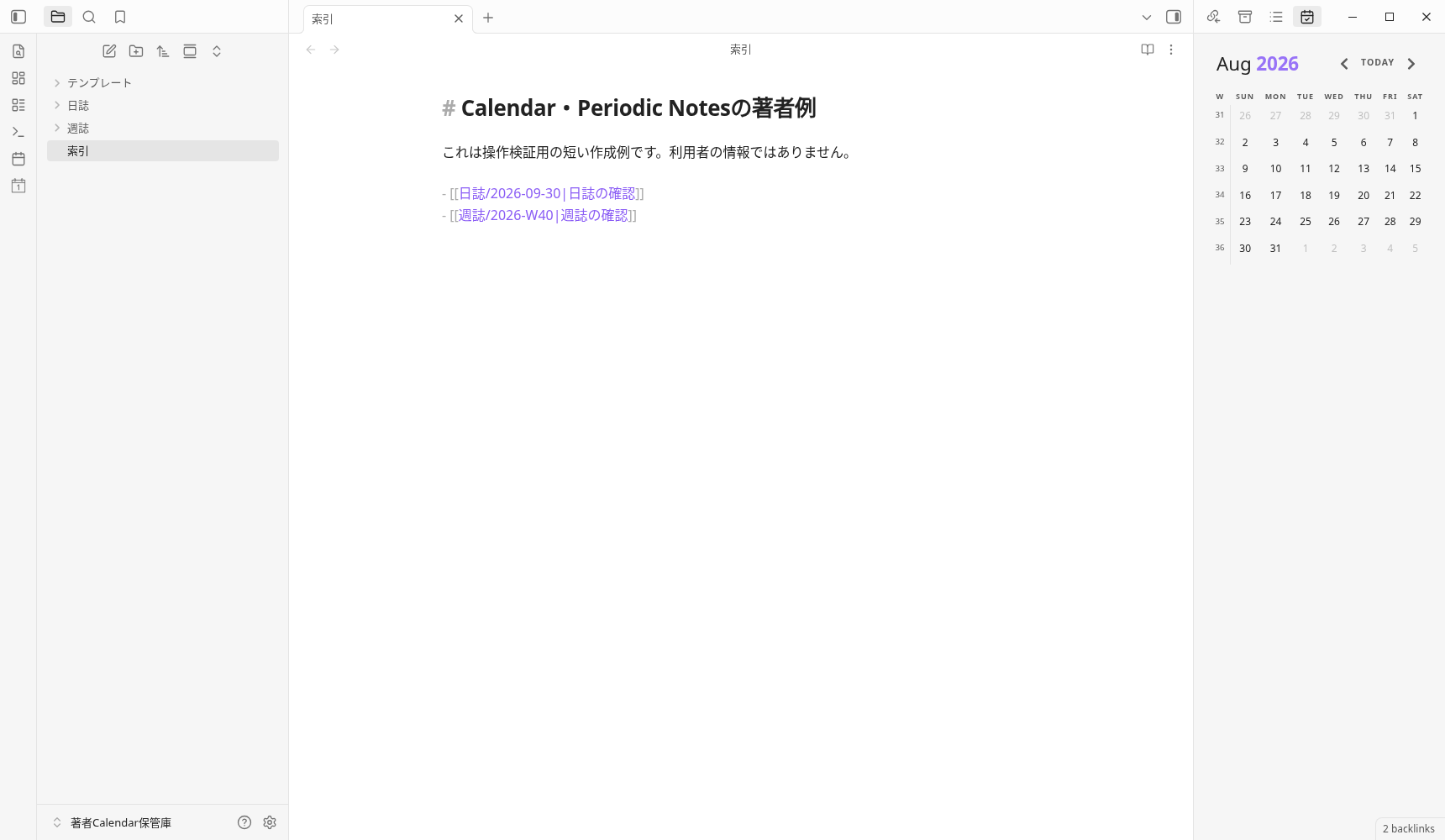
In a separate fixed trial, we selected Previous Month once in Calendar to move from Sep 2026 to Aug 2026, then selected Next Month once to return to Sep 2026. We did not test every month or year boundary.
Download practice inputs and saved examples
The 3 input files—the index and templates—are separate from the 2 examples saved through the GUI. Plugin files and settings JSON are not included. The inputs are intended for your practice Vault to avoid overwriting existing notes. Importing them into a reader’s Vault has not been tested.
Troubleshooting and FAQ
Do I need both Calendar and Periodic Notes?
What if week numbers are not visible?
What if clicking a date does not open the note?
Should the weekly format use YYYY or gggg?
Does this example use template variables or Templater?
Does this also work with iPhone, SimpleMemo, and synchronization?
Verified scope and official sources
- Official Obsidian 1.13.7 for Linux, Installer 1.13.7, and the English UI. Actual version displays for Calendar 1.5.10 and Periodic Notes 0.0.17.
- Actual GUI settings in an author-created Vault; one daily note and one weekly note, covering creation confirmation, content, saving, and reopening in the same app. Month navigation was checked in a separate fixed trial.
- Official plugin release assets were placed manually. Helper code prepared the initial environment, read state and saved files, and copied originals. API calls did not replace creating, editing, saving, or reopening notes.
- The published PNG and Markdown files retain their original bytes. iOS, other operating systems, SimpleMemo, Sync, every date/week/month/time/time zone, and effects on productivity or traffic were not tested.
We retained the original failed attempts: startup stopping during preparation, mismatched beta-version screens and saved settings, clicking a hidden tab, and missing confirmation in another window. This article’s creation and saving examples come from a separate fixed trial. Ctrl+O did not produce an observable Quick switcher screen; reopening was first confirmed by an actual click in the file list for the same destination. The details and original-file mapping are documented in the test record.
Actual General version screen
- Calendar 1.5.10: official README at the pinned commit
- Calendar settings source at the pinned revision
- Periodic Notes 0.0.17: official README at the pinned commit
- Periodic Notes settings UI source at the pinned revision
We checked the original files, settings, and actual-operation records separately. We did not verify a reproducible build matching the official release files to the source.
Next, choose how to add notes to your daily log
Once you can open notes by date and week number, choose where to capture short notes during the day. The main guide covers appending from iPhone to a Obsidian daily note, the built-in daily-note feature, and date formats.