From your AirPods, straight to Obsidian.
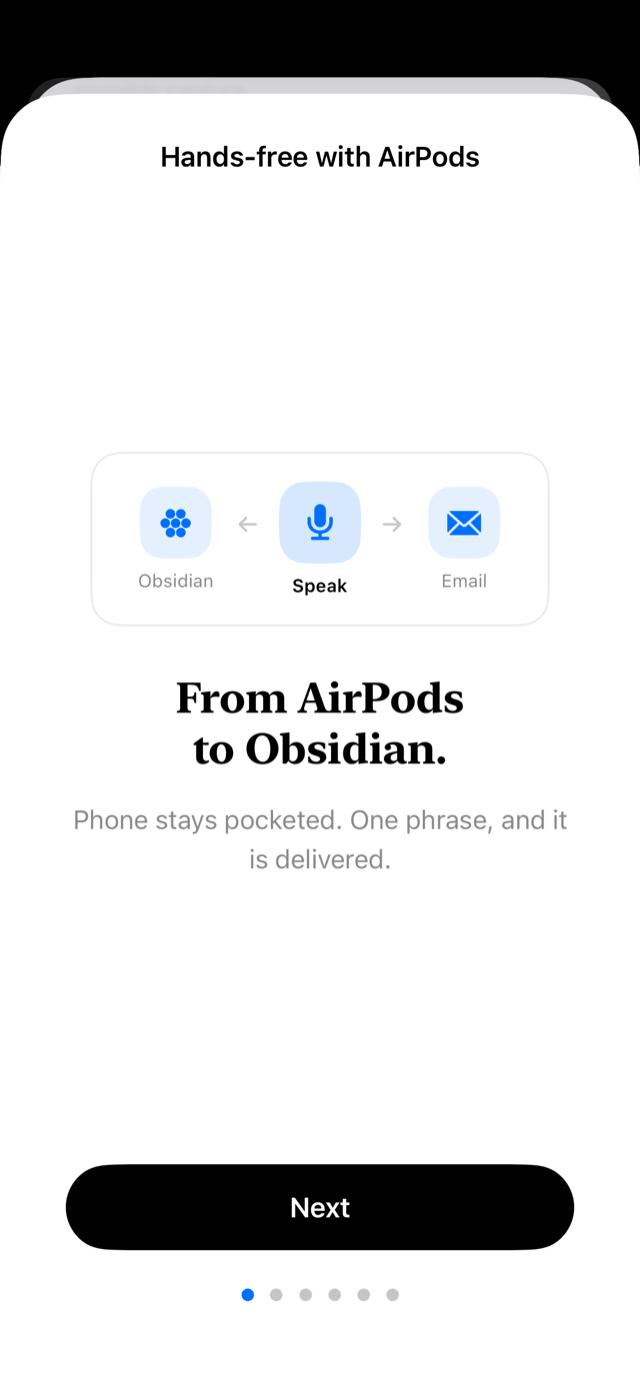
Say "Hey Siri, send a memo with Simple Memo" into your AirPods. What you say lands in your inbox and Obsidian. Your iPhone stays in your pocket — never taken out, never unlocked, app never opened. The whole exchange happens by voice, screen dark. Capture thoughts while walking, cooking, anywhere.

 On desktop? Scan with your phone
Read the English video transcript
The Japanese guide introduces hands-free capture from AirPods to your configured email and Obsidian destinations.
- Activate Siri with your AirPods or “Hey Siri.” The video shows the Japanese phrase “シンプルメモで残す”; use the English setup instructions below when Siri is set to English.
- Answer Siri’s note prompt. Your spoken words become the note text.
- The guide shows the same destinations as sending from the app. Obsidian requires its integration to be configured.
- Before starting, check email verification, Obsidian setup if used, and the SimpleMemo Siri shortcut.
Say "send a memo with Simple Memo" into your AirPods. Siri speaks back "What do you want to note down?" — just say it. You never touch your phone: the app stays closed and your memo is sent in the background to your inbox and your Obsidian note. Offline? It queues on the device and sends automatically when you're back.
Two turns. That's the whole flow
Siri can't take the memo text inside the trigger phrase itself — instead, Siri asks you for it. Two turns and you're done. Here's the exact flow, verified on device.
- 🎧 You"Hey Siri, send a memo with Simple Memo"
- Siri"What do you want to note down?"
- 💬 YouSpeak your memo
- Siri"Memo sent."
* With your iPhone locked and AirPods in, every Siri response is spoken aloud. If the screen is on and you talk to the phone itself, Siri may show the prompt on screen instead — that's Siri's behavior, not the app's.
See it on a real device
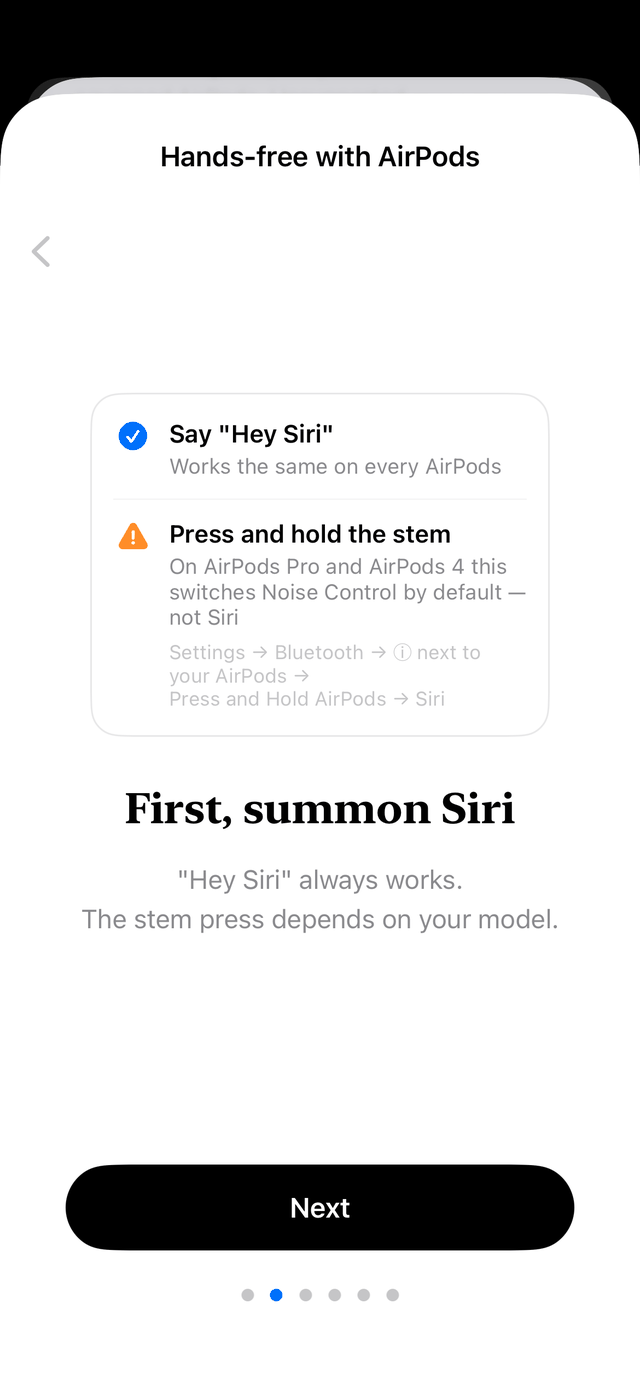
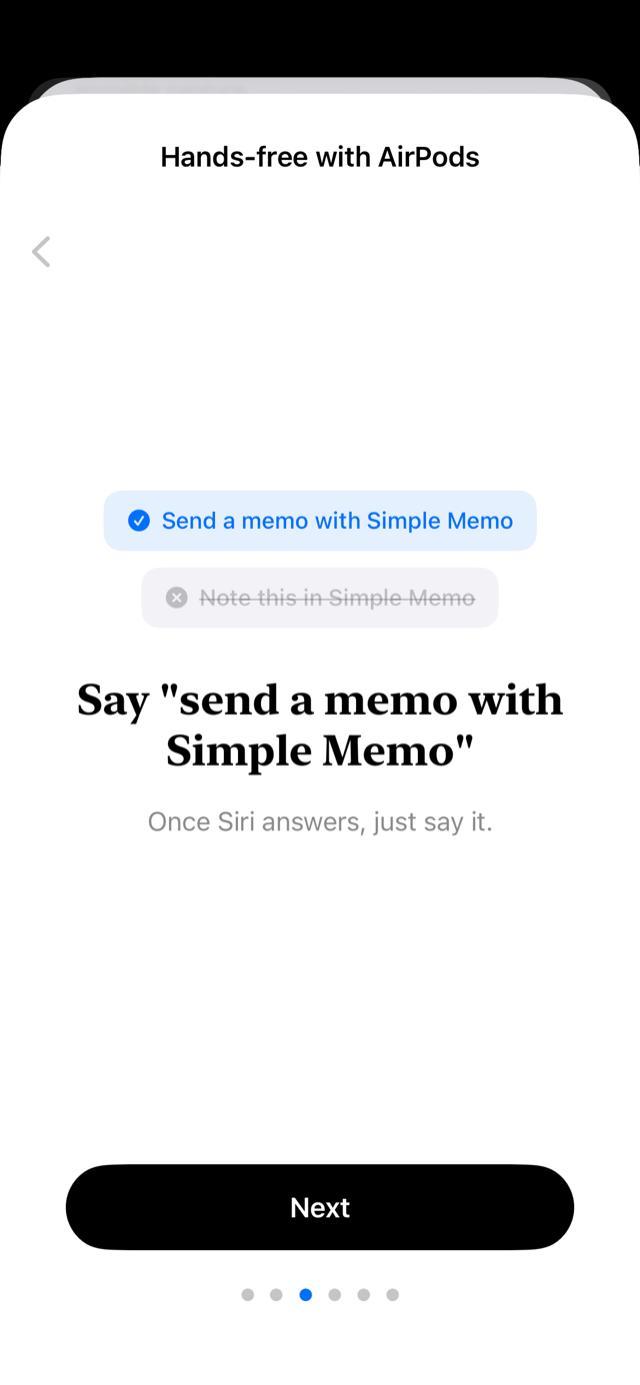
The in-app "Hands-free with AirPods" guide, all six screens: how to summon Siri, the magic phrase, the two-turn dialog, where memos land, and the pre-flight checklist. Scroll sideways.


What "never touching your phone" unlocks
Phrases that work (verified on device)
The trick is choosing a phrase that doesn't collide with built-in iPhone features. Here's what our on-device testing found. When in doubt, use "send a memo with."
| Phrase | Result |
|---|---|
| ◎ "Send a memo with Simple Memo" | Recommended. Goes straight to "What do you want to note down?" |
| △ "Send to Simple Memo" | May show a choice against Messages; pick Simple Memo once and Siri learns. |
| × "Note in Simple Memo" | Often interpreted as the built-in Notes app. |
| × "Simple Memo" (name only) | Just opens the app (fine when that's what you want). |
Setup in 3 steps
- iPhone (iOS 16.4+; one-tap voice memo from Control Center needs iOS 18+)
- Simple Memo's initial setup done (recipient email verified)
- AirPods for fully hands-free use (works via the phone's Siri too)
- Finish the app's initial setup
Verify your recipient email and make sure a normal send works. If Obsidian integration is on, Siri memos are appended to your note too. - Check the Siri toggle in the Shortcuts app
Open the Shortcuts app and make sure Siri is enabled for Simple Memo. If it's off, no phrase will work — this is the #1 thing to check when Siri doesn't respond. - Say "Hey Siri, send a memo with Simple Memo"
When Siri asks "What do you want to note down?", just speak. Locked phone + AirPods = fully spoken responses.
A new High-Quality Recording option records in-app voice input through AirPods microphones (H2 models). It adds roughly 0.7s before recognition starts, so it's off by default — speed first. Toggle it under Settings → Advanced. Note: Siri sends always hear you through AirPods regardless of this setting.
When Siri doesn't respond
On AirPods Pro (1st and 2nd generation) and AirPods 4 with Active Noise Cancellation, pressing and holding the stem switches Noise Control by default. You hear a sound either way, but Siri never starts.
To change it: Settings → Bluetooth → ⓘ next to your AirPods → Press and Hold AirPods → Siri. Each earbud has its own setting, so set both.
If you'd rather leave it alone, "Hey Siri" works the same on every model.
- Try "Hey Siri" first
In Settings → Siri, check that "Listen for Hey Siri" is on and allowed while locked. It works regardless of the stem setting, so it isolates the problem fastest. - Check the Siri toggle for Simple Memo in the Shortcuts app
If it's off, no phrase is recognized. Right after install, registration can take a few minutes — launch the app once, then try again. - Check that Siri's language matches your phrase
Settings → Siri → Language. A Japanese phrase will not reach an English Siri. - Use the phrase "Send a memo with Simple Memo"
Phrases like "note in…" get captured by the built-in Notes app. - Make sure your recipient email is verified
Siri can answer and still have nowhere to deliver. Open the app and finish the initial setup.
Great for these moments
FAQ
Pressing and holding the AirPods stem doesn't start Siri
On AirPods Pro (1st and 2nd generation) and AirPods 4 with Active Noise Cancellation, press-and-hold switches Noise Control by default — it does not start Siri. It makes a sound either way, which is why the failure is easy to miss. Change it in Settings → Bluetooth → ⓘ next to your AirPods → Press and Hold AirPods → Siri (each earbud has its own setting). If you'd rather not change it, "Hey Siri, send a memo with Simple Memo" works the same on every model.
Siri doesn't respond / says it can't find an app for that
Open the Shortcuts app and make sure Siri is enabled for Simple Memo — if it's off, no phrase is recognized. Then say "Hey Siri, send a memo with Simple Memo." Right after install, registration can take a few minutes: launch the app once and try again shortly.
"Note in Simple Memo" did something else
Phrases like "note in…" are often captured by the built-in Notes app. The reliable phrase, verified on device, is "Send a memo with Simple Memo." "Send to Simple Memo" may offer a choice against Messages — pick Simple Memo once and Siri learns. Saying just the app name only opens the app.
How does it send without opening the app?
Through Apple's App Intents (App Shortcuts): Siri calls the app's send pipeline directly in the background. No screen appears — your words join the exact same email delivery and Obsidian integration as in-app sends. Initial setup (verifying your recipient email) must be done first.
What happens offline?
The memo is encrypted into the send queue (Outbox) and sent automatically when you reconnect — and Siri tells you: "You're offline, so I'll send it once you're back online."
Is it fully hands-free with AirPods?
Yes — verified on device. With the iPhone locked in your pocket: "Hey Siri, send a memo with Simple Memo" → Siri speaks "What do you want to note down?" → you speak → Siri confirms out loud. Zero touches, zero glances. If the screen is on and you address the phone itself, Siri may show the prompt visually instead — that's Siri's context behavior.
What is High-Quality Recording?
An option to record in-app voice input through AirPods microphones (iOS 26+, H2 models). Better audio and freedom of distance, but recognition starts about 0.7s later — so it's off by default, favoring speed. Toggle under Settings → Advanced. Siri sends use your AirPods regardless of this setting.
Does Siri sending work on the free plan?
Yes. Siri sends count the same as in-app sends and share the free plan's daily quota. If you've used it up, Siri says so out loud.

 On desktop? Scan with your phone
Related Pages
References
- Apple — App Intents — Official docs for exposing app features to Siri
- Apple — App Shortcuts — Official docs for zero-setup Siri phrases
- Simple Memo - for Obsidian — App Store — App Store download page