Use QuickAdd
Setup and examples for appending to an Inbox
This page was machine-translated from Japanese. Read the Japanese original
I want to leave another note in the middle of writing a note. With QuickAdd's Capture, you can separate the text you want to enter and the postscript. Here, we will pin the storage destination to Inbox and introduce the 2 entries until they remain at the end of the same note on the actual screen and the original text.
Introduction to Obsidian plug-in → QuickAdd
How to add notes to a fixed note with QuickAdd?
Capture and specify the storage destination for Capture to, the format for 1 times for the Capture format, and the Bottom of file for the Write position. This example was added to the existing Inbox.md in the form of - {{VALUE}}, and entered another note while working with it open.
If it is enough to write in an ordinary notebook, you don't need a plug-in. If you want to match the postscript and line format every time, please try this setting.
Prepare QuickAdd and select Capture
The procedure for introducing the official README is to search for QuickAdd in Obsidian's Settings → Community plugins, install and enable it. In this verification, the distribution file of the official 2.29.0 was placed in a separate repository and the plug-in was enabled. This is not a record of trying all the operations to be installed from the normal list.
If you are concerned about the startup time after enabling it, please also refer to the results and the cutting procedure comparing 0, Templater, Templater+QuickAdd for each 3 in the same Linux repository.
The minimum version of the Obsidian specified by the official manifest of QuickAdd 2.29.0 is 1.13.0. Check the version you are using first. At first, if you make Inbox.md 1 in the same storage without combining automatic date designation and scripts, it will be easier to check the storage destination.
| Option | Role in official materials | Handling this time |
|---|---|---|
| Capture | Add text to the note | Confirm the ending of the existing Inbox by actual operation |
| Template | Create a new note from a template | Execution has not been verified |
| Macro | Comberging multiple processes | Execution has not been verified |
| Multi | Summarize the options in the menu | Execution has not been verified |
Templater or additional macros are not required to add to the fixed Inbox. When considering where to record for each date, you can check where to save and how to handle the date in another daily note guide. This page has not tried to transfer to the date notebook.
Set the storage location, format, and additional location of Capture
- Settings → QuickAdd → New choice → Capture and name the option to
Inbox capture. - Capture to active file OFF and enter
Inbox.mdto Capture to. This is a relative pass from the open vault. - Select
Bottom of fileunder Write position. This setting adds text after the existing body. - Capture format ON and specify
- {{VALUE}}. The text written on the input screen will be included in the{{VALUE}}. - Check the input and display settings according to the table below, and close the setting screen with Done.
| Setting item | This time's value | The reason in this example |
|---|---|---|
| Capture to active file | OFF | Avoid writing to the current work note |
| Capture to | Inbox.md | Select a fixed file in the storage |
| Create file if it doesn’t exist | OFF | Use the Inbox you made earlier. Don't try to create a new one |
| Write position | Bottom of file | Keep the existing line and add it to the end |
| Capture format | ON:- {{VALUE}} | 1 inputs are bulleted |
| Task | OFF | This example is a note without a checkbox |
| Open | OFF | Displays working notes even after input |
| Use editor selection as default value | Ignore selection | Write a sentence on the input screen without using the selected text |
| Link to captured file / Copy link to clipboard | Disabled / OFF | Do not add links to separate notes or clipboards |
This Capture uses only short formats and does not use macros, AI functions, scripts, or post-processing by Templater. Before adding an advanced example, let's first check the storage destination and input of this 1.
QuickAdd's AI assistant has not been verified this time, and when considering another AI plug-in, please refer to the table that reads the destination, context, index, and key storage of the main AI plug-in with a fixed source, and separate the explanation of the document and the unconfirmed part of the actual communication.
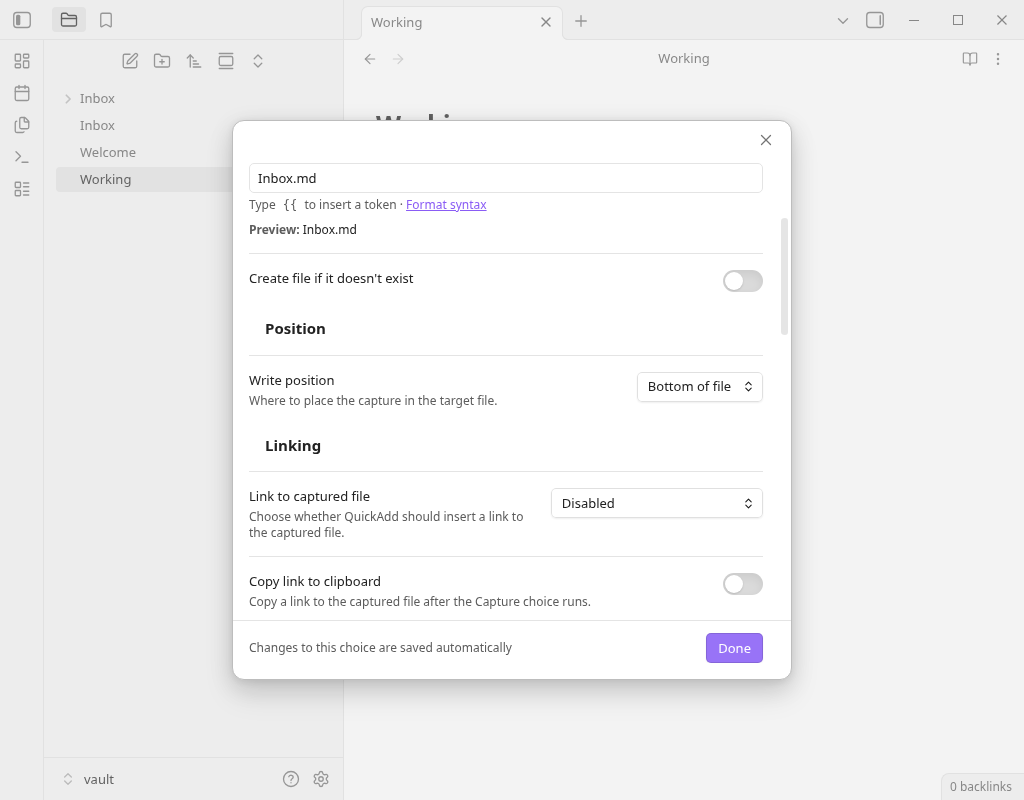
Inbox.md and the additional location to Bottom of file. If you select an image, you can read it in full size.QuickAdd: Enter from Run and check the original text of the Inbox
Open another work note and select QuickAdd: Run in the command palette. In this Linux environment, Ctrl+P was used. When you select Inbox capture from the list, the Text to capture input screen opens, and Inbox capture → Inbox.md and the storage destination are displayed.
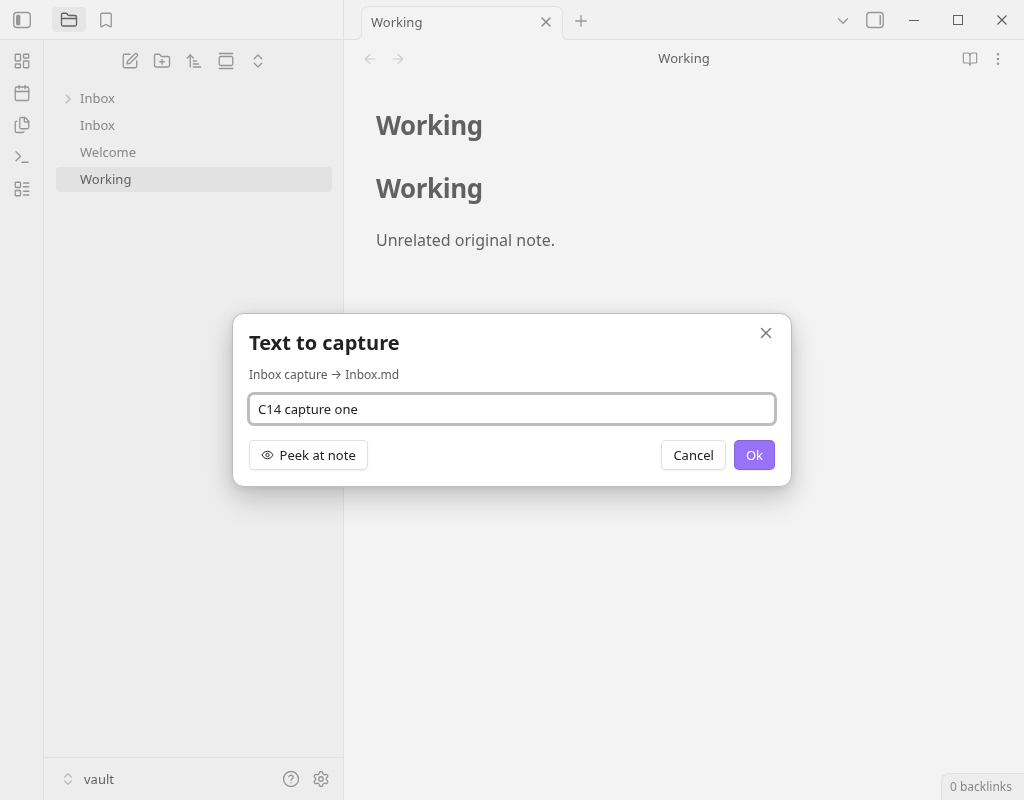
Working.md in operation open, the 1 fictitious memo was entered into the actual input screen.C14 capture oneand press Ok.- Select QuickAdd: Run → Inbox capture again, enter
C14 capture two, and press Ok. - This time,
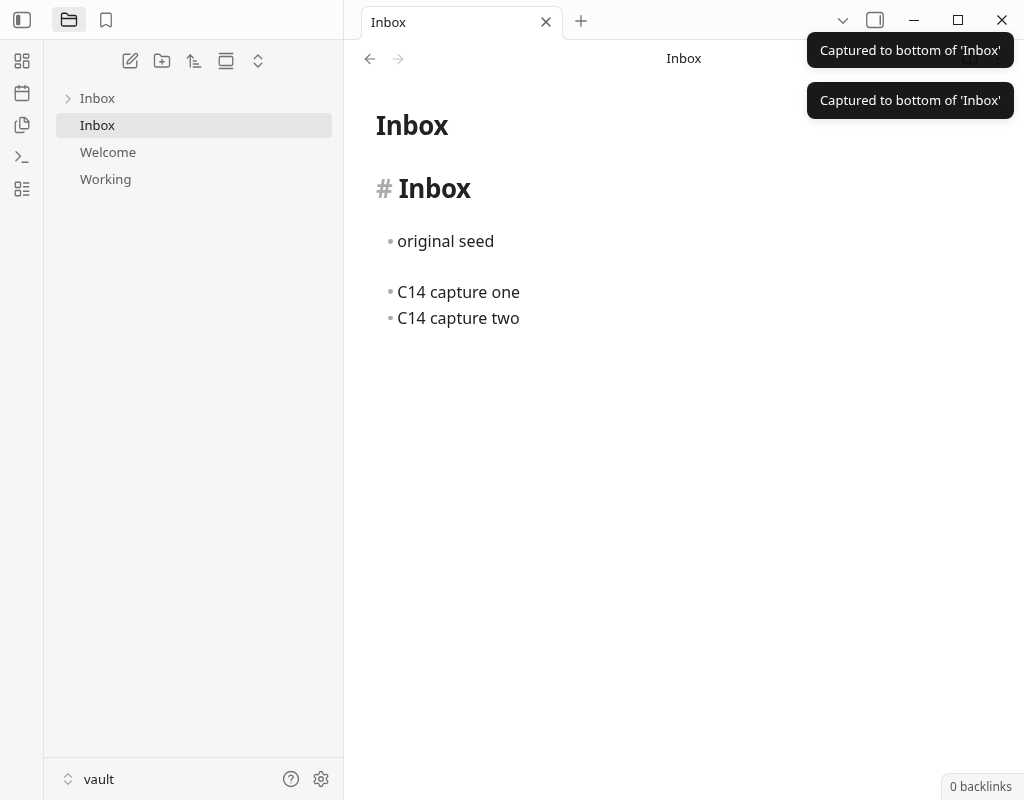
Working.mdis still displayed for 2 times, and the saved content has not changed. OpenInbox.mdlater to read the results.
2 This is the original text of Markdown saved after input. Each line in English is a verification note that does not contain personal information, and original seed is a line that existed before entering.
# Inbox

- original seed

- C14 capture one
- C14 capture two
To compare the saved files, download the Inbox before input, after input 1, and after input 2. Each contains the original text from the test; none automatically configures an import into your vault.
This time, when I wrote C14 cancelled input on the same input screen and pressed Cancel, the contents of the Inbox saved did not change, and the text was not added. This is the result of the 1 confirmation in this setting.
If you use it often, you can register this Capture with an individual command with the Add to command palette in the official document or the optional lightning icon. After that, it is the flow of assigning with Settings → Hotkeys. This confirmation is QuickAdd: via Run, and I have not tried to assign individual hotkeys.
When you can't enter a different note, enter the head, or enter
The save destination is different
Check the current open storage and the Capture to pass. If you enter the working notebook, see if the Capture to active file is turned on.
It became a selection screen
In the official description, if the storage destination is blank or /, it will be a note selection screen. In this example, not only the folder name but also the file name Inbox.md is specified.
Added to the top
Check if the Write position is Bottom of file, not Top of file. The note you want to leave at the end and the note you want to insert under the heading are different settings.
The selected sentence is included
Check the settings of Use editor selection as default value. In this example, Ignore selection was used and the text was passed from the actual input screen.
Inbox not found
This procedure is turned off Create file if it doesn’t exist. When I specified the non-existent MissingInbox.md and executed it, it stopped before the input screen with the display of Target file missing in this environment. I couldn't create a file either. Return the storage destination to the existing Inbox.md and use it. I haven't tried the success of turning on automatic creation this time.
I can't find an individual command
Check if the plug-in is valid, and first select from QuickAdd: Run. The individual command is another operation to activate and register Add to command palette.
If you are using settings for another storage or date note, you may not only replace the Inbox.md in this example. If you change the storage destination, check the actual file with the fictitious 1 line before using it.
QuickAdd and SimpleMemo, from which entrance to leave?
First, choose the entrance from the scene where you usually leave notes. If you want to add it to the fixed Inbox in the middle of writing a note, the QuickAdd Capture I tried this time may be enough. If you want to use the input in iPhone as a separate entrance, you can check the SimpleMemo's linkage and storage destination settings.
In the middle of writing a note
- Working with Obsidian
- Enter into QuickAdd's Capture
- Add to
Inbox.md in this storage
When I came up with iPhone
- Make SimpleMemo the entrance
- Set the link and save destination
- Confirm the set recipient with
mail/storage
There is no need to separate QuickAdd from the outside of Obsidian. Officially, there is also a way to call from obsidian://quickadd URI, Apple Shortcuts and launchers, and Obsidian CLI on the desktop. The diagram in this article shows the input path we tried this time and the entrance to check the settings. Please check the operation of URI and CLI in the official external startup guide.
If you want to compare the entrance, including the articles you are viewing and the purpose of sending selected text, go to Comparison with the official shared sheet, shortcut, and QuickAdd. It may be sufficient without adding a specific app. This article does not measure the superiority or inferiority of the speed and comfort of the entrances.
Frequently Asked Questions
What is the difference between QuickAdd's Capture and Template?
How to add it to the Inbox instead of the open note?
Can QuickAdd be called from outside the Obsidian?
Can iPhone be used in the same way as this setting?
Verification environment and confirmed range
- Actual operation:September 30, 2026 20:06~20:10 JST (11:06~11:10 UTC), Linux version Obsidian 1.13.7, QuickAdd 2.29.0, separate storage room with only fictitious notes. Open QuickAdd: Run from Ctrl+P and operate the selection and input screen.
- Save result: To the existing Inbox.md, the 2 lines entered from the actual prompt have been added in order. Working.md remains as a display note, and I also confirmed that the saved content has not changed. I also checked the non-change when Cancel and the stop when the save destination does not exist separately.
- Settings: Fixed path, Bottom of file, Open OFF, Ignore selection, Create file OFF. This result does not demonstrate the creation of new files, date variables, headings, and writing to properties or Canvas.
- Official sources: We checked the 2.29.0 distribution files and manifest, the README for the same version, and the official Capture documentation. The official release was published on 2026-9-29 JST.
- Unverified: Actual operation on iPhone, Android, Mac, external activation of URI/CLI, closed Obsidian, synchronization, SimpleMemo linkage, speed, audio, Siri, Apple Watch, long-term use and mass input.
This verification is a Linux desktop operation, not a confirmation with the iOS Simulator or iPhone actual machine. Only the steps shown by the posted images and saved Markdown are introduced as a result of actual operation.
Verification record, original and confirmation range
Official materials
- QuickAdd 2.29.0 README — Introduction, 4 type options, how to execute
- Capture official description of the same version — Save location, format, location, selected text, Open
- Explanation of external startup of the same version — URI, Shortcuts, launcher, CLI
- Official manifest — Plug-in version and minimum Obsidian version
- QuickAdd's current Capture Guide — The configuration name and behavior may change in future versions
This site is operated by YURIKA, K.K. and introduces the independent app "SimpleMemo". This is not an article by Obsidian official or QuickAdd developers.