Build a second brain in Obsidian
Start PARA with 4 folders and links
This page was machine-translated from Japanese. Read the Japanese original
Connect the work in progress with the materials to be used later. We will introduce the actual screen from creation to moving to Archive, taking a presentation note as an example.
Read the textTable of contents of this page
To the steps of practice
The number of notes has increased, but I can't find the materials to use for the next task. In such a case, let's create a place to put "now" and "see later" in the Obsidian storage room.
In this article, we will prepare links to 4 folders, work notes, and related materials as an example of preparing for a presentation. The first thing to make is only a small group. There is no need to reclassify existing notes at once.
The operation example was confirmed in the verification vault of the Mac version of Obsidian 1.13.7 on September 15, 2026. The schedule and text on the screen are fictional samples. It actually manipulates folders, check items, internal links, and moving to Archive.
Second Brain, CODE, and the role of PARA
A second brain is an approach to keeping information you’ll use later outside your own head, so you can retrieve it for work and study. Tiago Forte’s CODE describes the flow of Capture (collect), Organize (sort), Distill (pull out the key points), and Express (give it shape). Forte Labs’ explanation
PARA is a method of splitting information storage into 4 types. Projects are ongoing activities with goals, Areas are areas of responsibility to continue to take care of, Resources are materials of interest, and Archives are places to place items that are not currently in use. Explanation by the original author of PARA
Here, I will try this idea in the Obsidian folder and notebook. It is not a setting that automates the entire CODE. If you want to review the idea or the entrance of the memo, please also refer to How to make a second brain.
1. Create 4 folders in the storage room
If you want to make it as a trial, preparing a practice vault will not affect the original note. If you are using it for the first time, you can proceed from How to start Obsidian.
file list and name the following. In accordance with the actual screen this time, the folder name equivalent to Archives will use the singular Archive.
| folder | What to put in this time | Judgment when you are lost |
|---|---|---|
| Projects | Preparation notes | Is there a goal that can be judged to be completed |
| Areas | Standards you want to keep when writing | Will it continue even after a specific presentation is over? |
| Resources | Checklist to read before presentation | Is it a document to refer to in the necessary situation |
| Archive | Notes that are not currently working on | I'll keep it on hand, but do you want to remove it from the ongoing list? |
For example, writing is an ongoing activity, while finishing the presentation script for month 10, day 1 has a clear endpoint. Keeping standards for the former in Areas and work on the latter in Projects makes it easier to choose which note to open next. This is only one way to organize them; use a different location if it better fits your purpose.
2. Write your goals and next work in your presentation notes
Make a notebook called Conference talk in Projects. The name is in English to make it compatible with the actual screen, but it doesn't matter if it's Japanese in my storage.
# Conference talk

Target date: 2026-10-01

- [ ] Draft outline
- [ ] Rehearse

Related area: [[Areas/Writing]]
Reference: [[Resources/Presentation checklist]]
Draft outline is the work of making a composition plan, and Rehearse is a presentation practice. When replacing it with your own example, try to write in a size that you can move your hand next, rather than a broad word like "prepare".
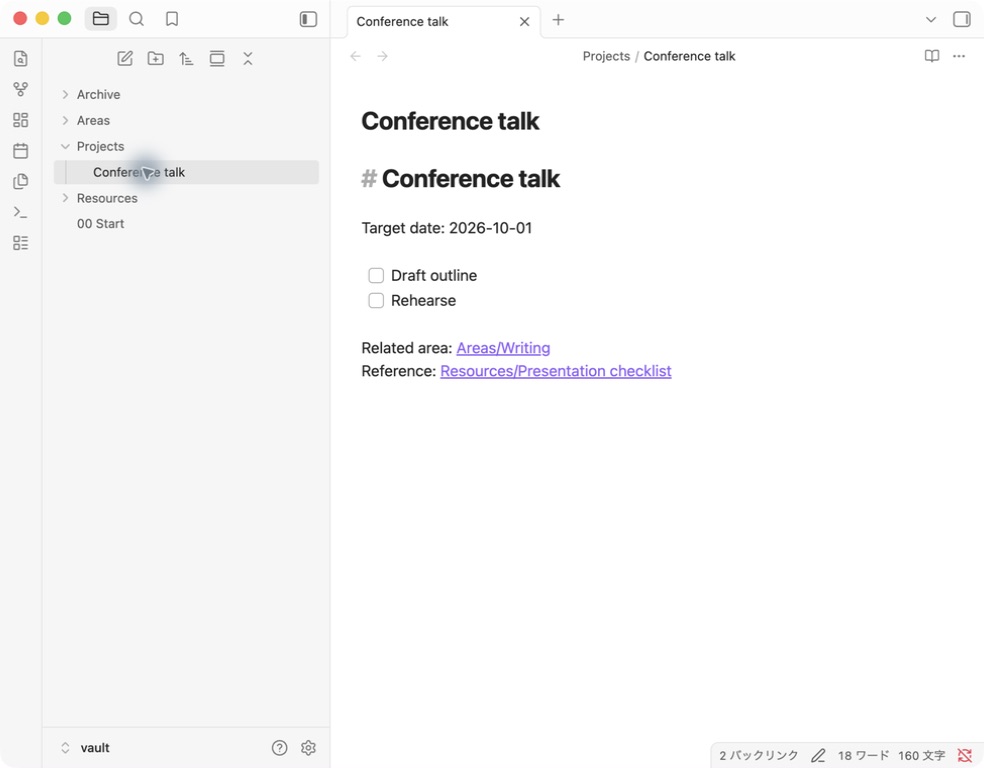
The actual screen of the verification vault. The date is the target date of the sample, not the actual announcement schedule.
You can click on the check field in the read view, etc. This time, when I checked the configuration plan column, Markdown became - [x] Draft outline, and even if I reopened the note, the condition remained. The practice column remains unchecked. Not only do you separate the folders, but you can also make the next task visible when you open the note.
3. Connect standards and materials with a link
Next, make Areas/Writing and Resources/Presentation checklist. The former includes the criteria for writing, and the latter includes the contents to be confirmed before the presentation. The following is an example of manual entry.
# Writing

Ongoing standard: keep examples reproducible and sources attributable.

Current project: [[Projects/Conference talk]]
This standard means "to be able to reproduce examples and trace the source". It is set as a standard to use even if the announcement changes.
You can move to this standard from the [[Areas/Writing]] of the presentation note. Instead of copying the body of the document every time, place a link that opens when necessary. In this verification, it was confirmed that it was moved from the presentation note to Writing and the return link was opened.
Obsidian can create an internal link in the form of [[ノート名]]. If you have more than one note with the same name, select a candidate that includes a folder and check if the intended note will open. Official description of the internal link. For a specific example of connecting related ideas with notes, see Steps to start Zettelkasten with Obsidian.
4. Take out the main points in the situation where you use it
After placing the materials, I will try to use them once in the actual work. If it is a presentation, open the checklist and briefly write "Points to be fixed with this composition plan" in the presentation notebook.
For operations and setup examples in Japanese, also see the source guide covering the update history of 3 Japanese documents and the unverified aspects of places to ask questions.
For example, the following entry is possible.
## 今回使う要点
- 冒頭で、聞き手に持ち帰ってほしい問いを一つ示す。
- 操作例には、その結果を確認できる画面を添える。

## 次の作業
- [ ] 導入の段落を3文で書く。
This is a proposal made for the text, and it is not an operation result that is reflected on the actual screen. After collecting the materials, choose the main points and use them for your manuscript. When you are aware of the Distill and Express of CODE, you can first start with a small task of "choosing one of the materials and using what you are making now".
5. Move to Archive and reopen the link
Completed work or work that has not been tackled once can be removed from the list in progress. Open the menu of the target note in Obsidian and select Archive from the move command. The operation name and display position may vary depending on the language and version. Official description of note management
In this move, it was confirmed to update the "2 link in the 2 file", so I chose to update that time. The always automatic update setting has not been changed.
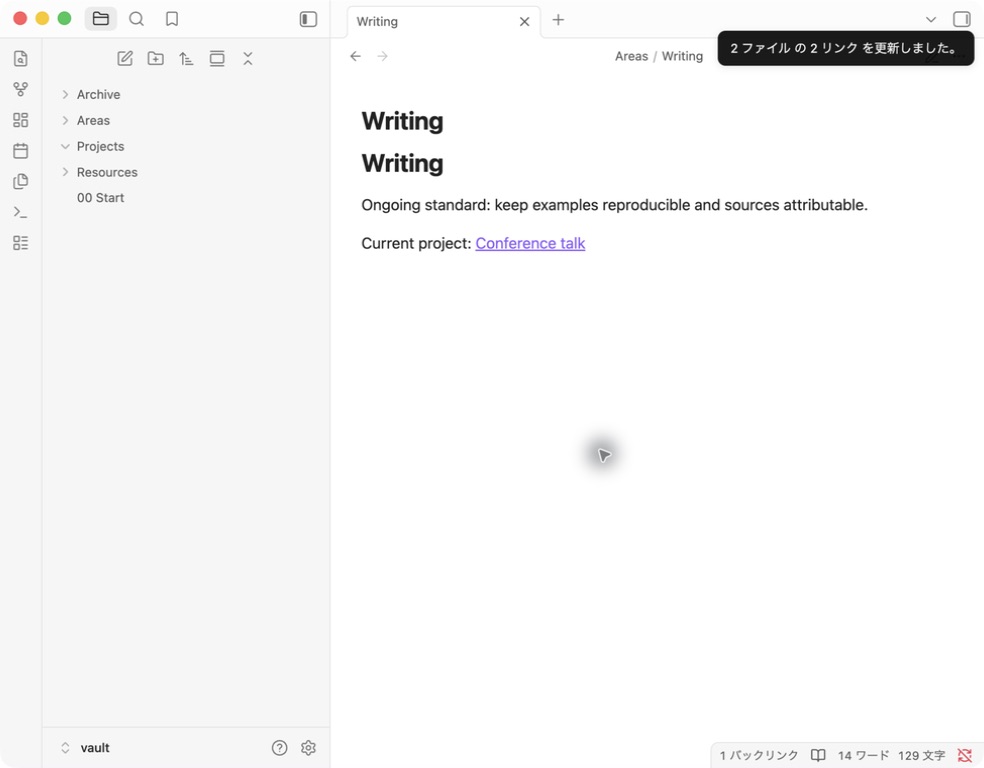
The actual screen immediately after moving. I reopened the presentation notes in the Archive from the updated link and checked the check status.
After moving, check the next 3 point.
- The presentation note is in the Archive and has moved from the original location of the Projects.
- Open the presentation note that has been moved from the Writing or document side.
- The body and check status of the note remain.
In the screen example, we only tried the movement, and the presentation was not complete. You can move even if there is a check box left, so you can separate and judge "I was able to move" and "the work is finished".
What do you look back at when you start operating?
First of all, use it for one project and open Projects when you start working. If you don't know what to do next, add one at the end of the note. If there are too many links to the material, put only what you use this time near the text.
There is also a way to review the materials that have been completed, put on hold, and use next at the time you decide, such as the weekend. This is a proposal for operation, and it is not the result of measuring the effect of a fixed review frequency.
If you want to record your day first, you can also use the manual template in journaling with Obsidian. To keep notes captured on the go separate from those you organize at your desk, see connecting your capture entry point to Obsidian.
Frequently Asked Questions
Do I need a plug-in?
The folder, check items, internal links, and moving examples in this article do not add community plug-ins. We do not handle automatic classification or synchronization with external services.
Do I need to transfer all existing notes to PARA?
This procedure starts with one practice project. If you want to transfer an existing note, please prepare a backup and check the movement of the link in a small number before proceeding.
I don't know whether to put it in Projects or Resources.
If it is a manuscript for the presentation that is going on now, it can be divided into Projects, and if it is a general material used for other presentations, it can be divided into Resources. If you link to the material from the manuscript side, you can refer to the same text without copying it to both.
If I make a graph, will the second brain be completed?
I don't know if the material can be used in the necessary situation just by displaying the link. First, proceed to the document from the work note and try to see if you can return one main point to the manuscript. From this operation confirmation, we have not judged the improvement of memory and productivity.
If you want to narrow down the range of notes to be displayed, see Examples of folder tag search and local graphs.
Reference materials and confirmation scope
- Forte Labs — Building a Second Brain
- Forte Labs — PARA
- Obsidian — Internal links
- Obsidian — Manage notes
Document confirmation date: September 15, 2026. The scope of actual operation is the verification vault of the Mac version of the Obsidian 1.13.7. The effect of long-term operation, plug-in, automatic delivery, multi-terminal synchronization, and productivity of CODE are not included in this verification.
Download the manual template
Download Markdown for PARA practice (ZIP)
When you expand the ZIP, you will see the Projects・Areas・Resources・Archive and information files. Copy the folder to the new practice vault or paste the text of each Markdown into the corresponding notebook and use it. If it has the same name as the existing notebook, do not overwrite it and try it in another repository.
The date and text are fixed samples. Even if you download it, the date will not automatically change or be imported into the vault. It is a manual template made separately from the actual screen, and the reader's import and synchronization on the terminal have not been verified.
This site is operated by YURIKA, K.K. and introduces the independent app SimpleMemo. This is not an official Obsidian article.